Explore Map
The Explore map is the heart of RU4M. It shows professionals near you as pins on an interactive map, making it easy to discover and connect with people in your area or anywhere in the world.
Prerequisites
- A completed RU4M profile
- Location services enabled on your device
Opening the Map
1. Tap the Explore tab
Tap the Explore icon in the bottom navigation bar. The map will centre on your current location and display nearby professionals as pins.
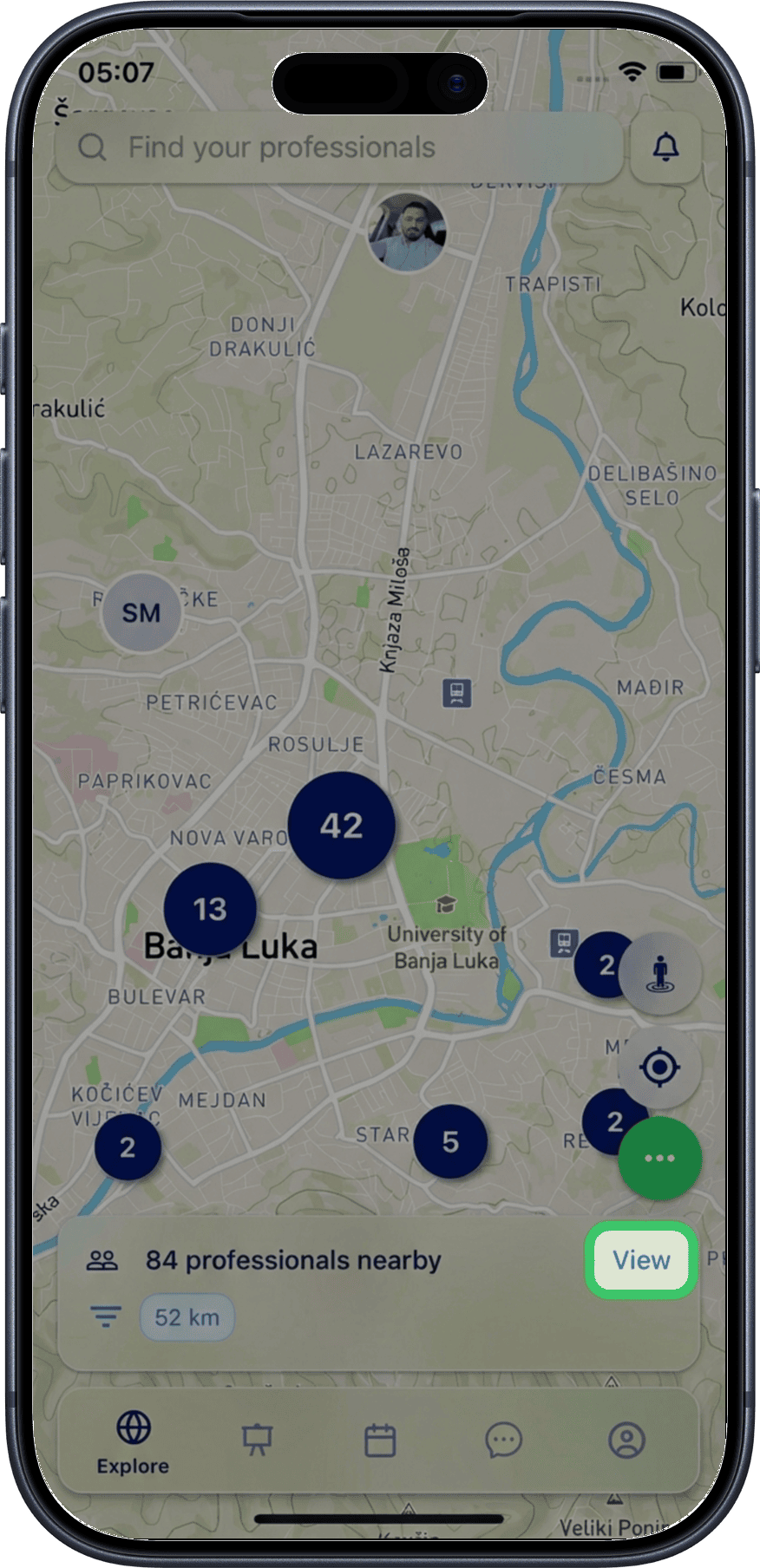
2. Allow notifications
On first launch (or if you haven't granted permission yet), the app may ask to send you notifications. Tap Allow to receive updates about nearby professionals and events.
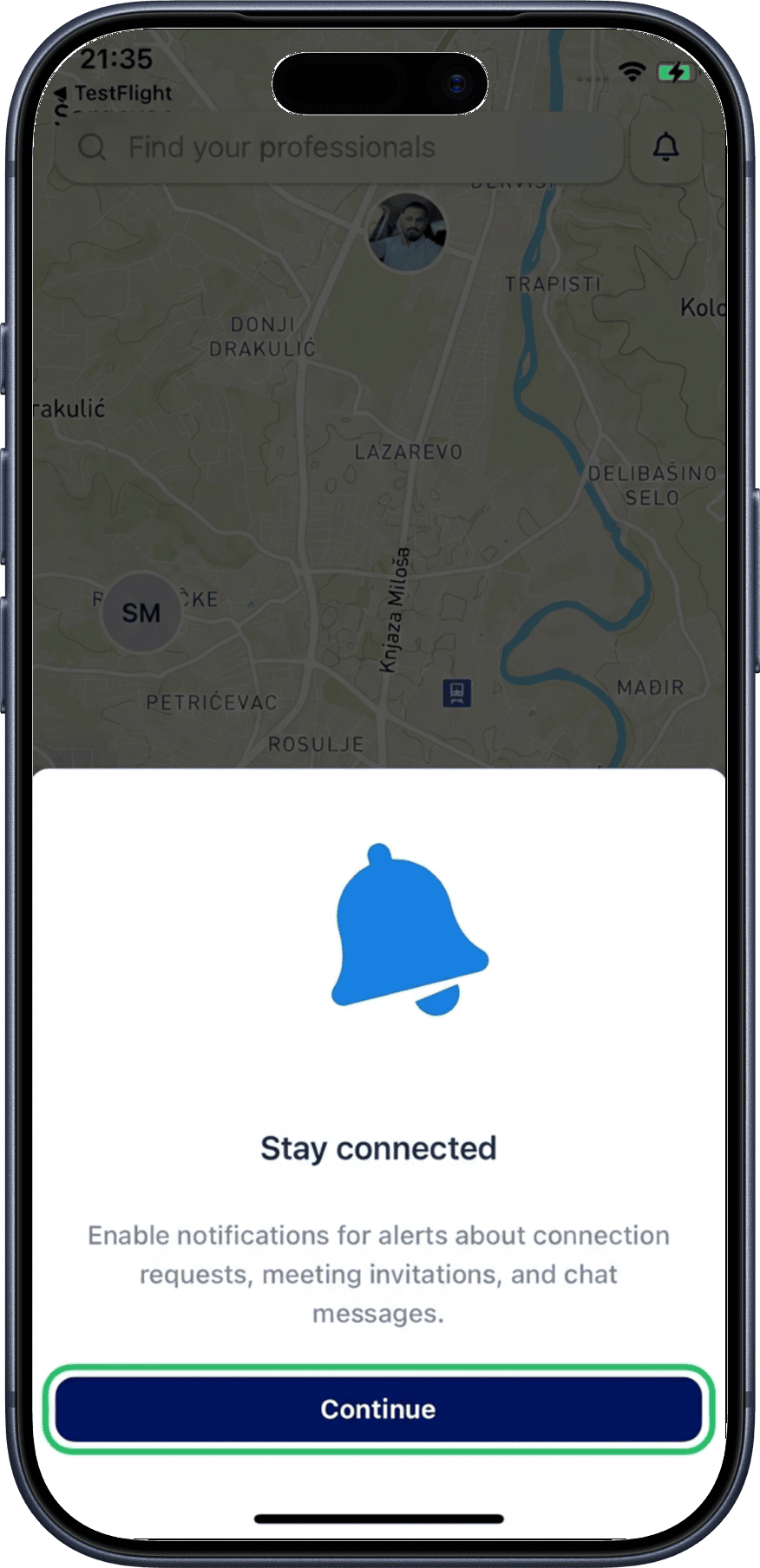
Location Required
RU4M needs your location to show professionals near you. If you deny location access, the map will still work but you'll need to use Teleport to set your position manually.
Navigating the Map
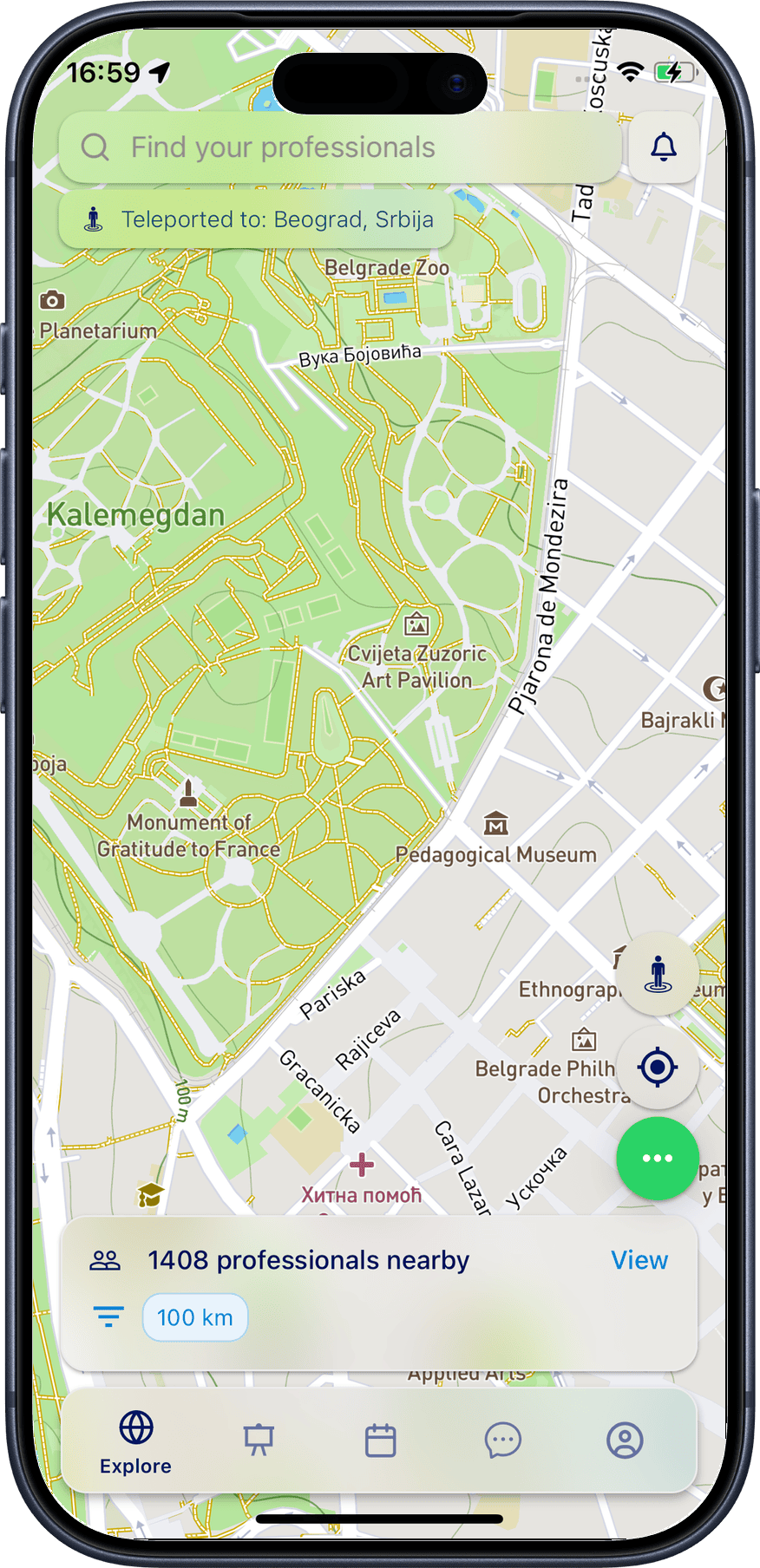
Zoom In
Use a pinch-in gesture (two fingers moving together) to zoom into a smaller area and see individual pins more clearly.
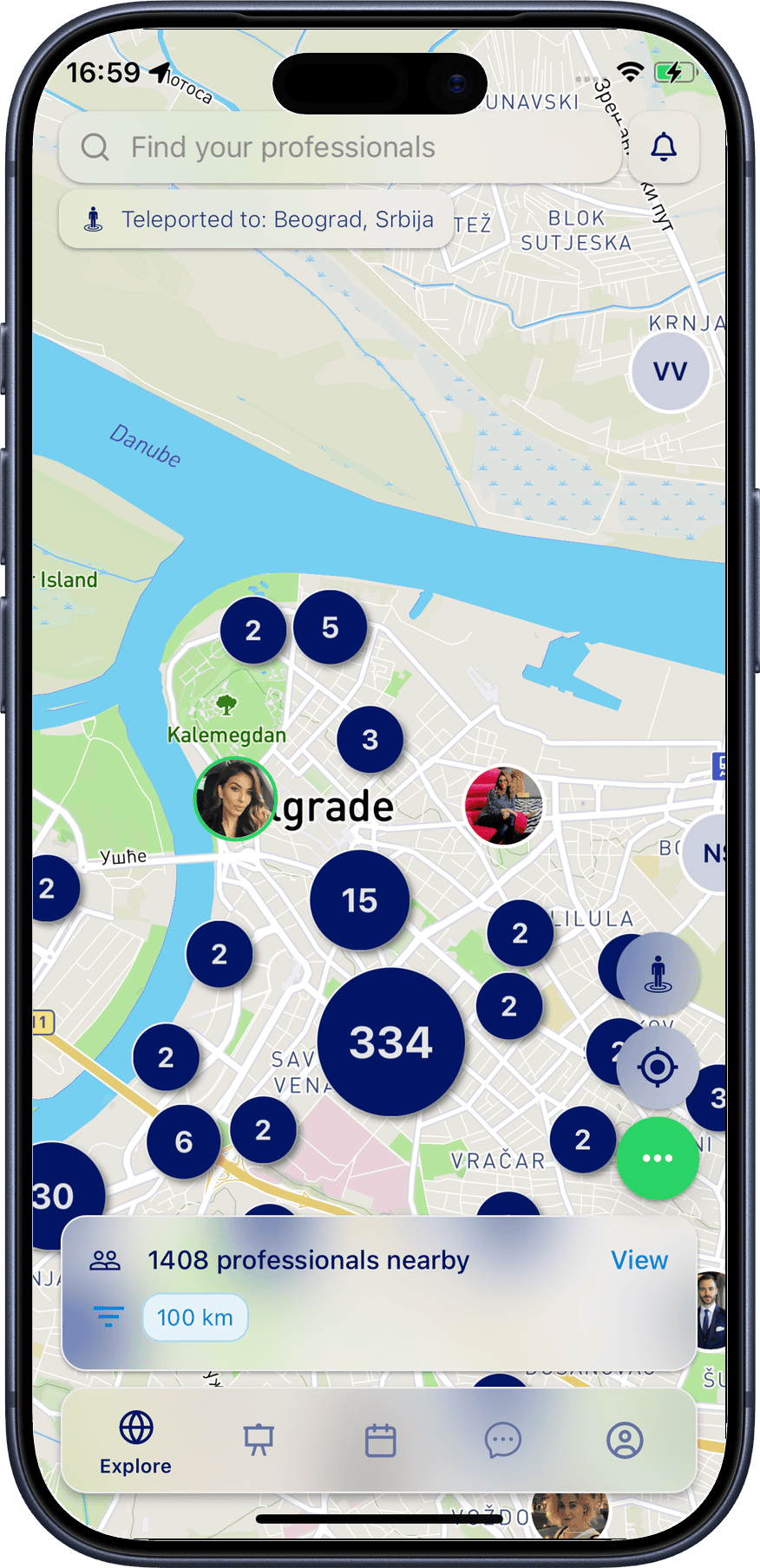
Zoom Out
Use a pinch-out gesture (two fingers moving apart) to zoom out and see a wider area. You can also scroll in any direction to explore the map manually.
Interacting with Pins
Tap a Single Pin
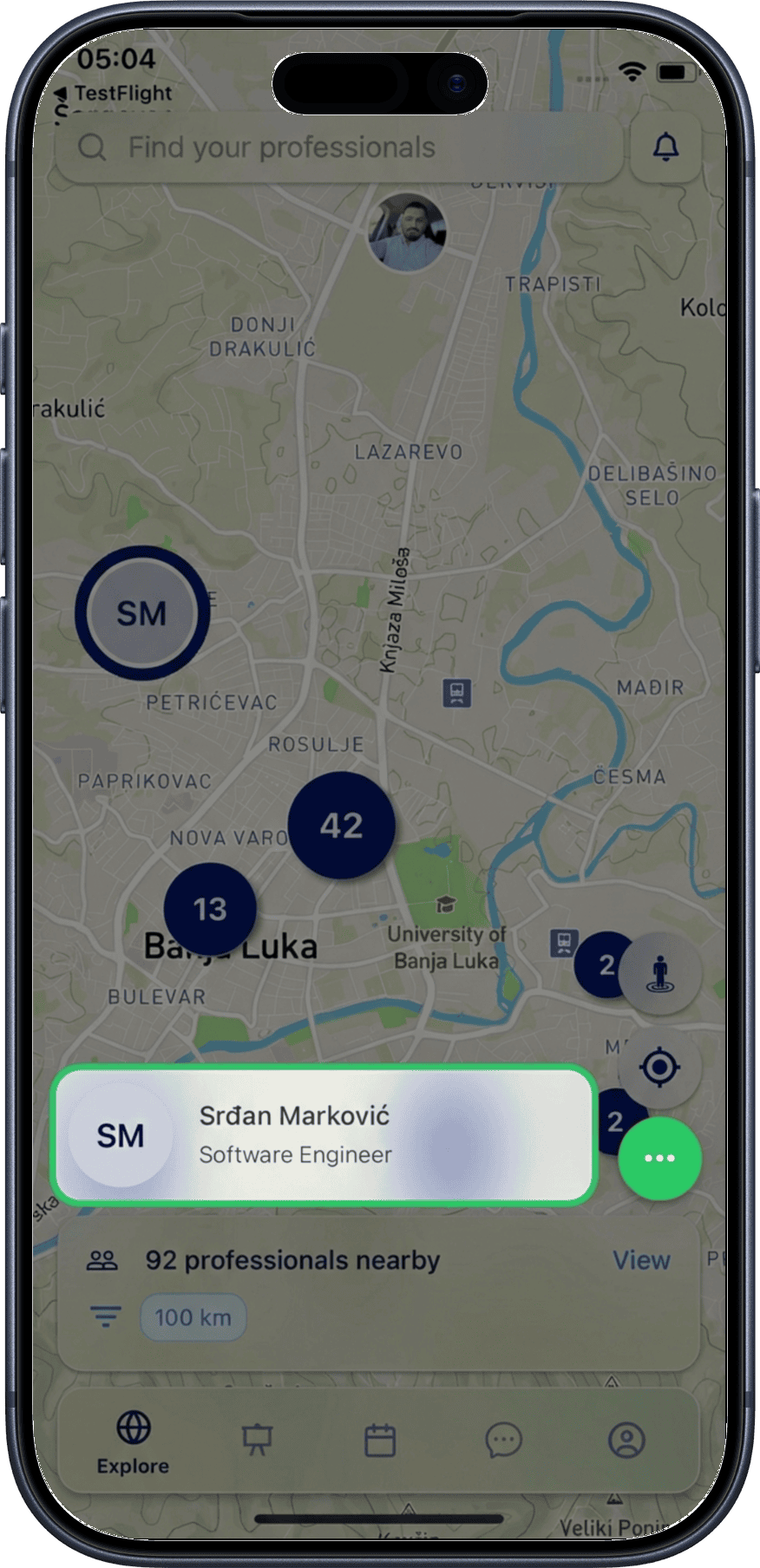
Tap any pin on the map to see a quick profile card with the user's photo, name, and job title. Tap the card to navigate to their full profile page.
Tap a Cluster
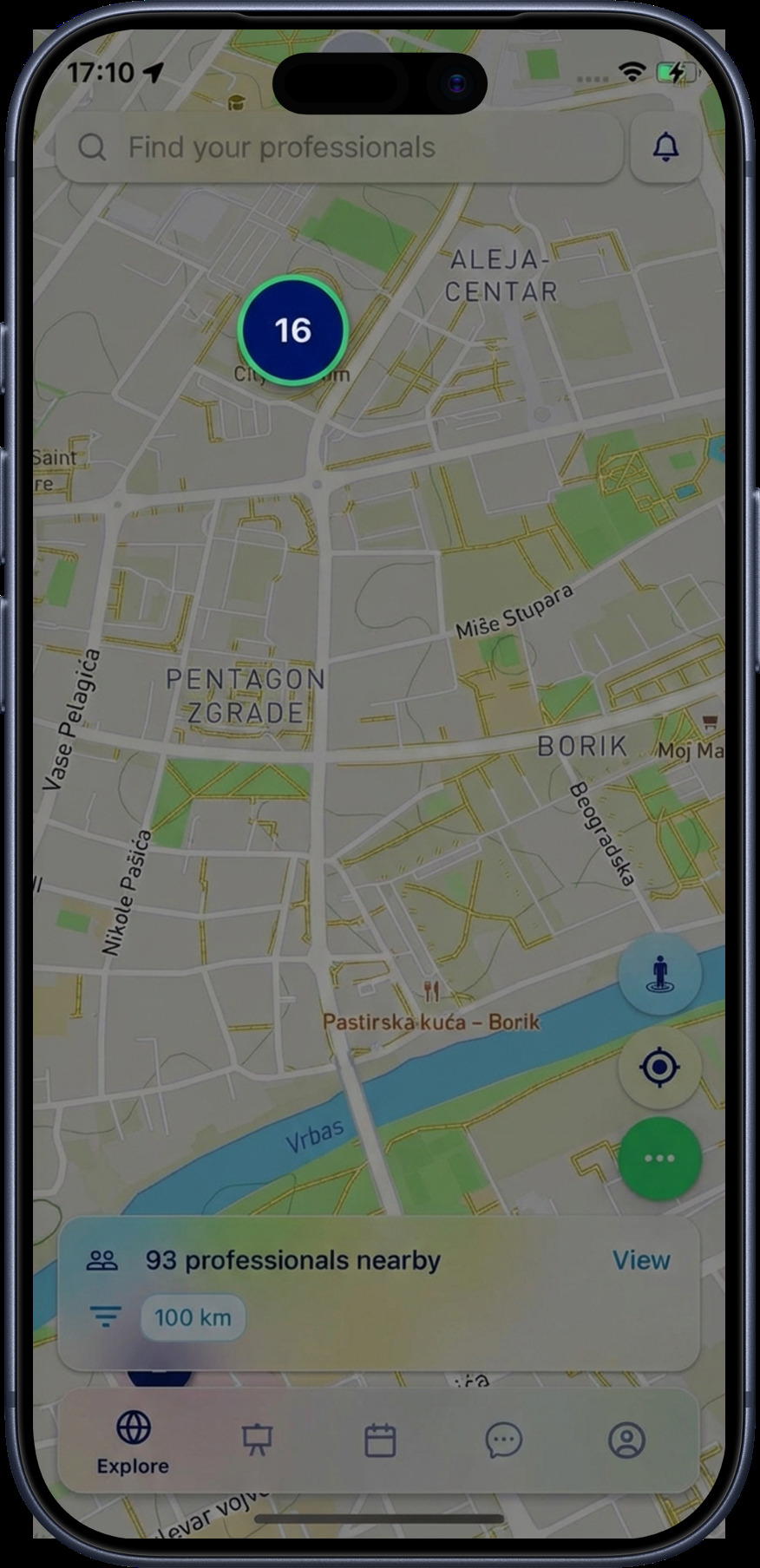
When multiple professionals are close together, they are grouped into a cluster (a pin with a number). Tap a cluster to open a bottom sheet with a list of all users in that area.
Browse the Cluster List
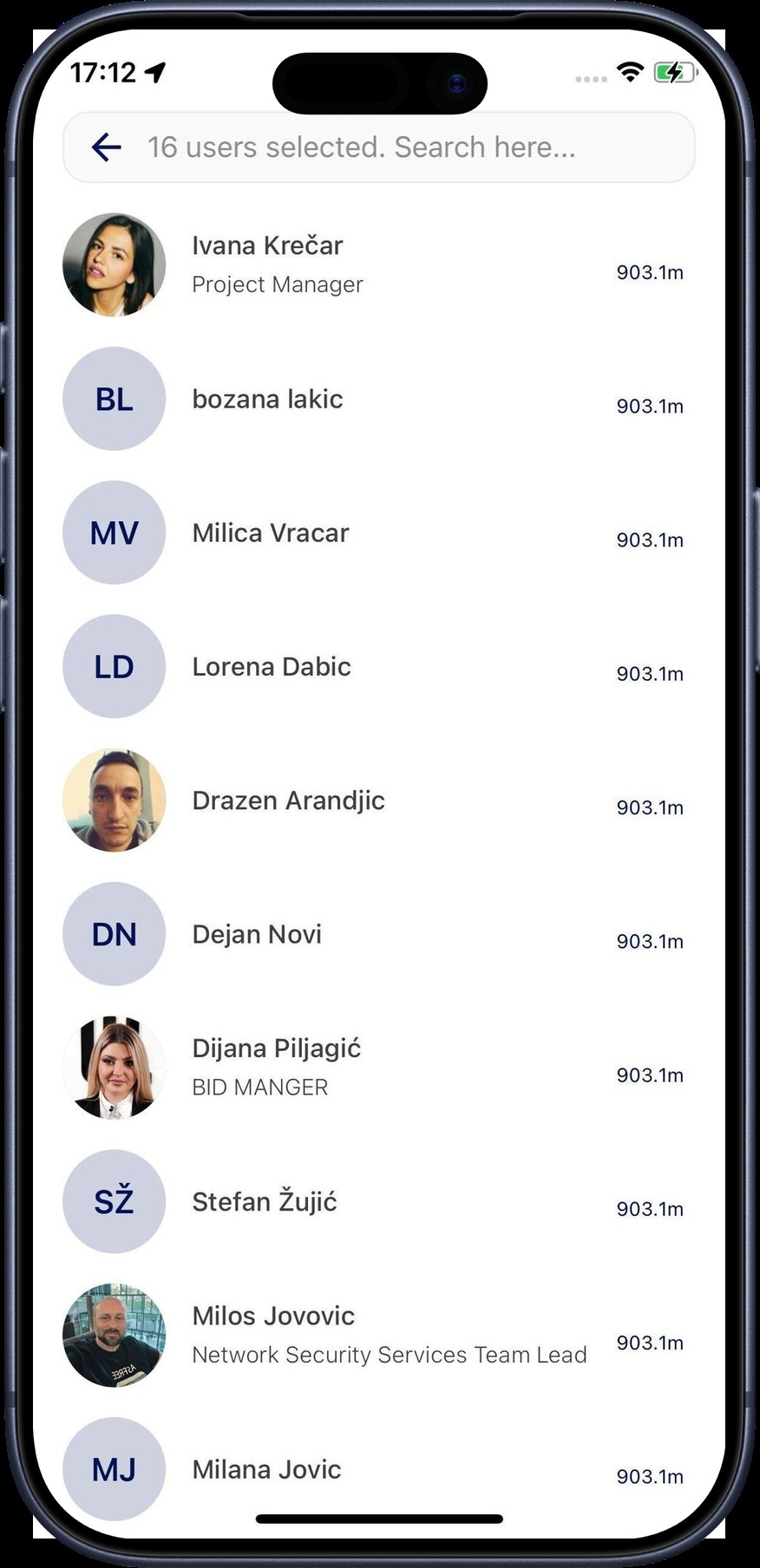
The cluster list shows each user's profile picture, full name, job title, and distance from your location. Tap any profile to navigate to their profile page.
Search Within a Cluster
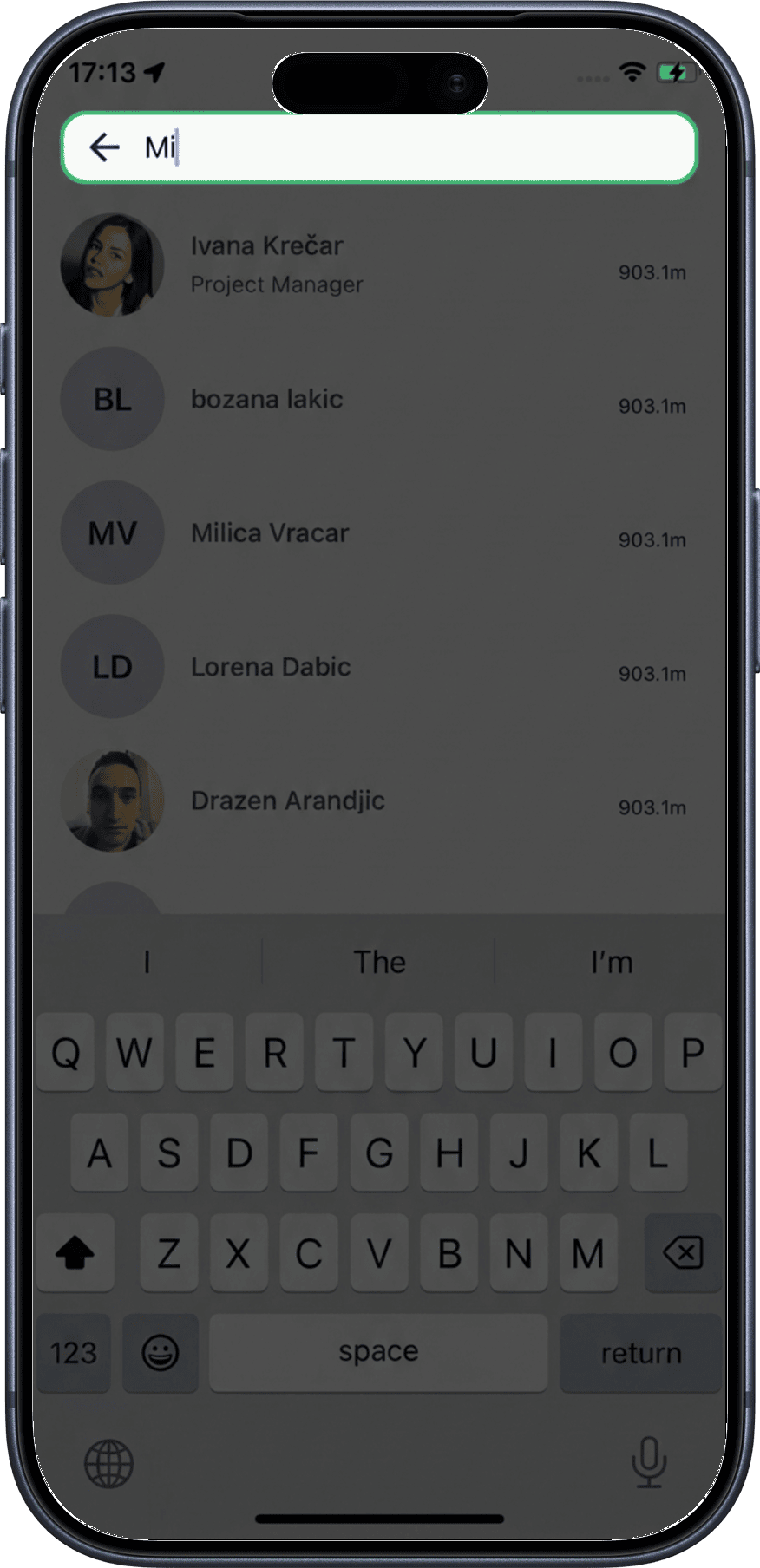
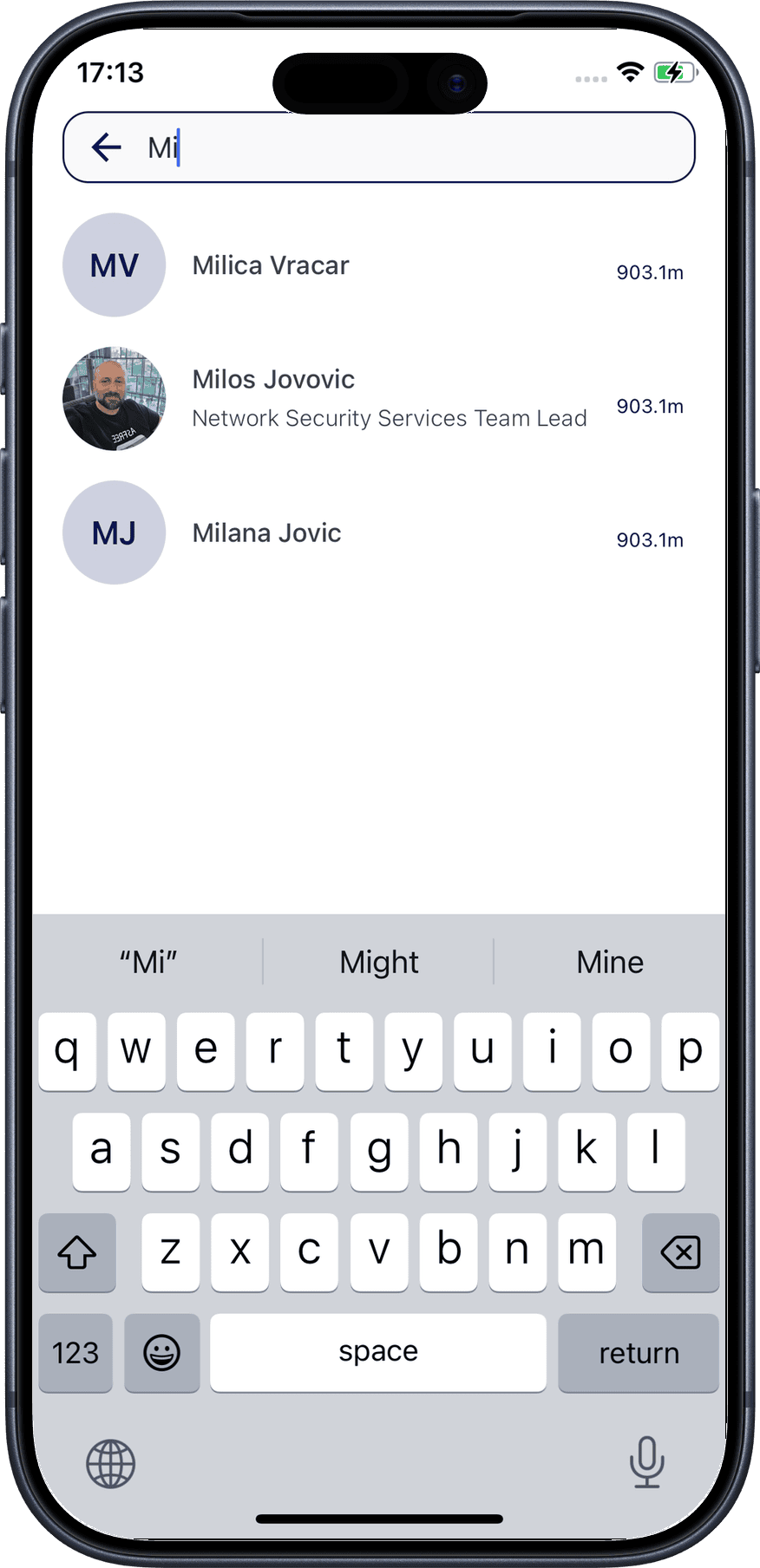
Tap the Search input field at the top of the cluster list to search for a specific person by name.
View Search Results
Results update as you type, filtering the cluster list to show only matching profiles. Tap a result to go to their profile page.
What's Next?
- Professionals Nearby — browse and filter professionals within 100 km
- Find Your Professional — search all registered users by name
- Teleport — explore any location worldwide
- Location Controls — lock, unlock, or hide your position on the map