Professionals Nearby
The Professionals Nearby card at the bottom of the Explore screen lists users within a 100 km radius of your current location. You can browse the list, search by name, jump to a profile's exact location on the map, and apply filters to narrow down results.
Prerequisites
- The Explore map is open
- Location services enabled on your device
Opening the Nearby List
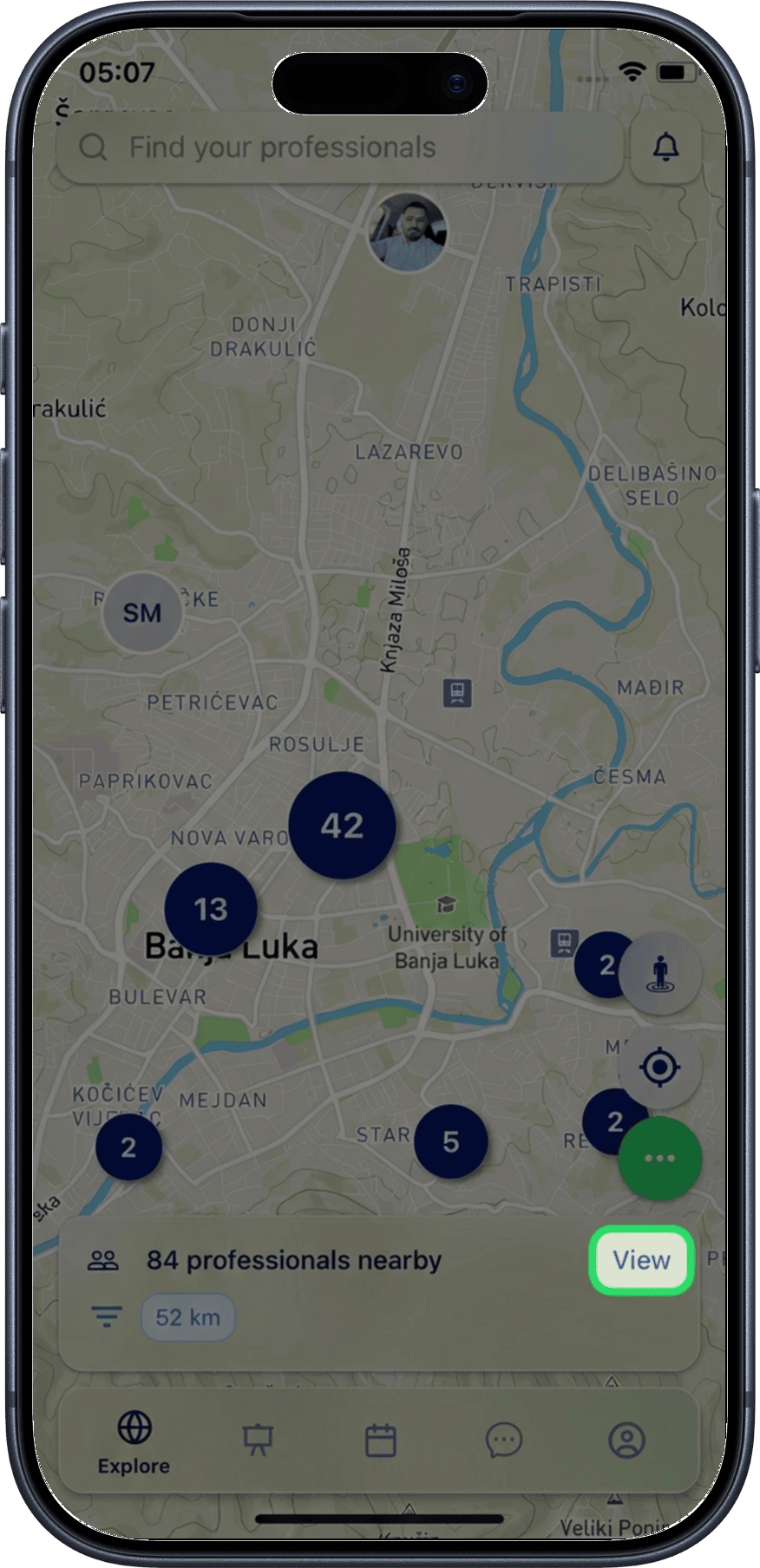
1. Tap "View"
At the bottom of the Explore screen you'll see a card showing nearby professionals. Tap the View link to open a full bottom sheet with the complete list.
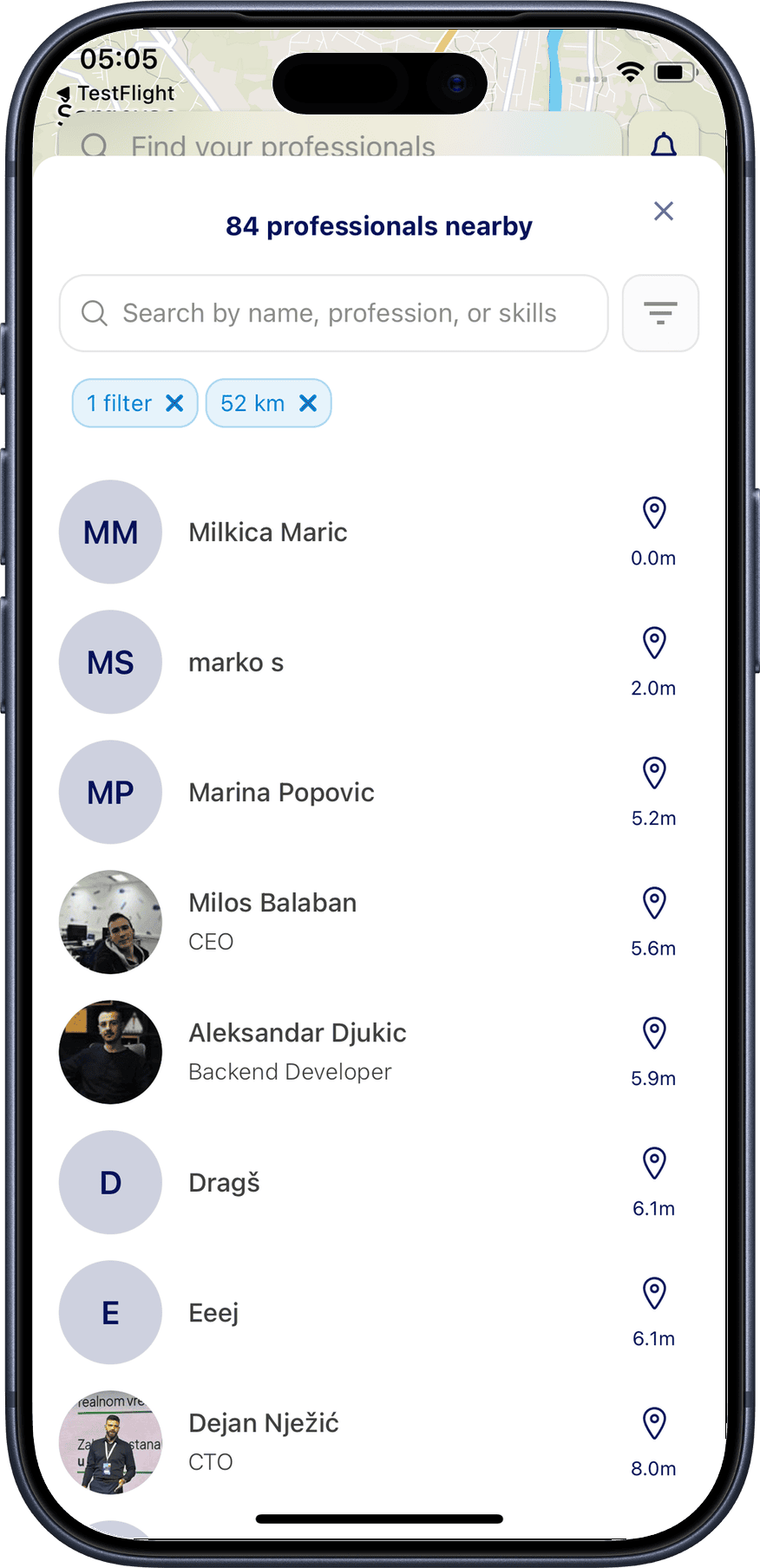
2. Browse the list
The bottom sheet displays all professionals within 100 km. Each entry shows the user's profile picture, name, job title, and distance from you.
Searching Nearby Professionals
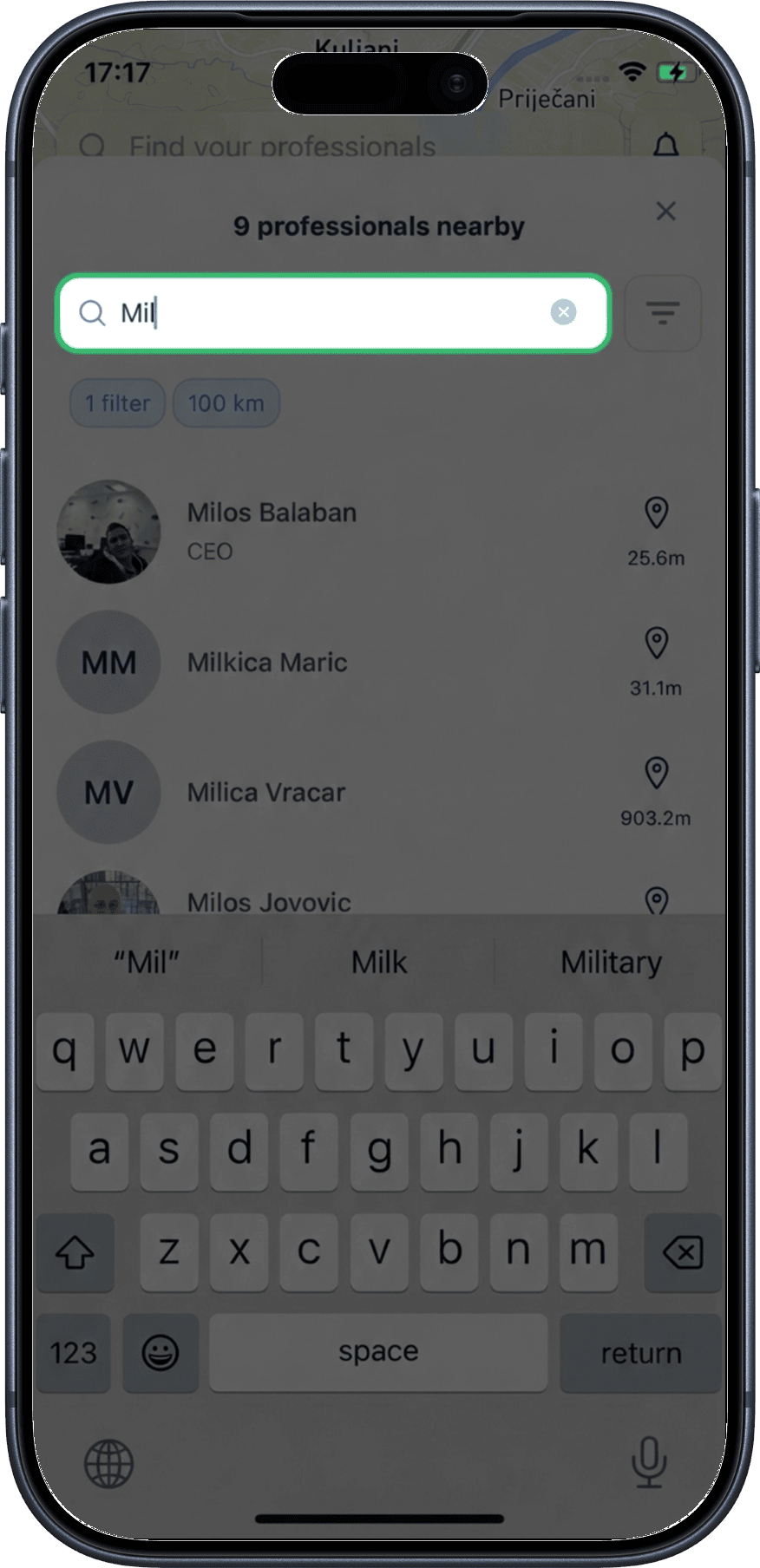
1. Tap the search field
Tap the Search input at the top of the nearby list to start typing a name.
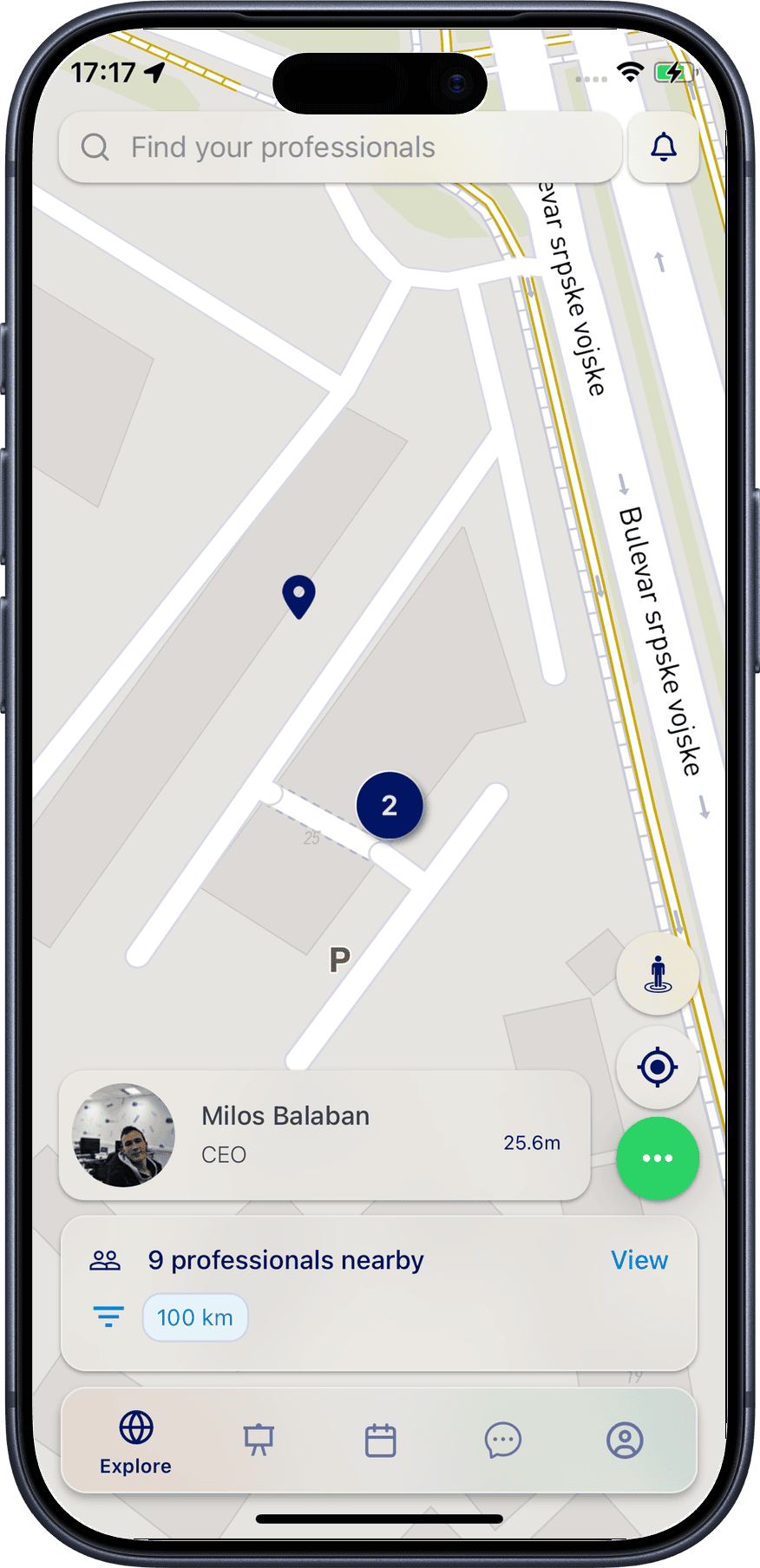
2. Locate on map
Tap the pin icon next to any profile name to navigate directly to that user's exact location on the map.
Filtering Nearby Professionals
1. Open filters
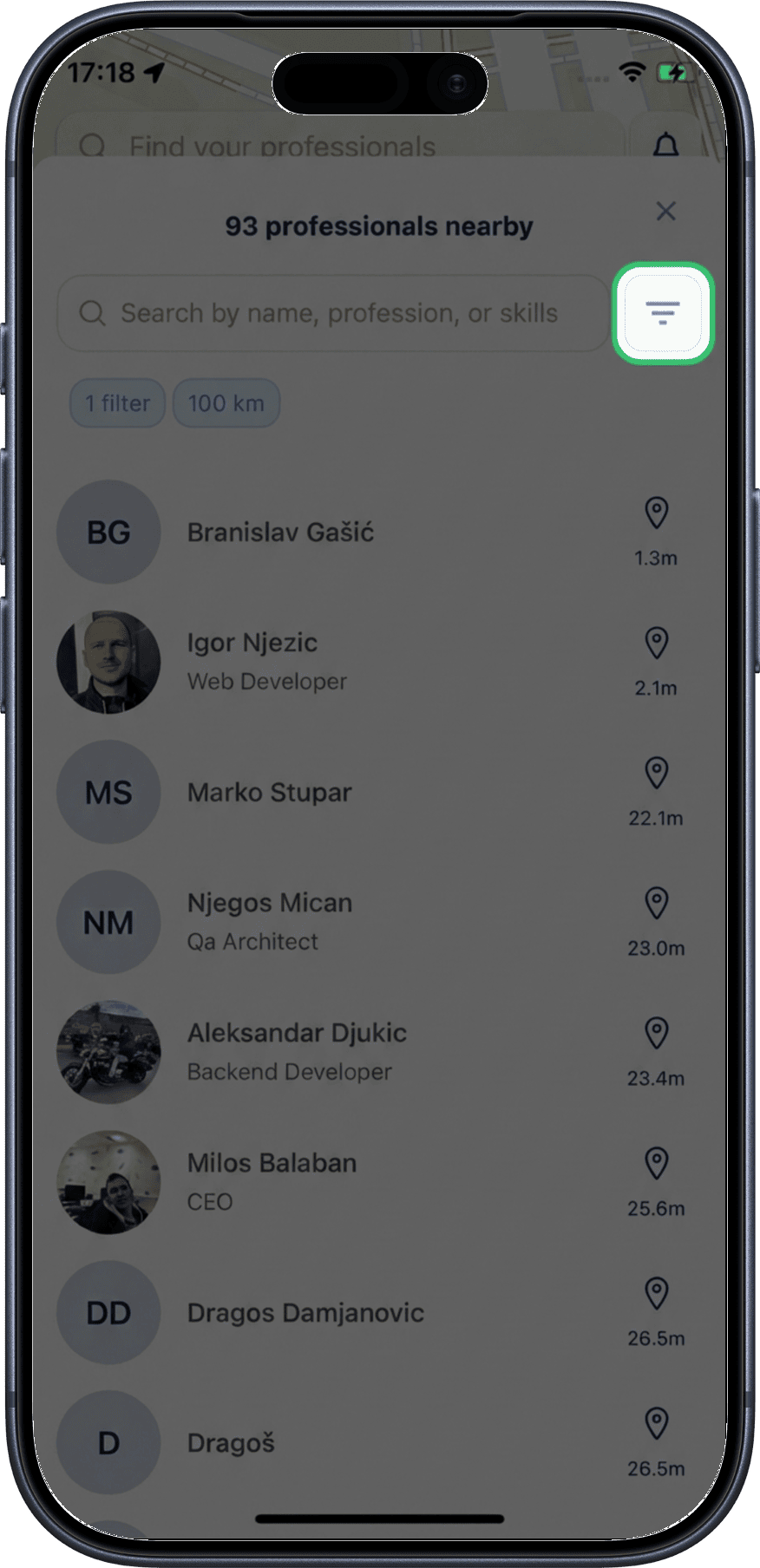
Tap the filter icon in the top-right corner of the nearby list to open the filters page.
2. Available filters
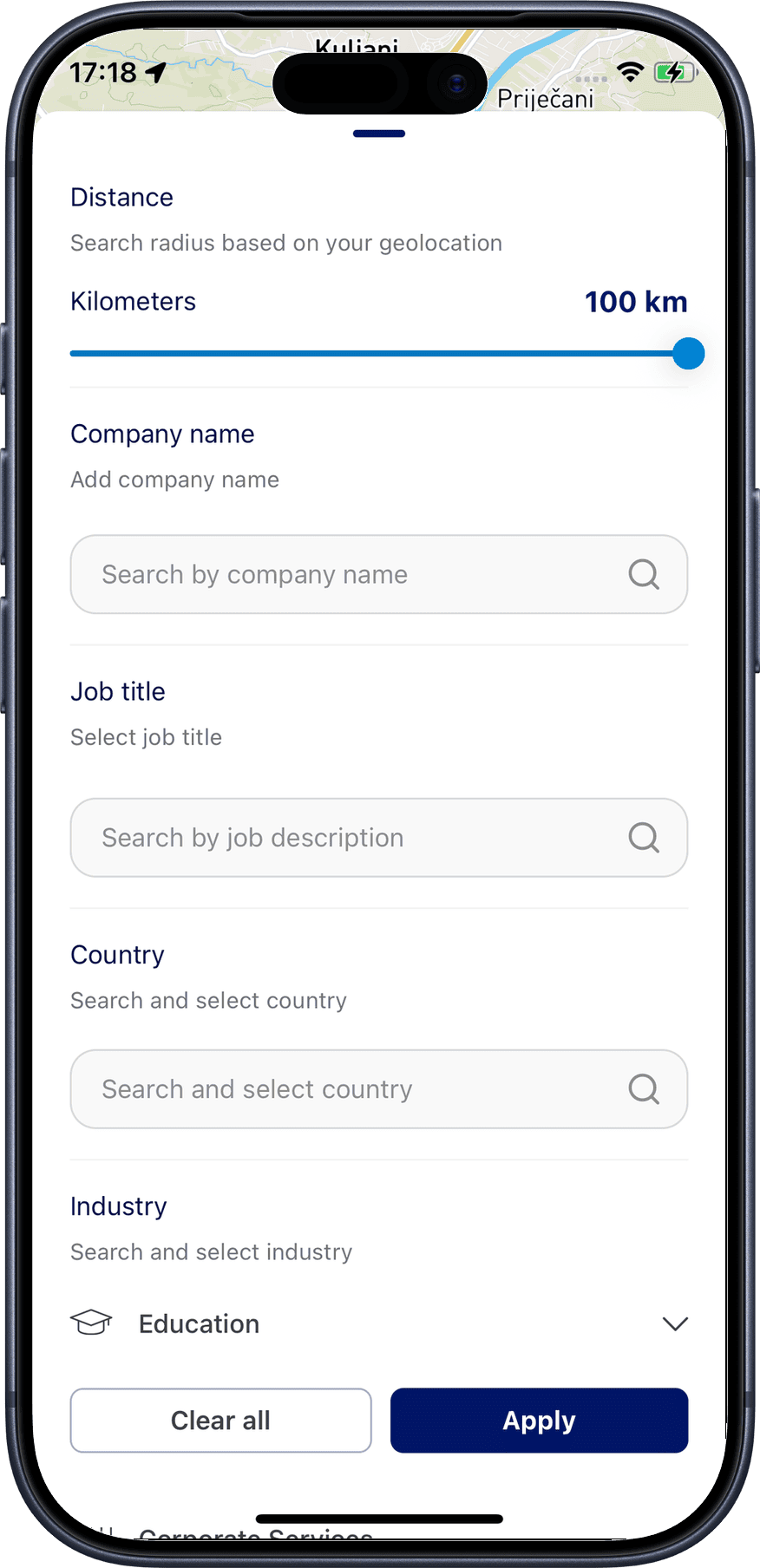
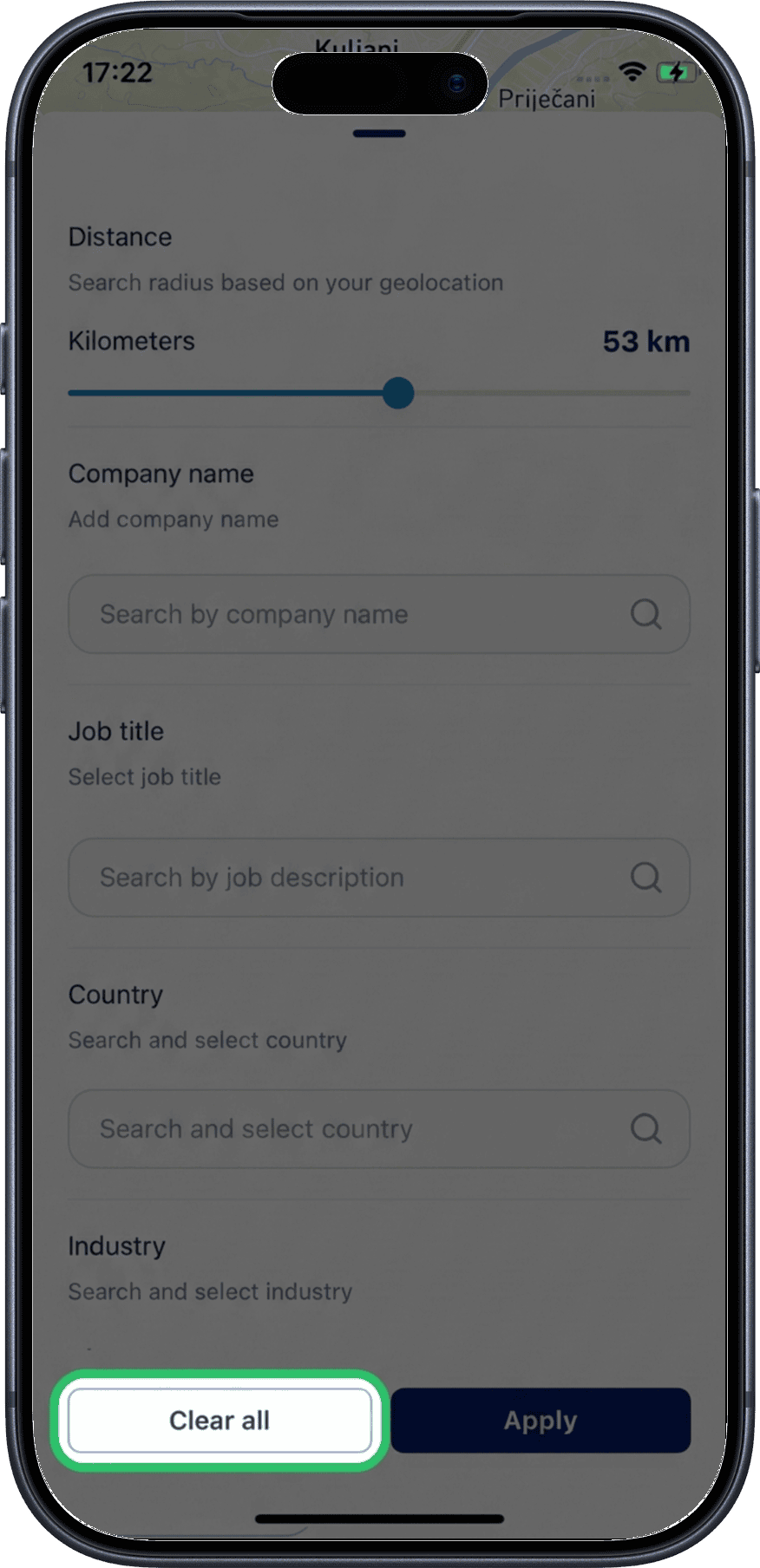
The filter page offers these options:
- Distance radius — 0 to 100 km
- Company name — search by employer
- Job title — search by profession
- Country — search by country of residence
- Industry — select from categories and subcategories
3. Set distance radius
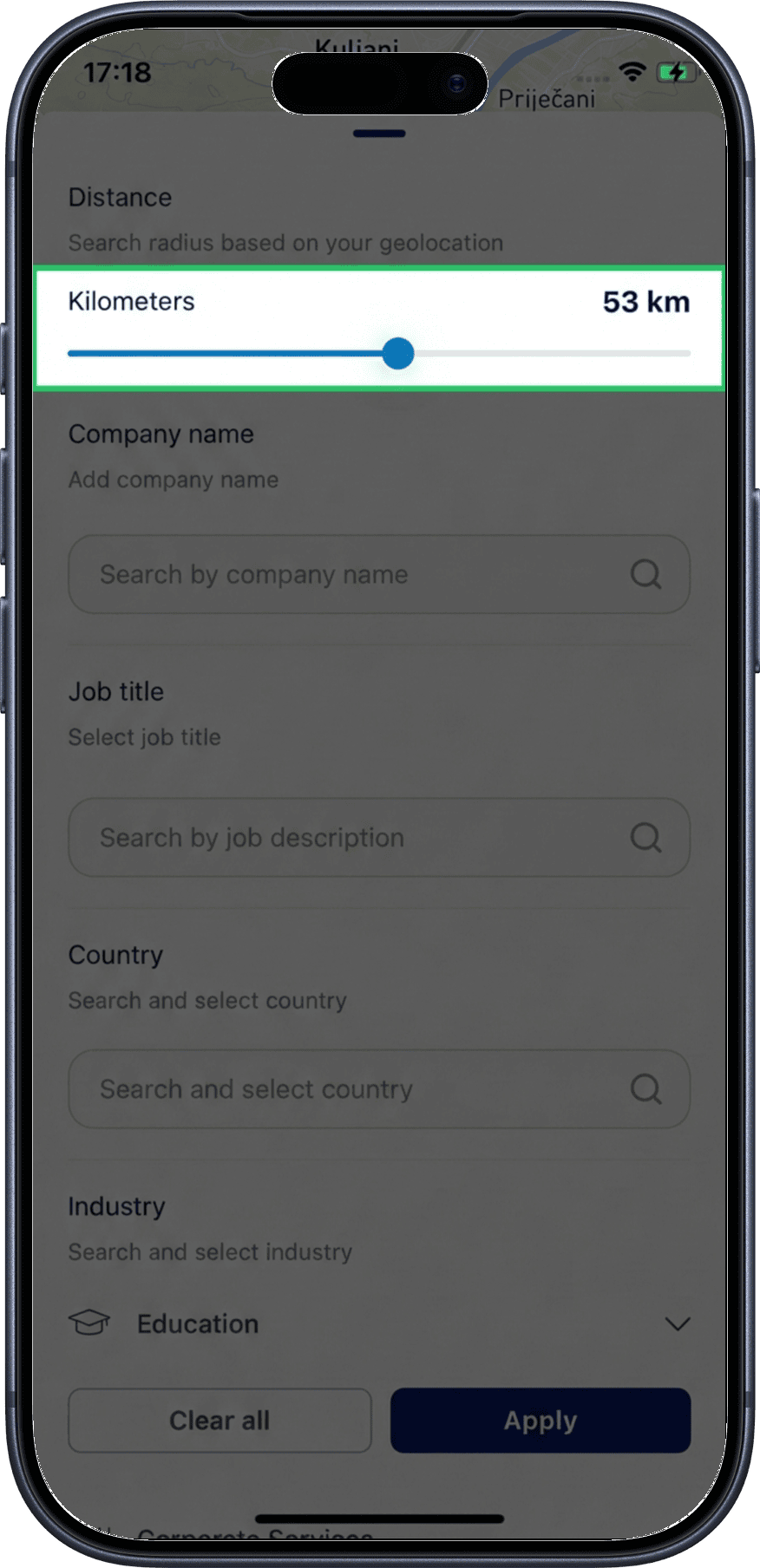
Drag the slider left or right to set your preferred distance radius.
4. Search-based filters
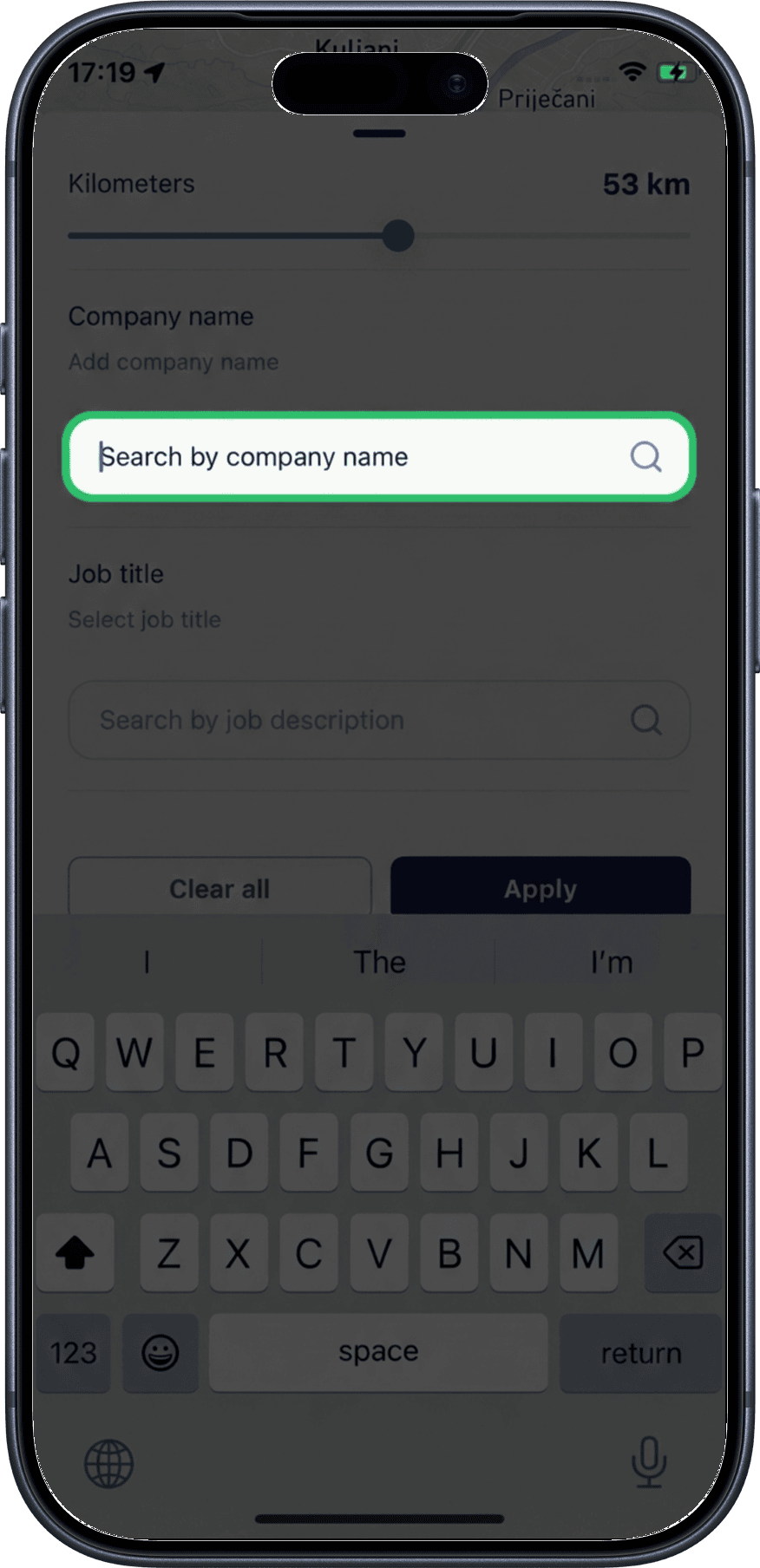
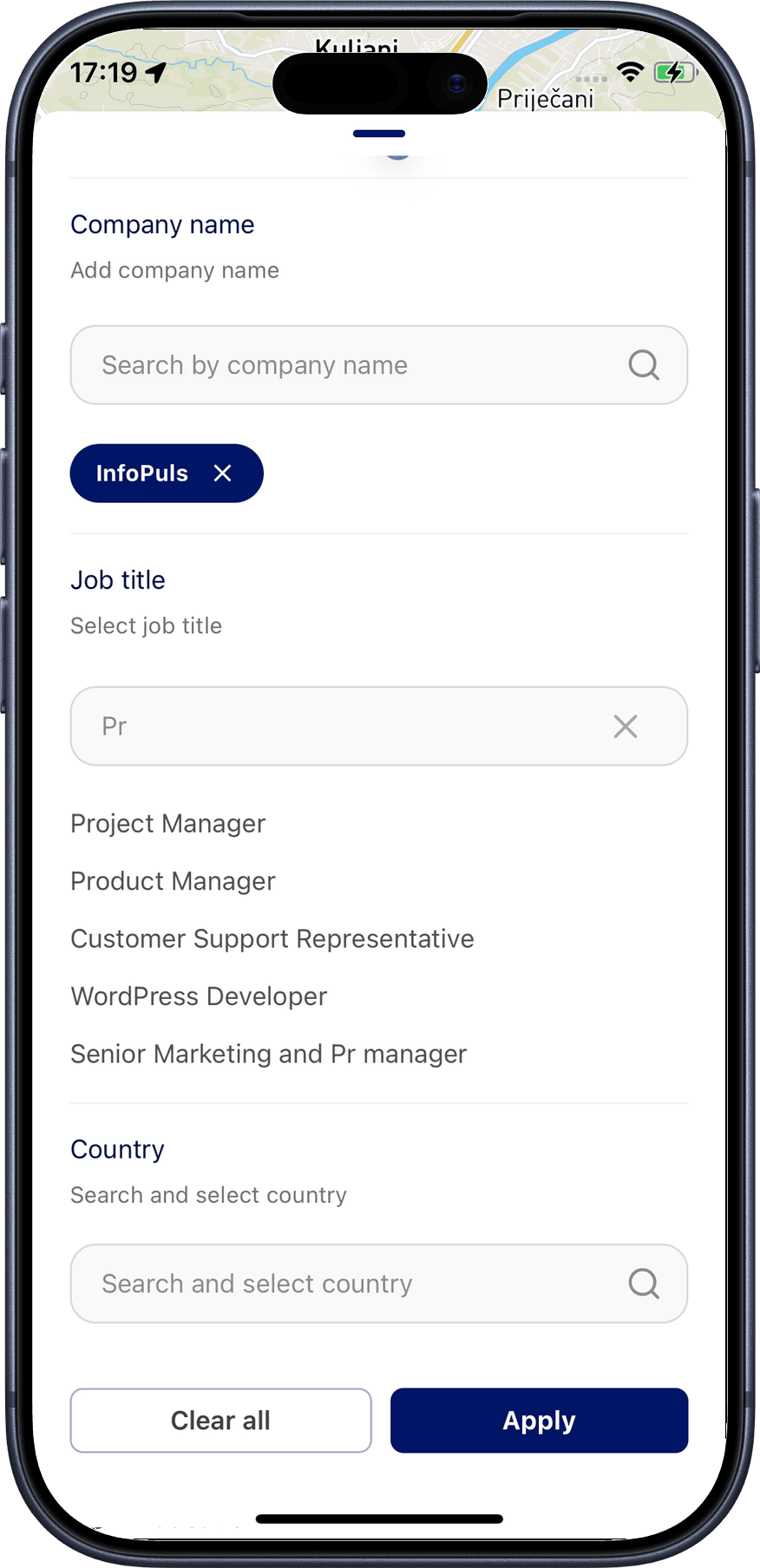
For Company, Job title, and Country filters, tap the search input field and start typing. Matching results appear as you type.
5. Select filter values
After typing even one character, predefined results appear. Tap to select one or more results.
6. Industry filter
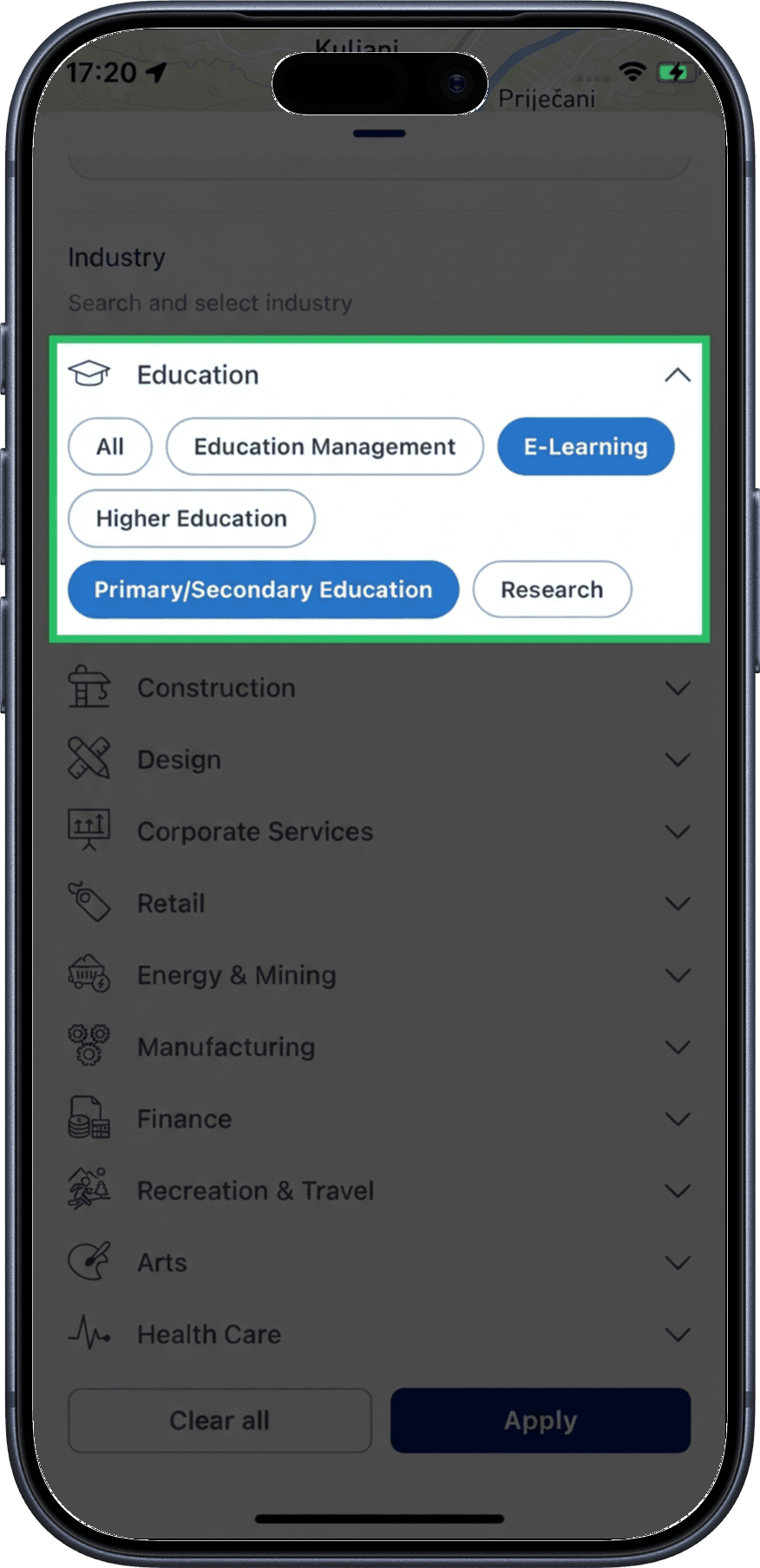
Tap an industry category to expand its subcategories. You can select one, several, or all subcategories within each category.
7. Apply filters
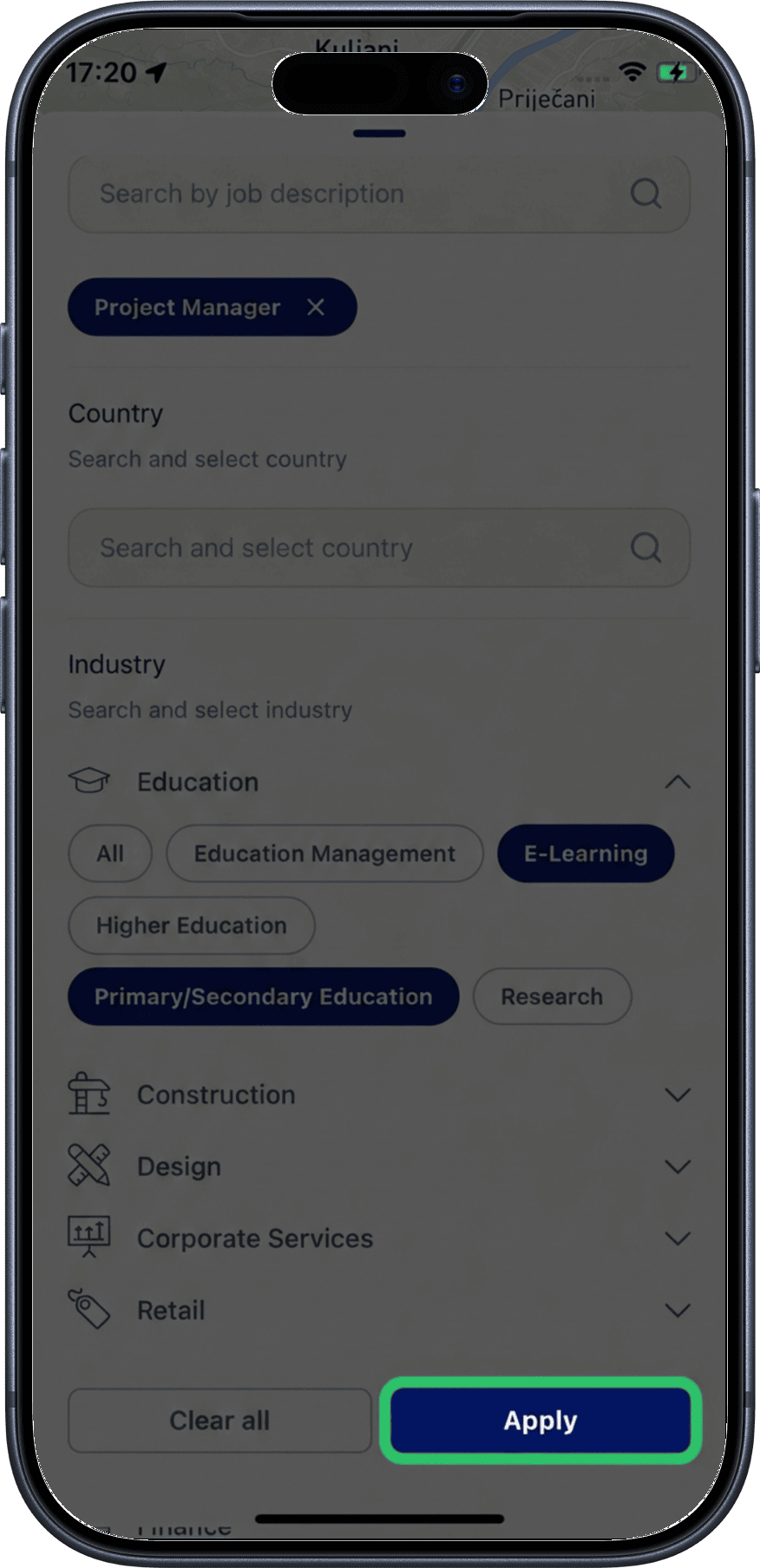
Tap the Apply button to apply all selected filters.
8. View filtered results
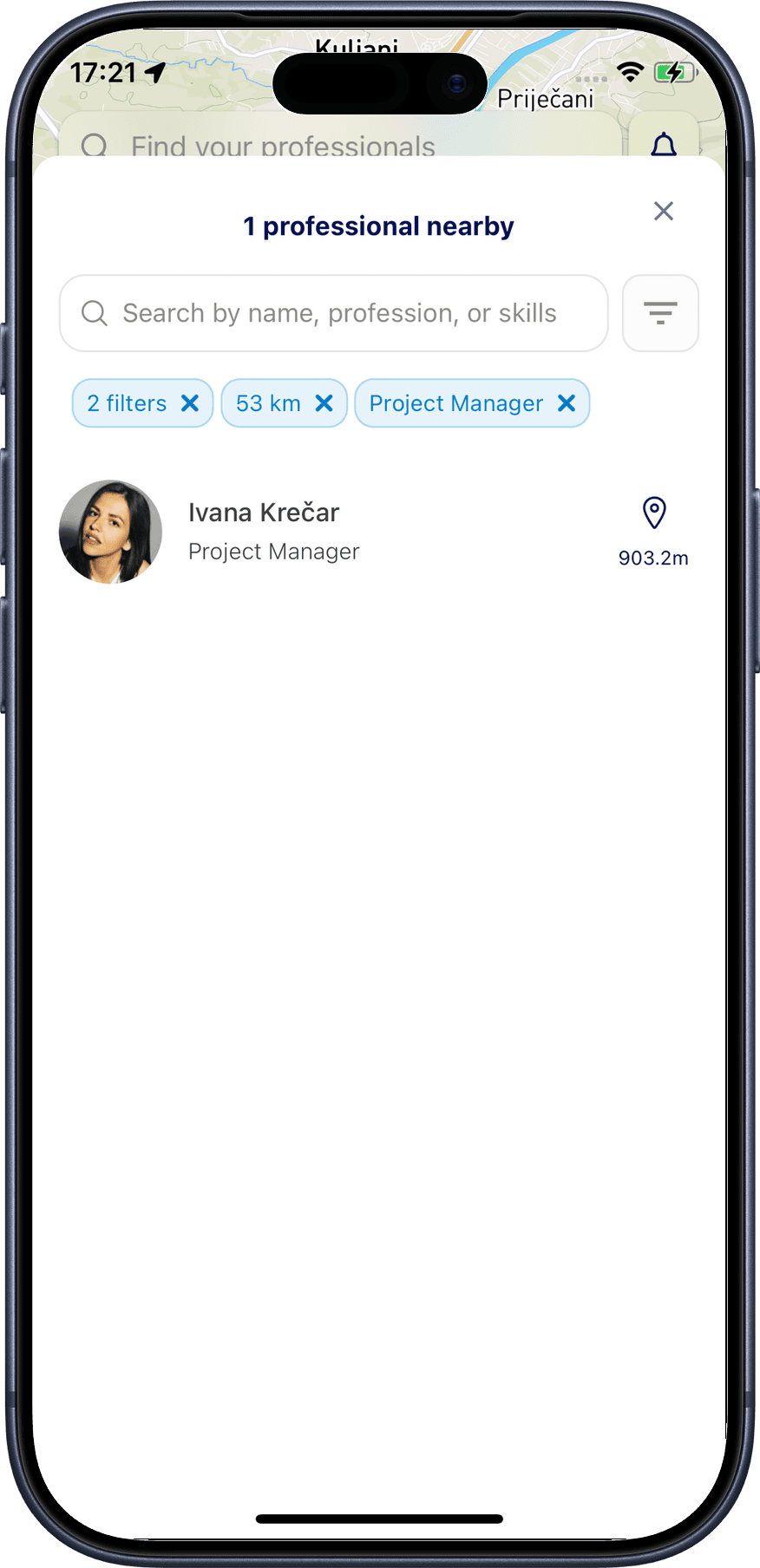
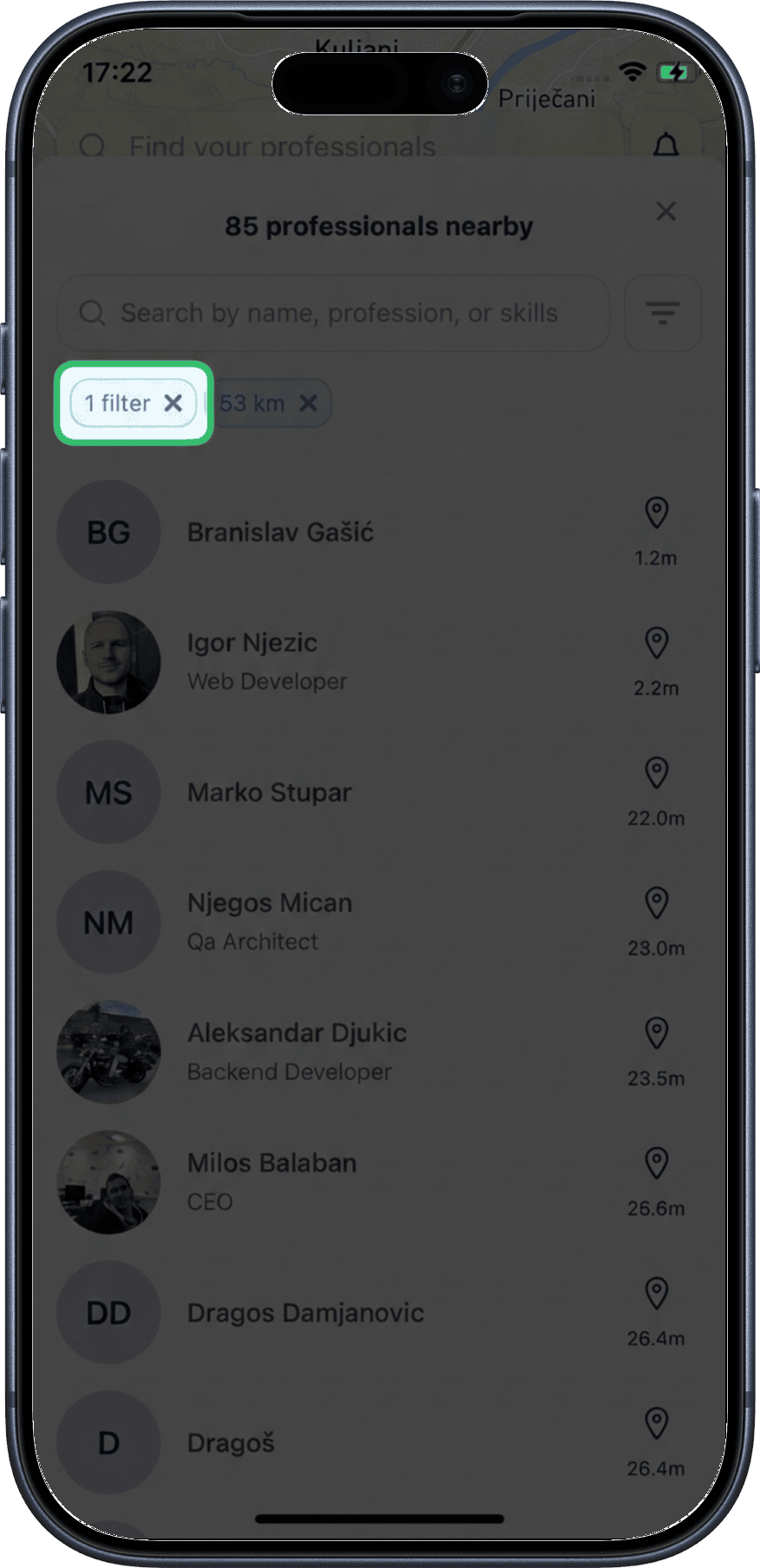
After applying, you return to the nearby list showing only profiles that match your filters. Applied filters appear as blue chips below the search field, and the total filter count is shown as a badge. The number of matching profiles is displayed above the search field.
Clearing Filters
Clear individual filters
Tap the X on any individual filter chip to remove only that filter. You can also tap the X next to the total filter count badge to clear all at once.
Clear all filters
Alternatively, tap the filter icon again to reopen the filter page, then tap Clear all followed by Apply to reset all filters.
What's Next?
- Find Your Professional — search all registered users across the platform
- Teleport — explore professionals in any location worldwide
- Location Controls — lock, unlock, or hide your position