Log In
Continue where you left off and make meaningful connections. Sign in to your existing RU4M account.
Prerequisites
- An existing RU4M account (create one here)
- An active internet connection
Sign In with Email
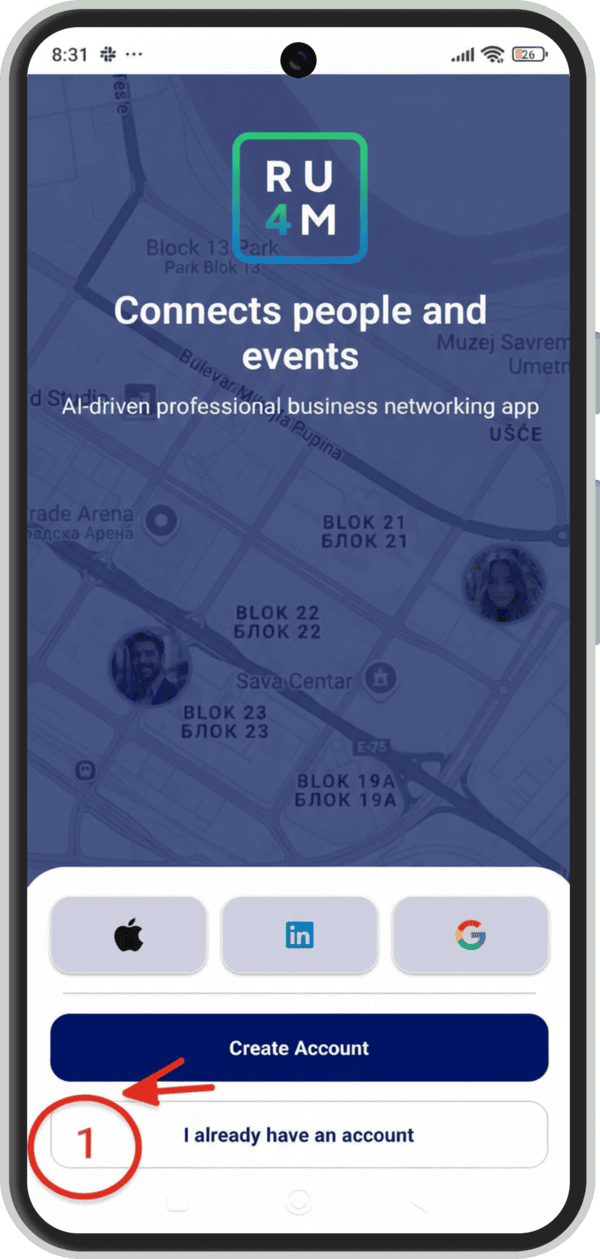
1. Open the app
Launch RU4M and tap Sign In on the landing screen.
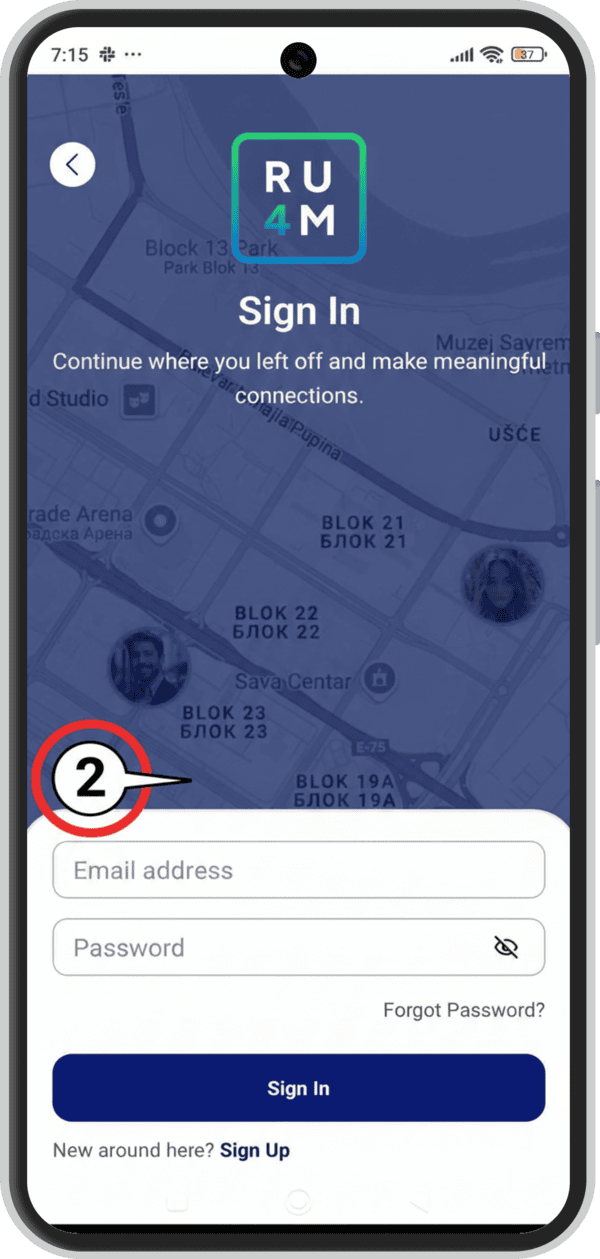
2. Enter your email
Type your registered email address in the Email address field.
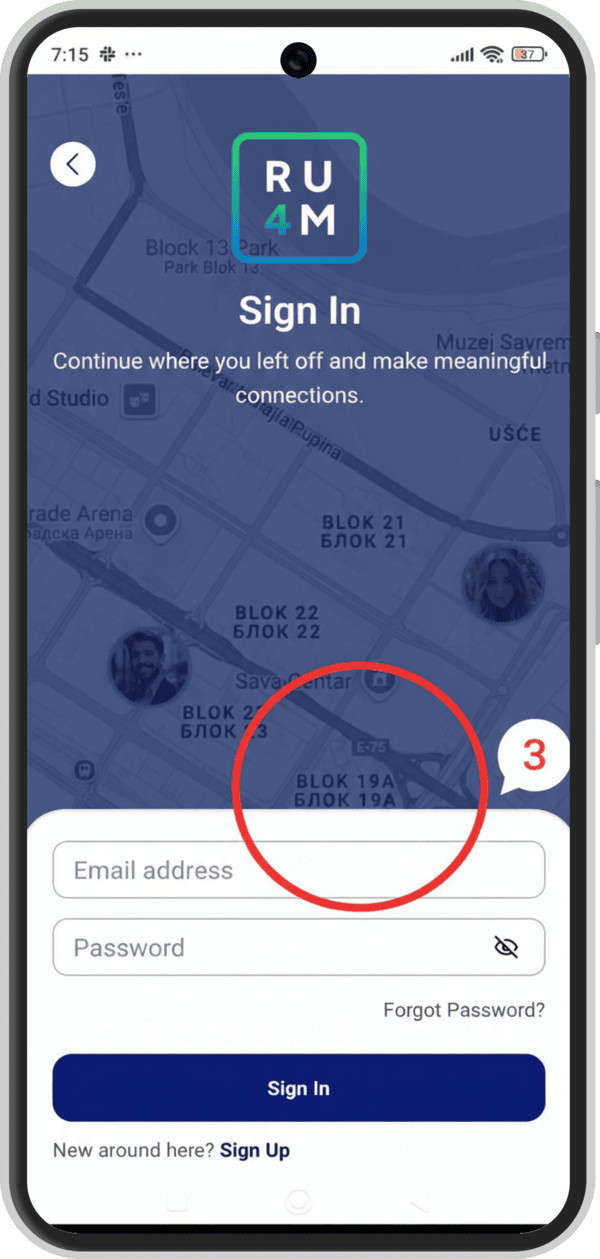
3. Enter your password
Type your password in the Password field.
4. Tap "Sign In"
Tap the Sign In button. You'll be taken to the Explore map.
Account Locked?
Your account may be temporarily locked after too many failed login attempts. Check your email for instructions on how to unlock it.
Sign In with Social Accounts
You can also sign in using the same social account you used to register:
- LinkedIn — Tap "Sign in with LinkedIn" and follow the prompts
- Google — Tap "Sign in with Google" and select your account
- Apple — Tap "Sign in with Apple" and authenticate with Face ID/Touch ID
Forgot Password?
If you've forgotten your password, you can reset it:
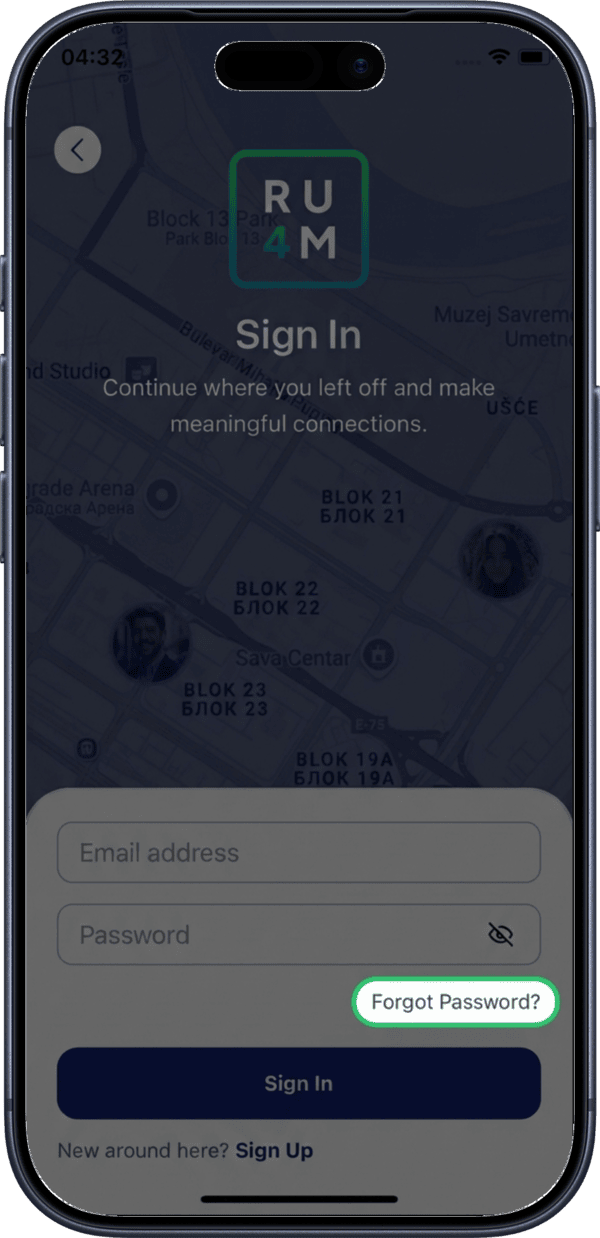
1. Tap "Forgot Password?"
On the Sign In screen, tap the Forgot Password? link.
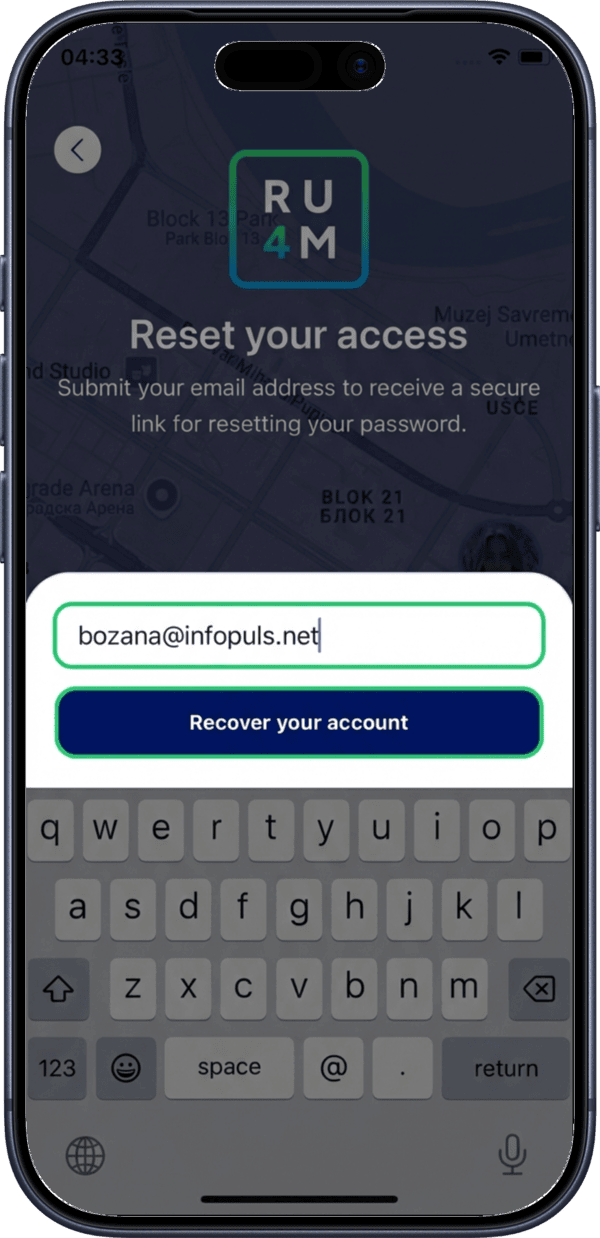
2. Enter your email
Type the email address associated with your account and tap Reset Password.
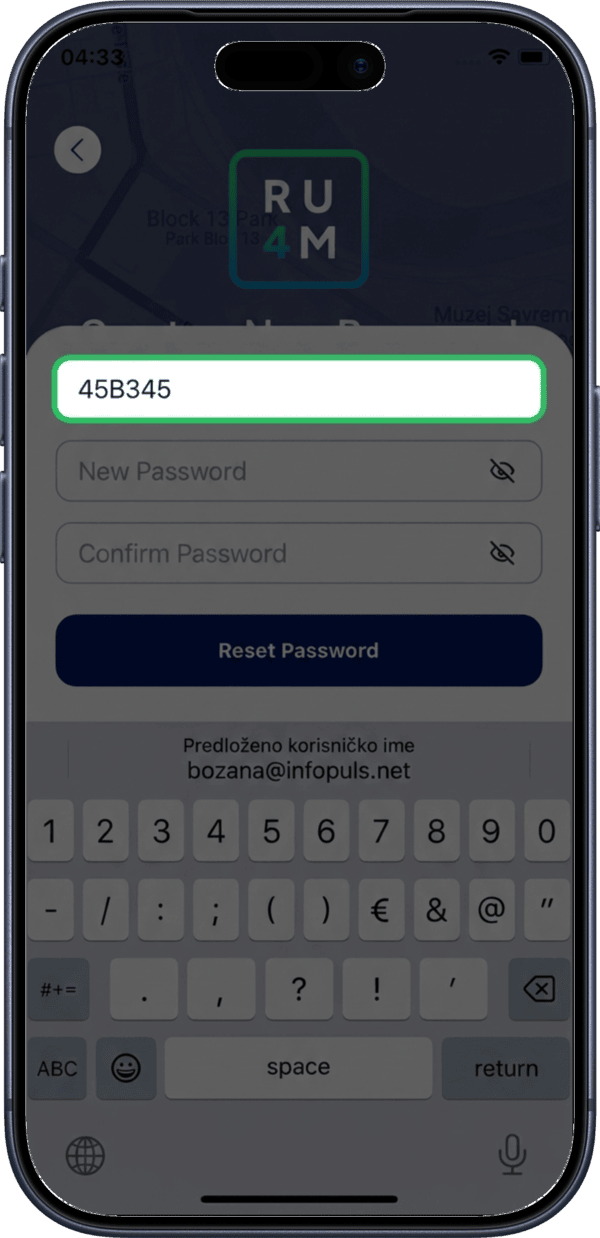
3. Enter the verification code
You'll receive an email with a 6-digit verification code. Enter the code on the next screen.
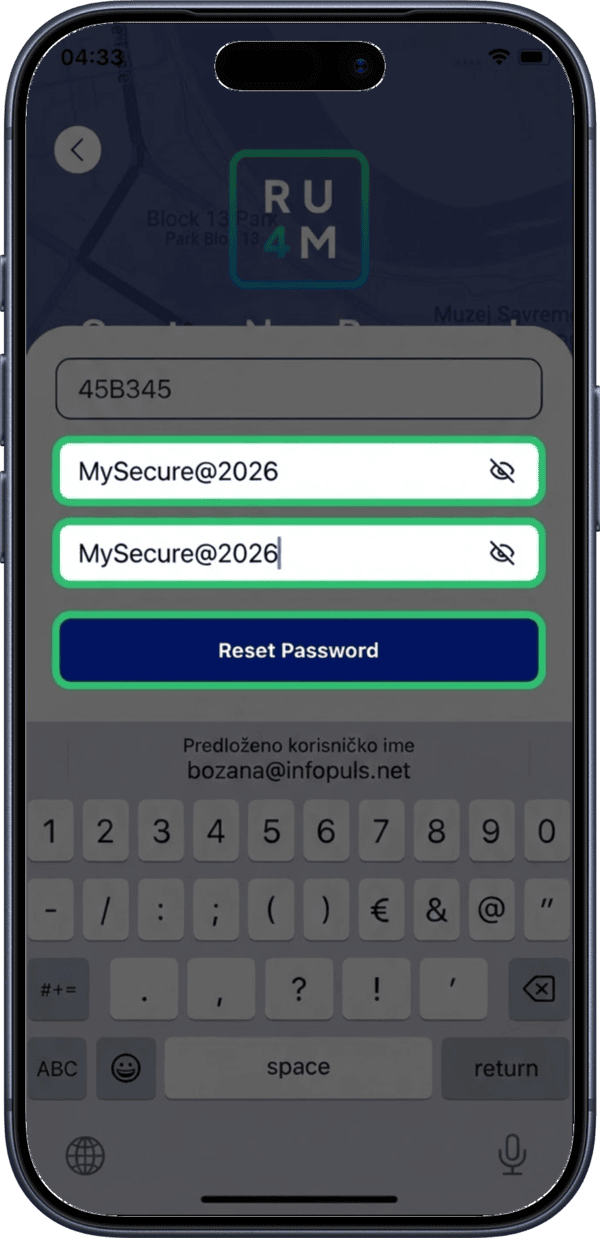
4. Create a new password
Enter your new password and confirm it.
Password Requirements
Password must be at least 8 characters long and include at least one number, one special character, and one uppercase letter.
Token Expired?
If the reset token is invalid or has expired, repeat the process to receive a new verification code.