Set Up Your Profile
Make a great first impression by completing your professional profile. A complete profile helps other professionals find and connect with you.
Prerequisites
- A registered and verified RU4M account
- Completed onboarding
Steps
1. Navigate to your profile
Tap the Profile icon in the bottom navigation bar.
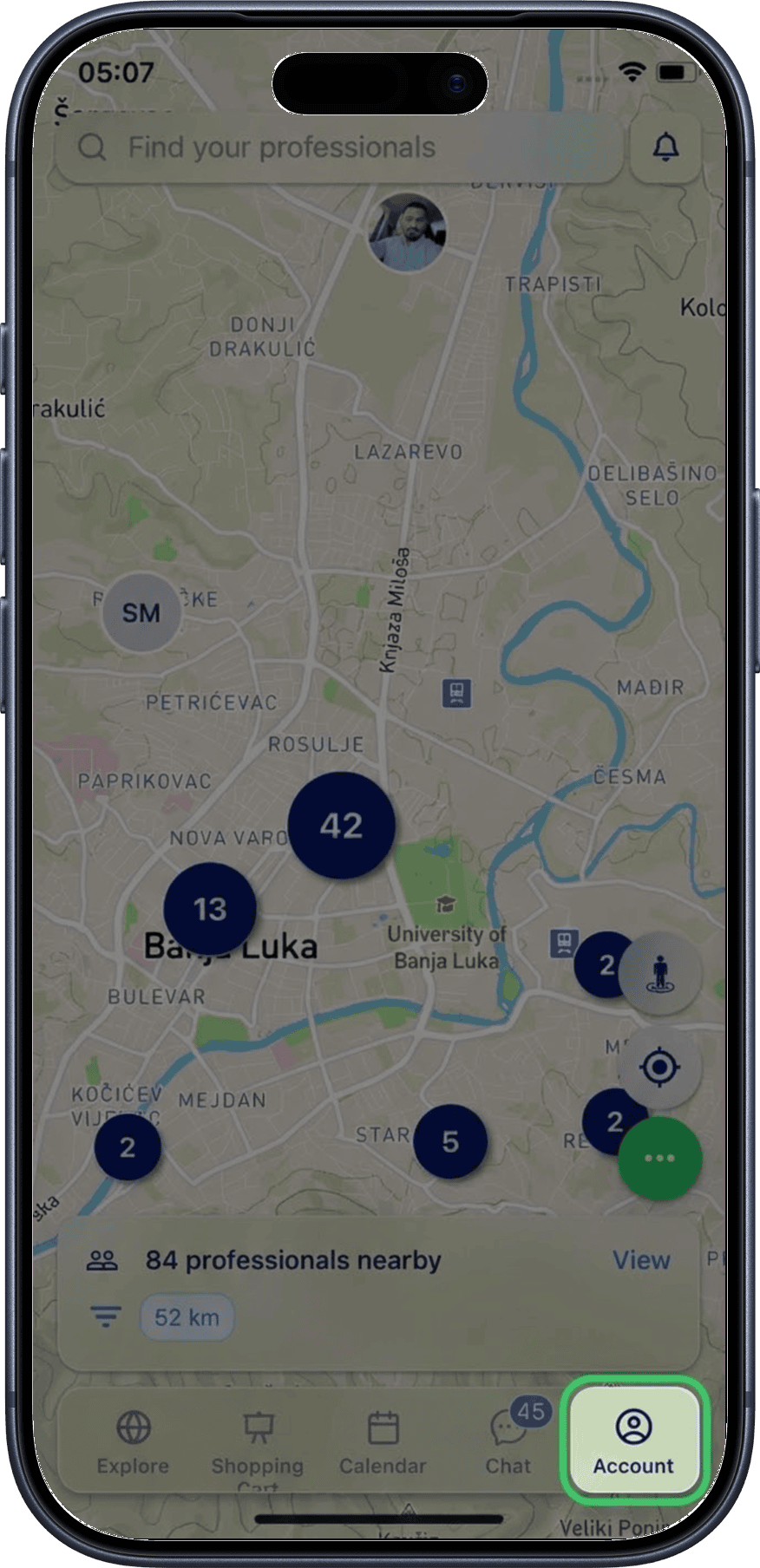
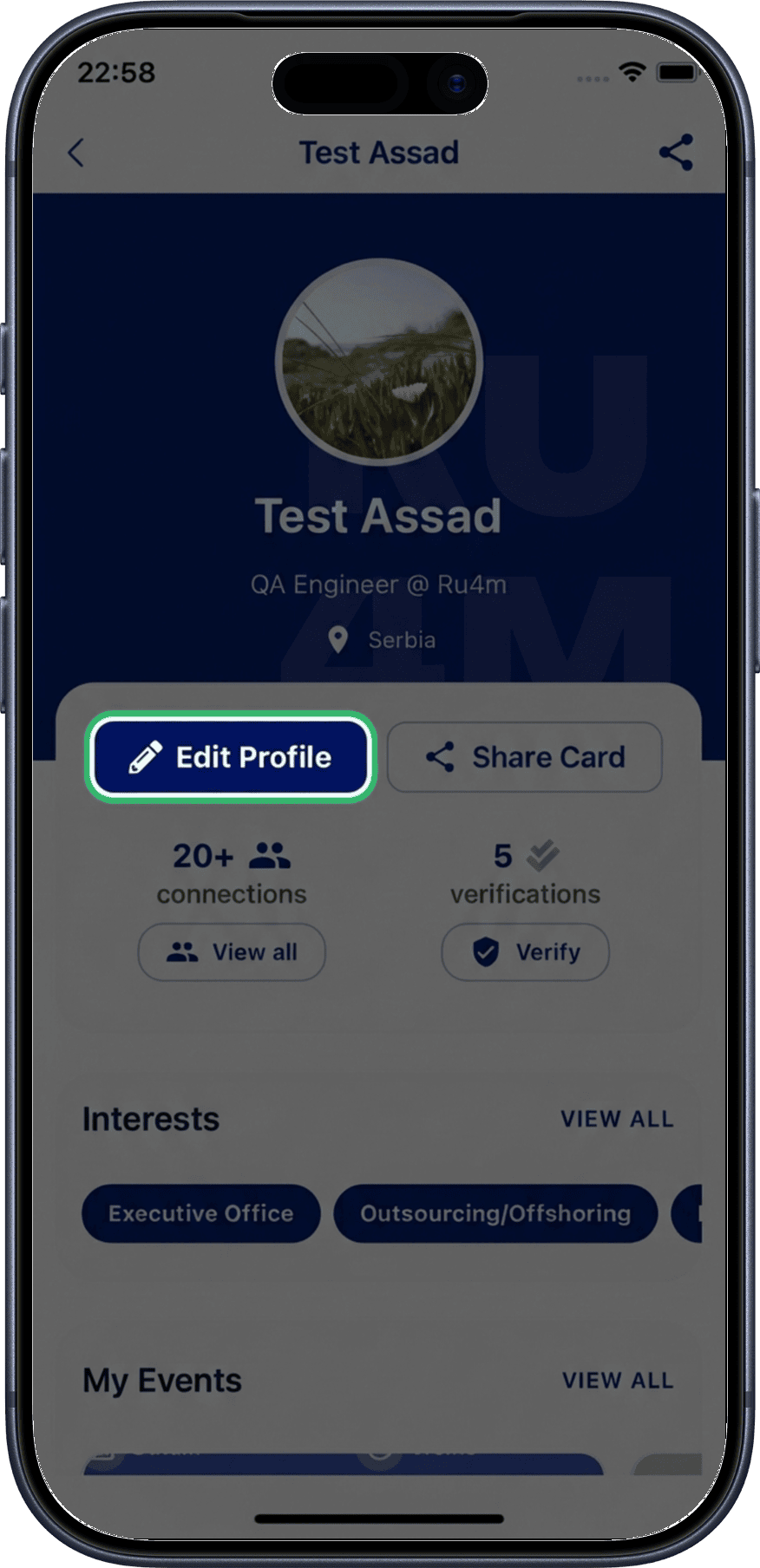
2. Tap "Edit"
Tap the Edit button to open the profile editor.
3. Add your profile photo
Tap the profile photo area and choose a photo from your device's gallery or take a new one.
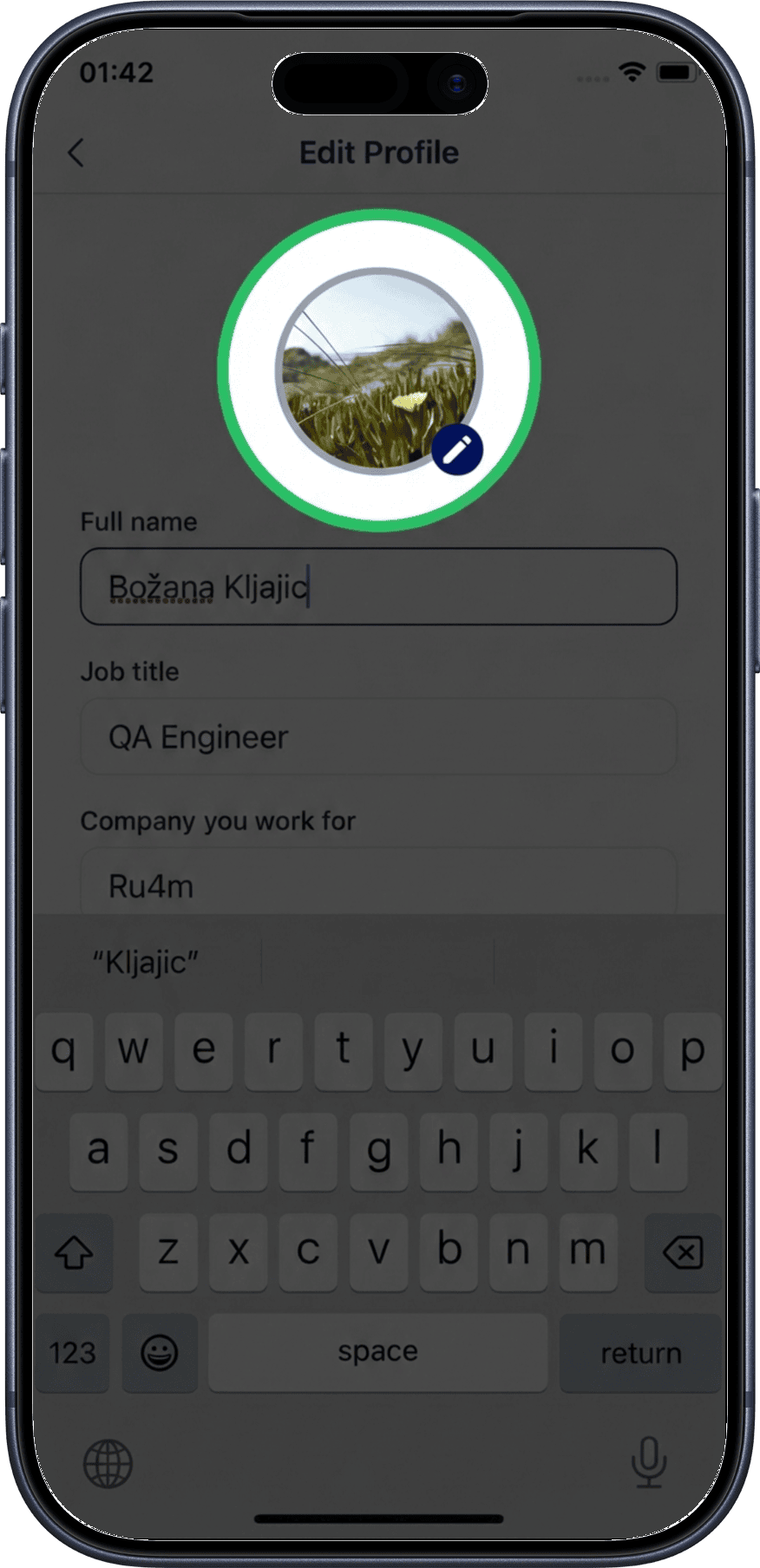
Profile Photo Tips
Use a professional headshot with good lighting. This is the first thing other users see on the map and in search results.
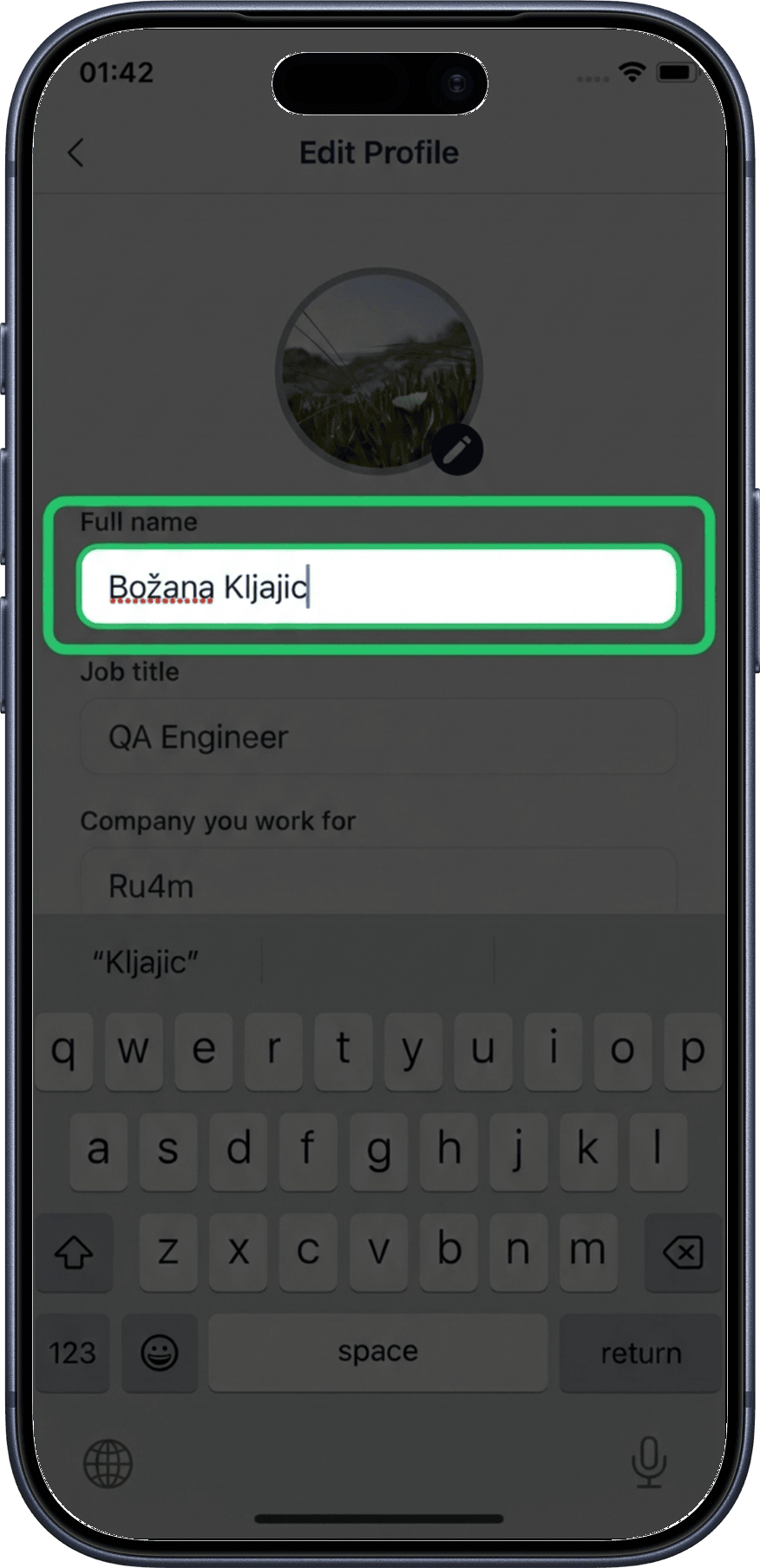
4. Update your name
Edit your first and last name if needed.
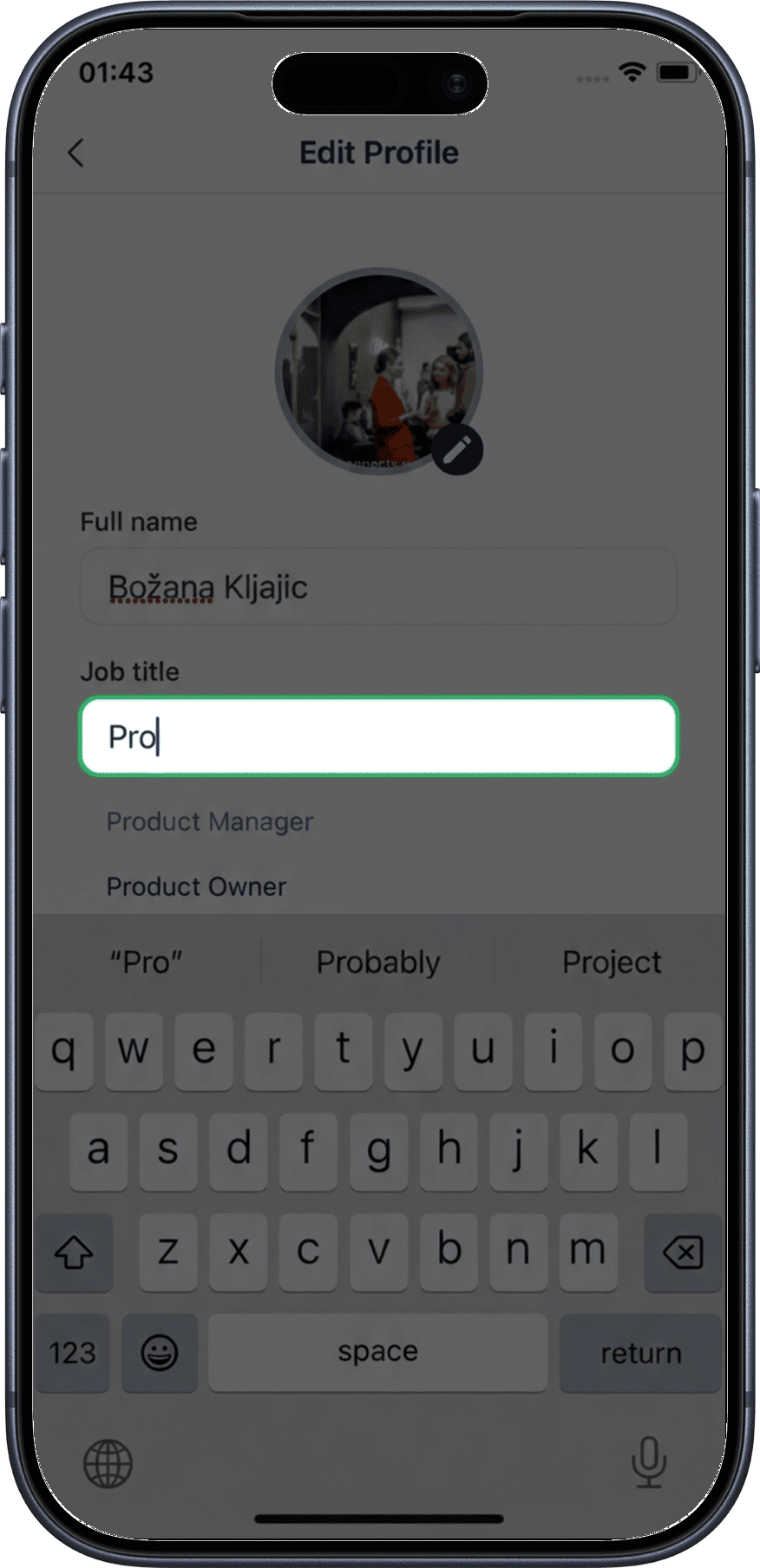
5. Add your job title
Enter your current job title. This information appears on your profile card when other users tap your pin on the map.
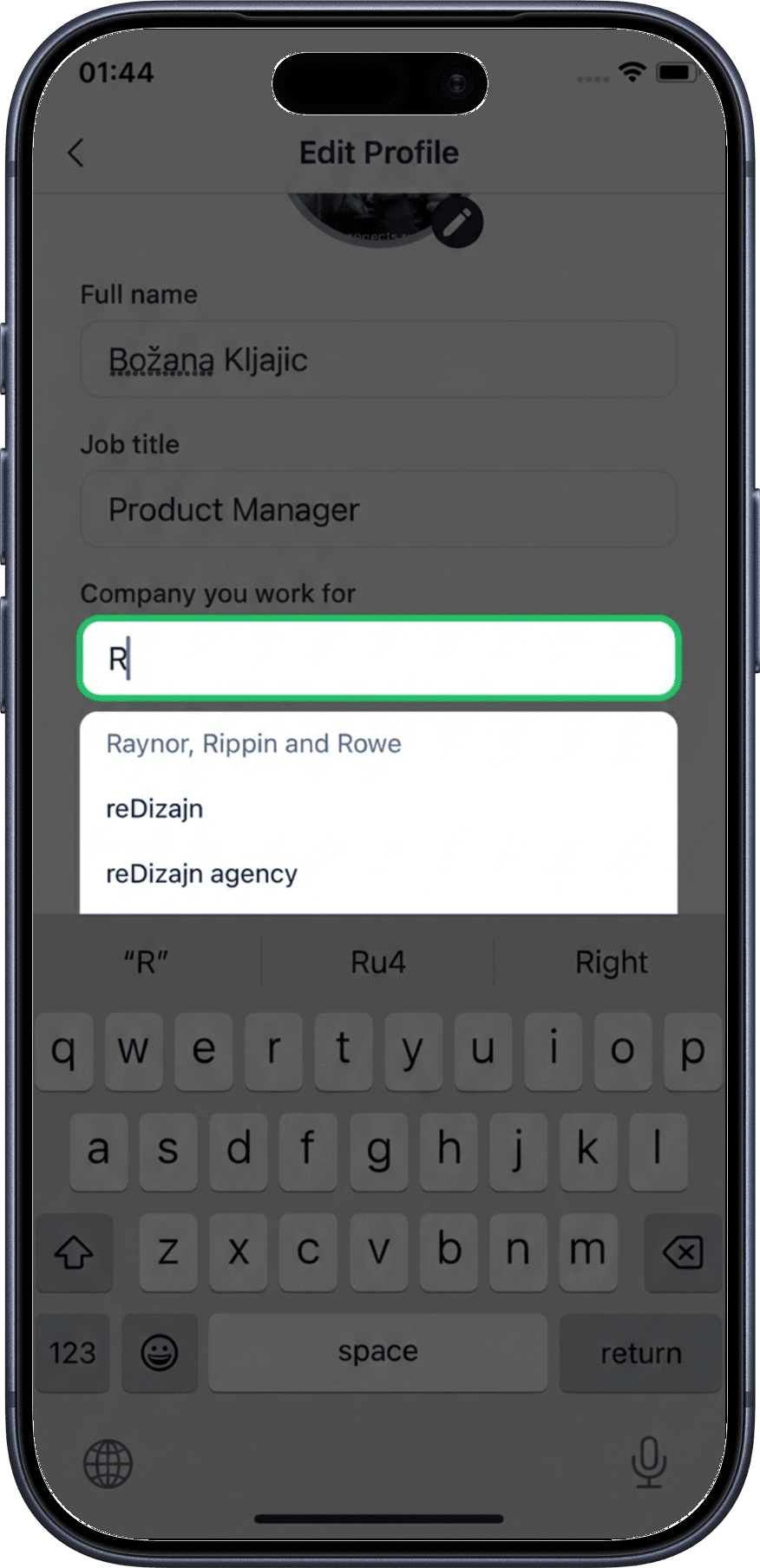
6. Add your company
Enter your company or organization name.
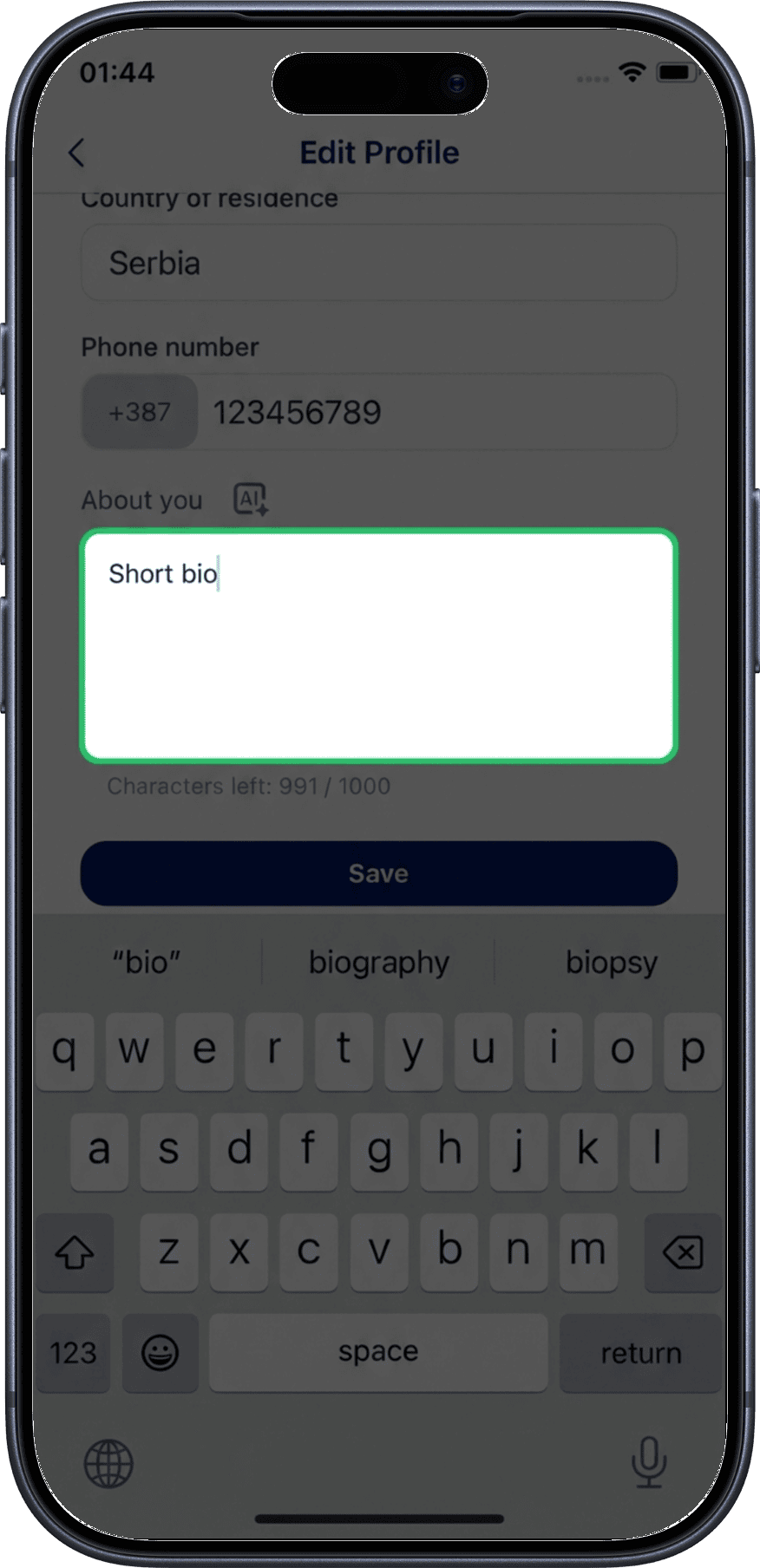
7. Write your bio
Write a short professional biography in the About Me section. Tell others about your expertise, interests, and what you're looking for.
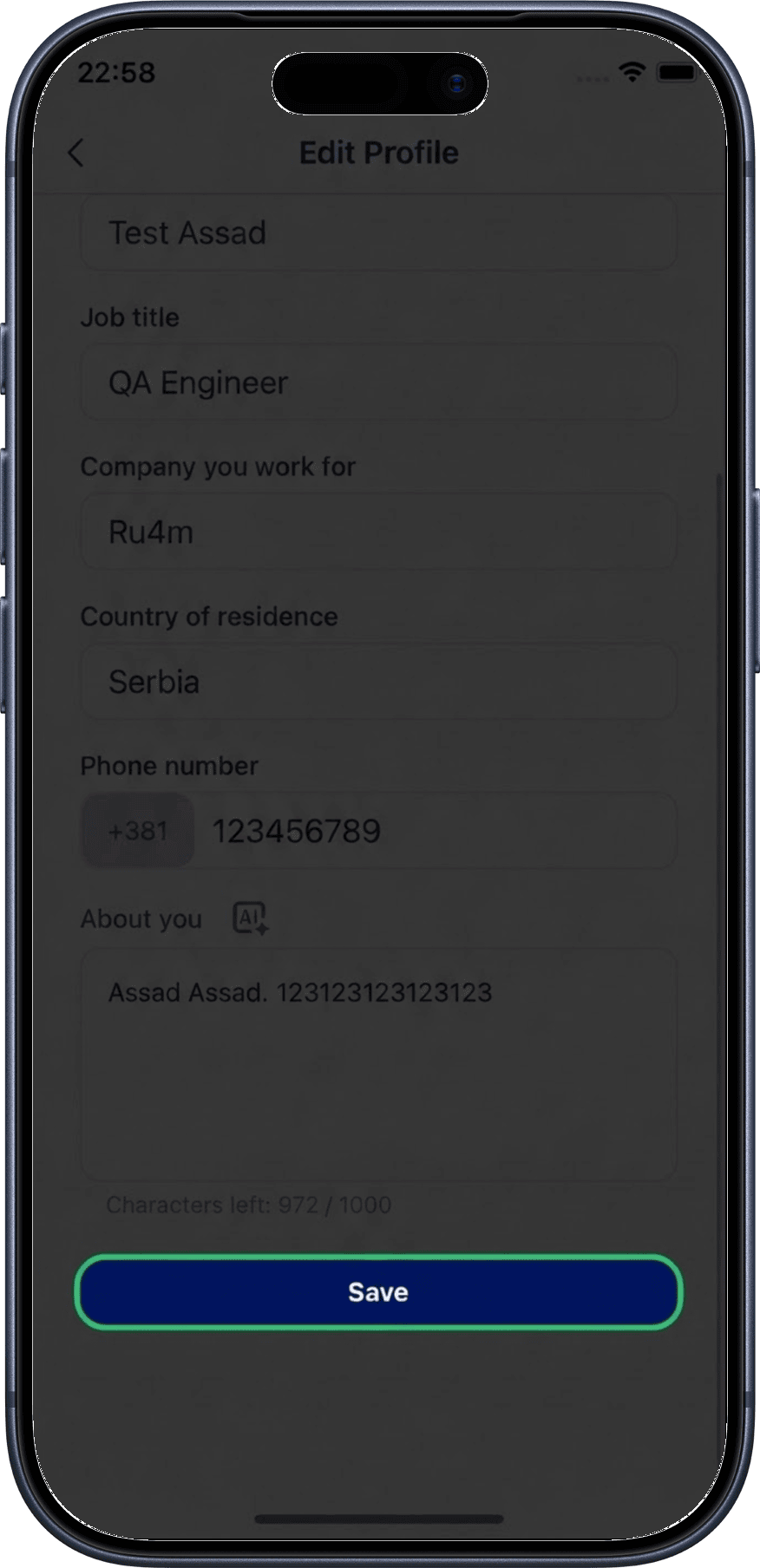
8. Save your profile
Tap Save to apply your changes.
What's Next?
- Explore the map to discover other professionals
- Update your interests to improve discoverability
- Share your profile via QR code or link