Create Your Account
Join a community of professionals eager to collaborate and grow. RU4M offers multiple ways to create your account.
Prerequisites
- Download and install the RU4M app from the App Store or Google Play
- An active internet connection
Option A: Sign Up with Email
1. Open the app
Launch RU4M. You'll see the landing screen with the headline "From Local Meetings to Global Connections".
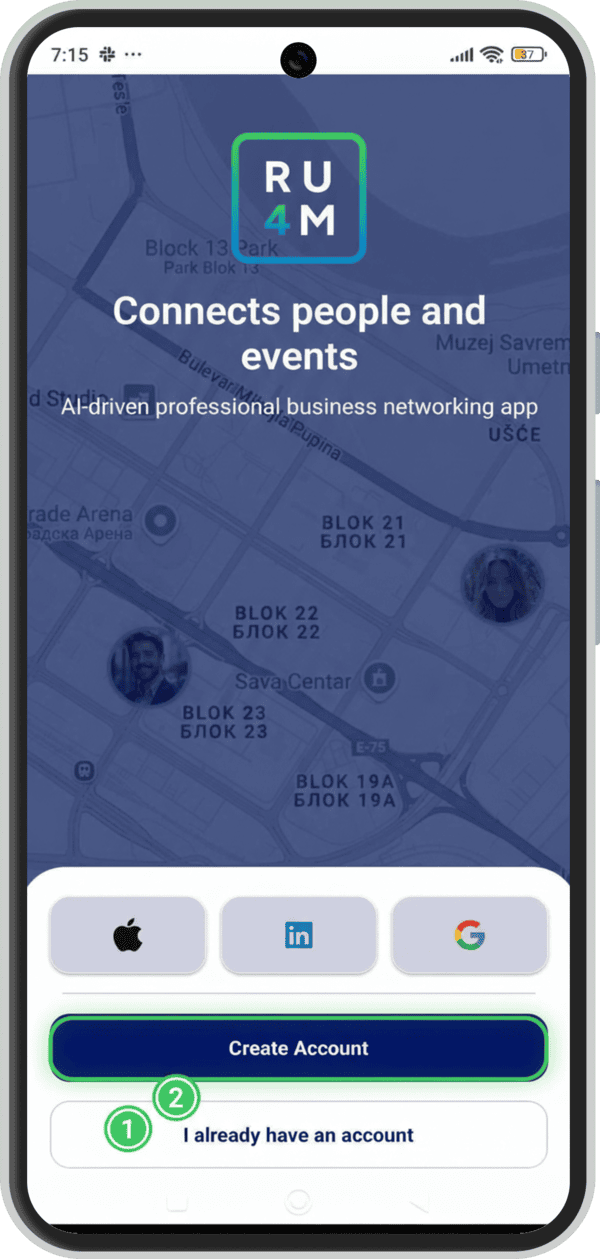
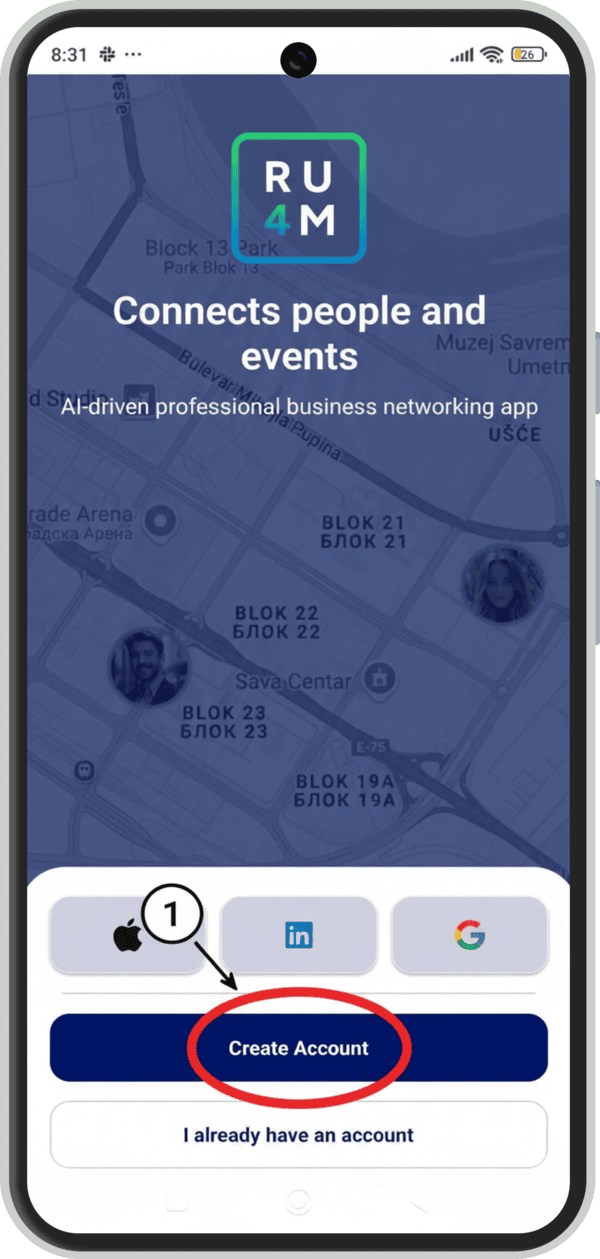
2. Tap "Sign Up"
Tap the Sign Up button at the bottom of the screen.
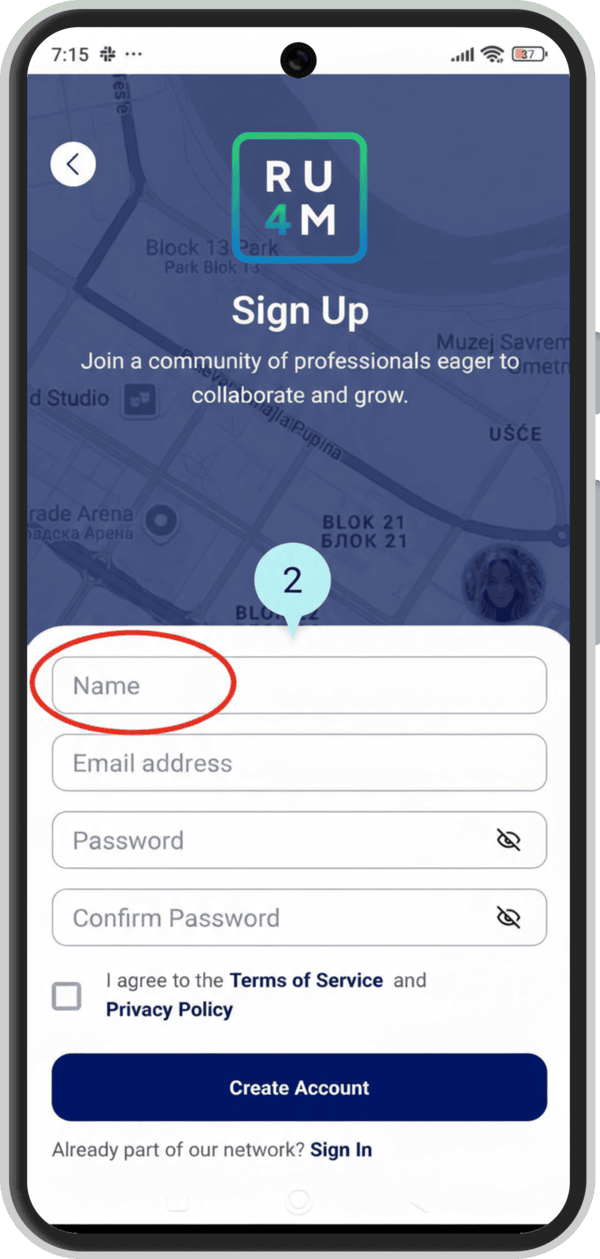
3. Enter your name
Type your first and last name in the Name field.
Important
Both first and last name are required. Enter them separated by a space.
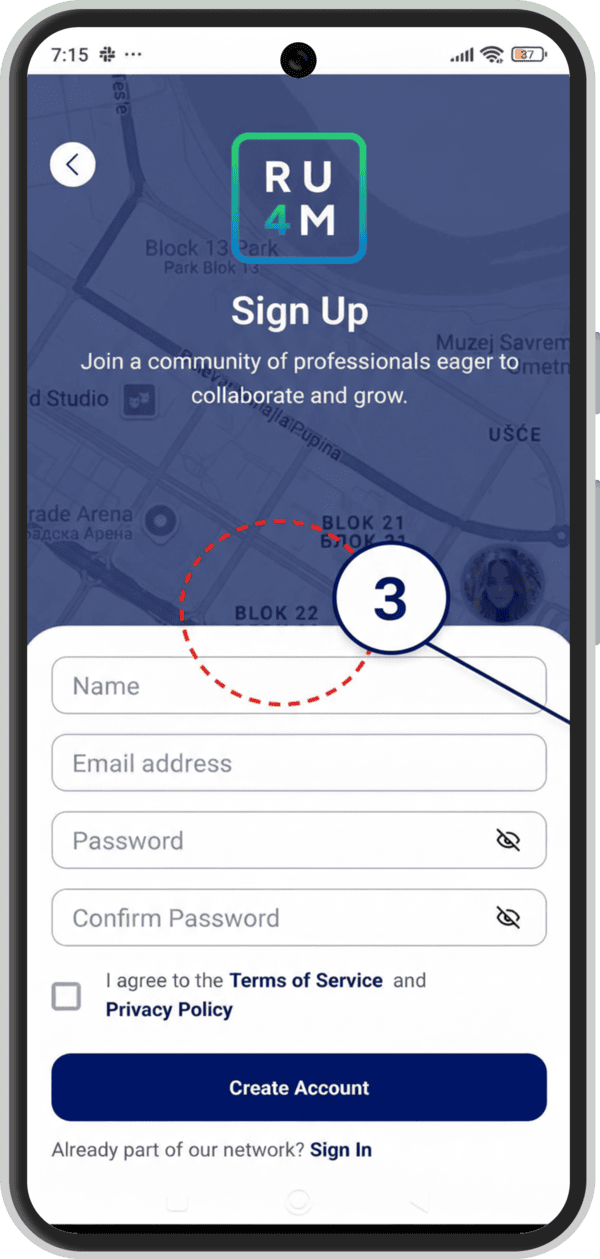
4. Enter your email
Type your email address in the Email field.
5. Create a password
Enter a secure password in the Password field and confirm it.
Password Requirements
Password must be at least 8 characters long and include at least one number, one special character, and one uppercase letter.
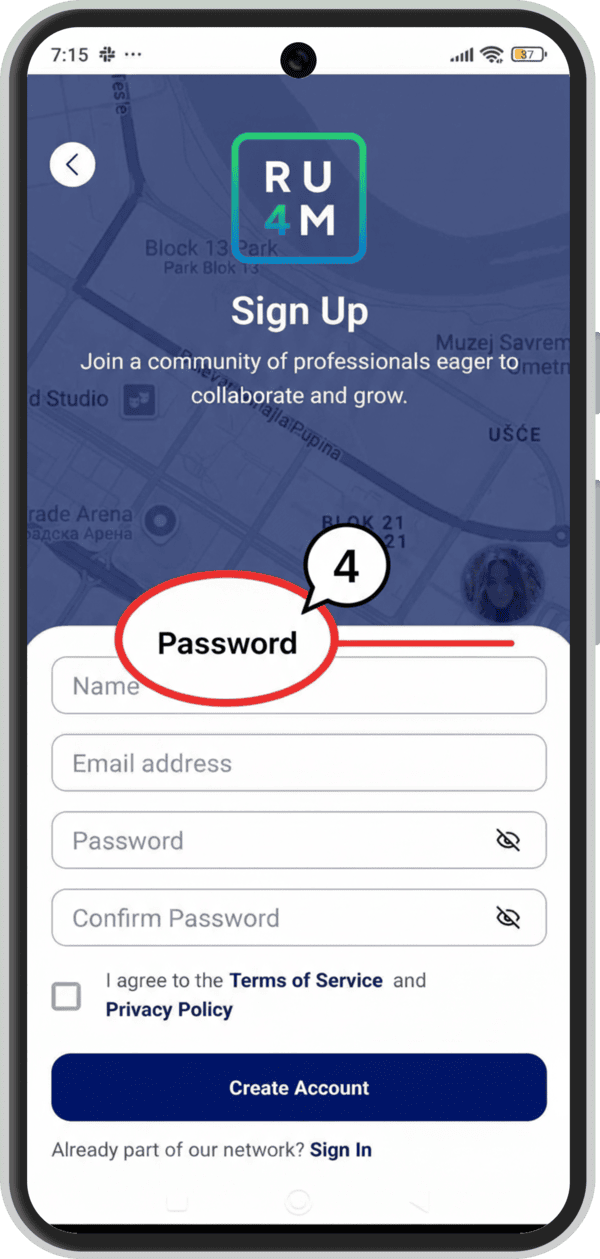
6. Accept Terms of Service
Check the box to agree to the Terms of Service and Privacy Policy.
Required
You must accept the Terms of Service and Privacy Policy to continue.
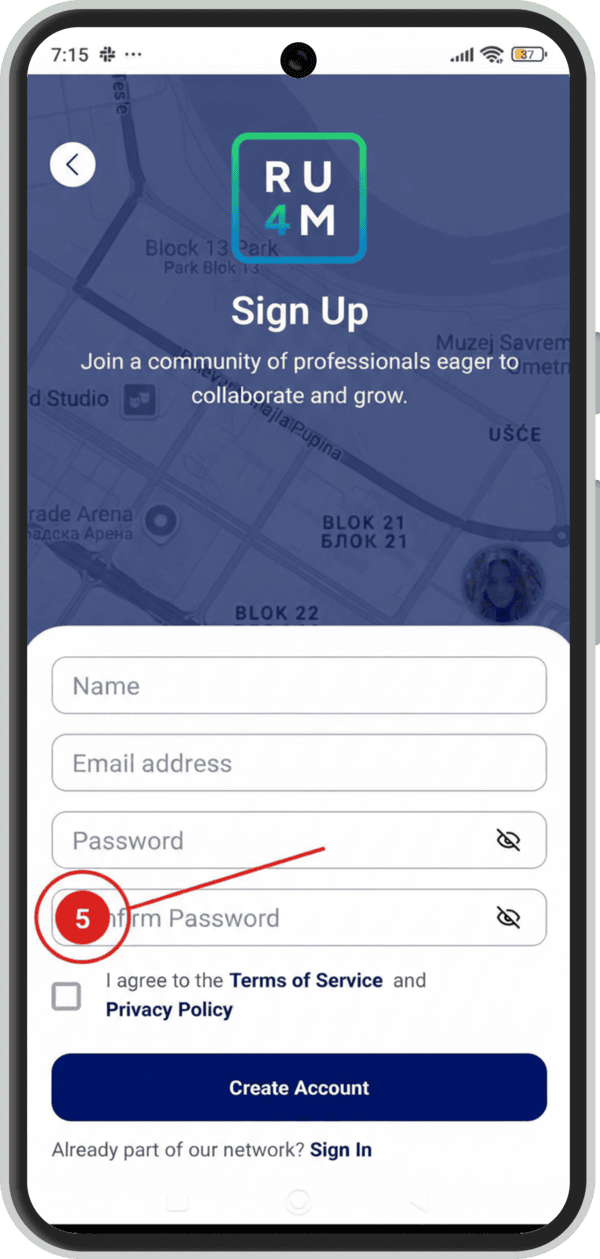
7. Tap "Create Account"
Tap the Create Account button to submit your registration.
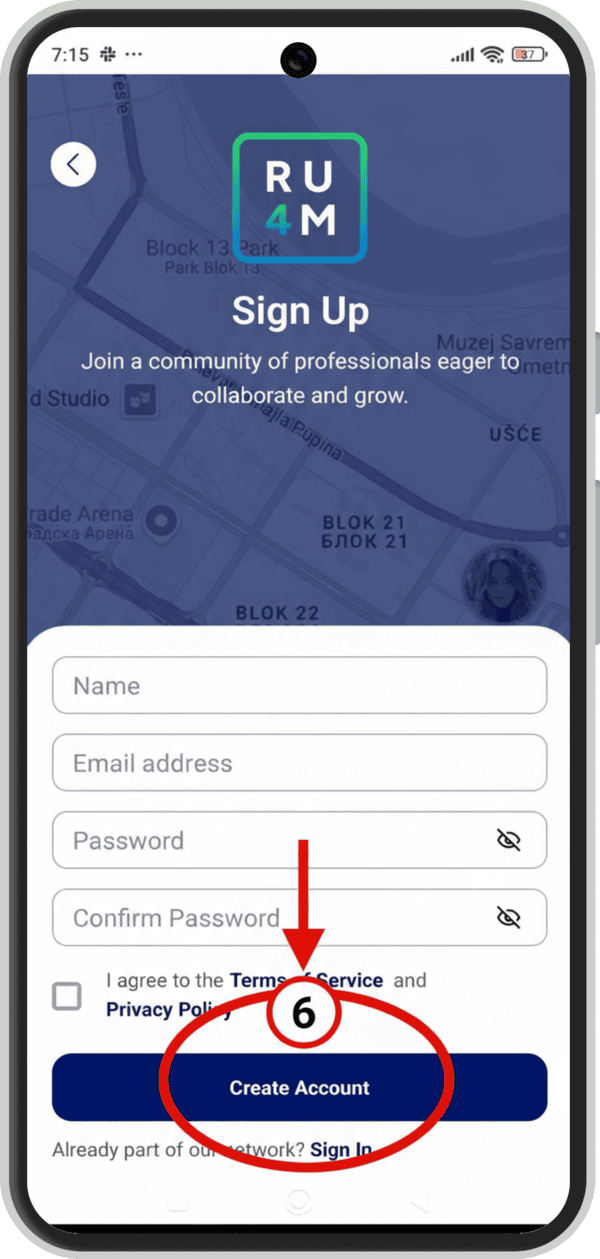
8. Verify your email
Check your email inbox for a verification message. Enter the 6-digit verification code from the email.
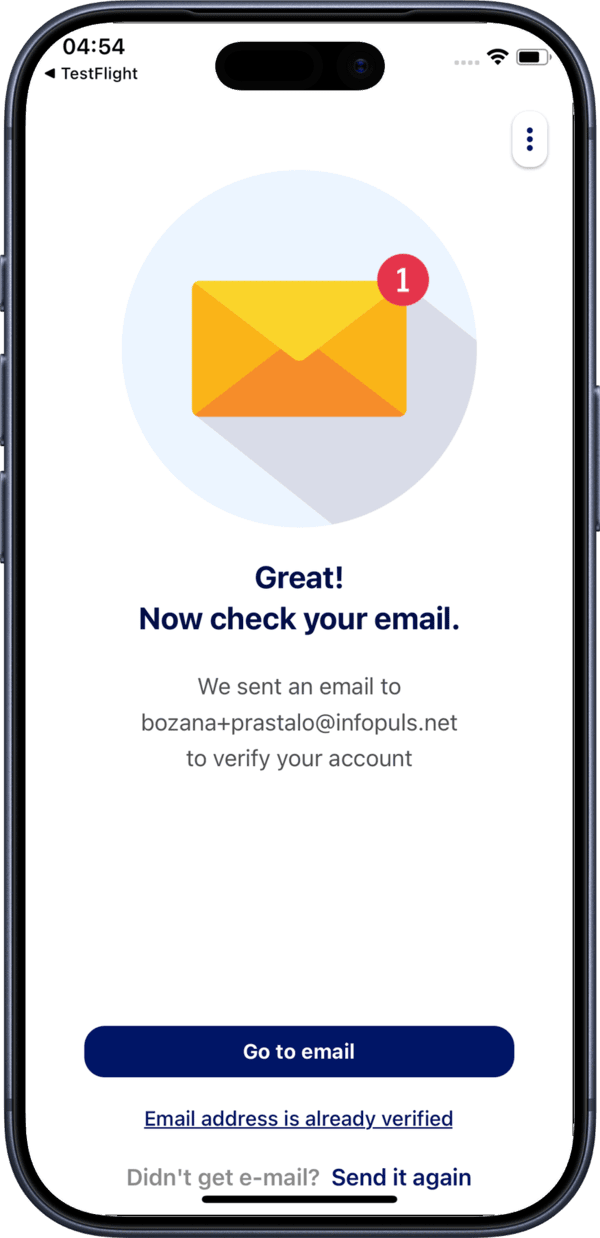
Didn't receive the email?
Check your spam/junk folder. If you still don't see it, verify your internet connection and try again.
Option B: Sign Up with LinkedIn
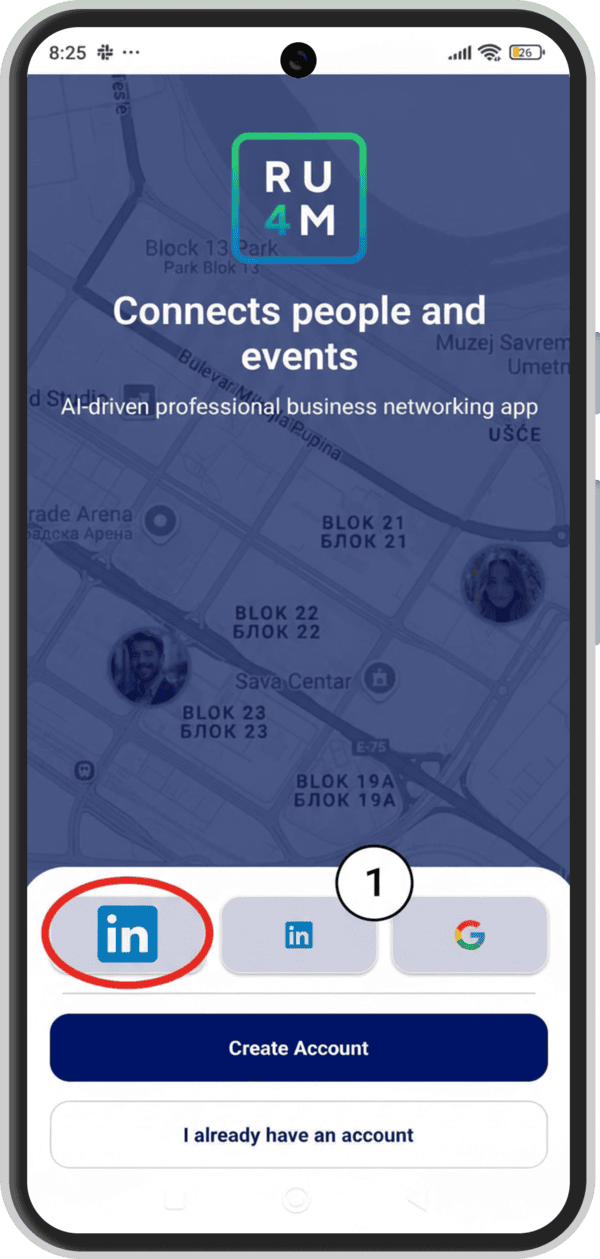
1. Tap "Sign in with LinkedIn"
On the landing screen, tap the Sign in with LinkedIn button.
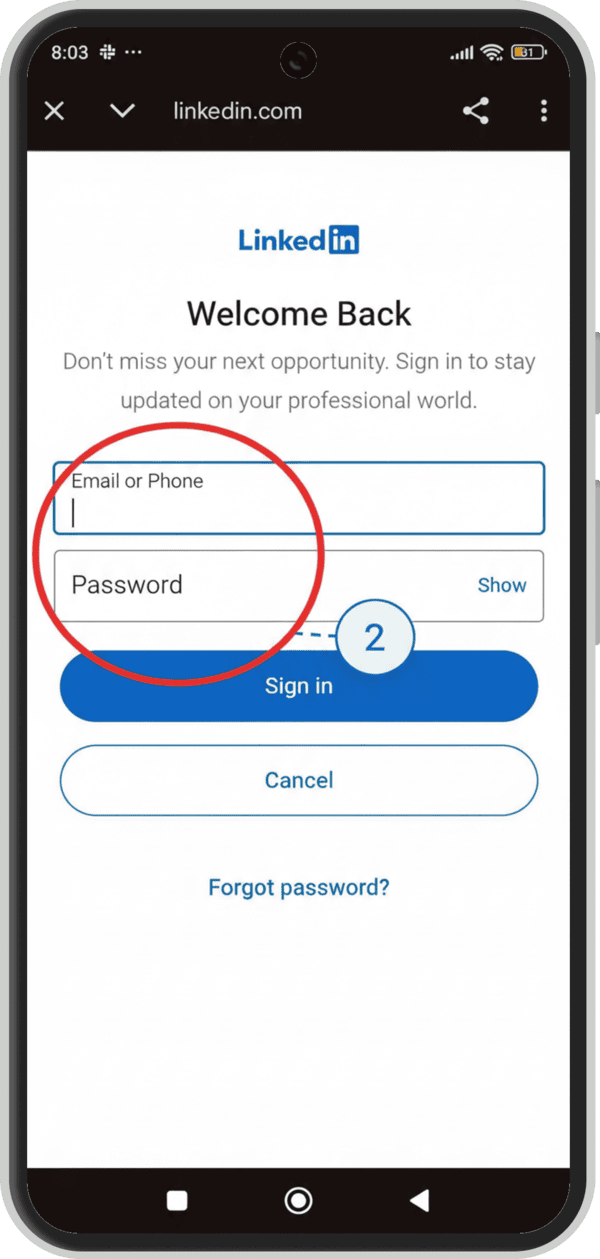
2. Enter LinkedIn credentials
A LinkedIn login page will open. Enter your email and password.
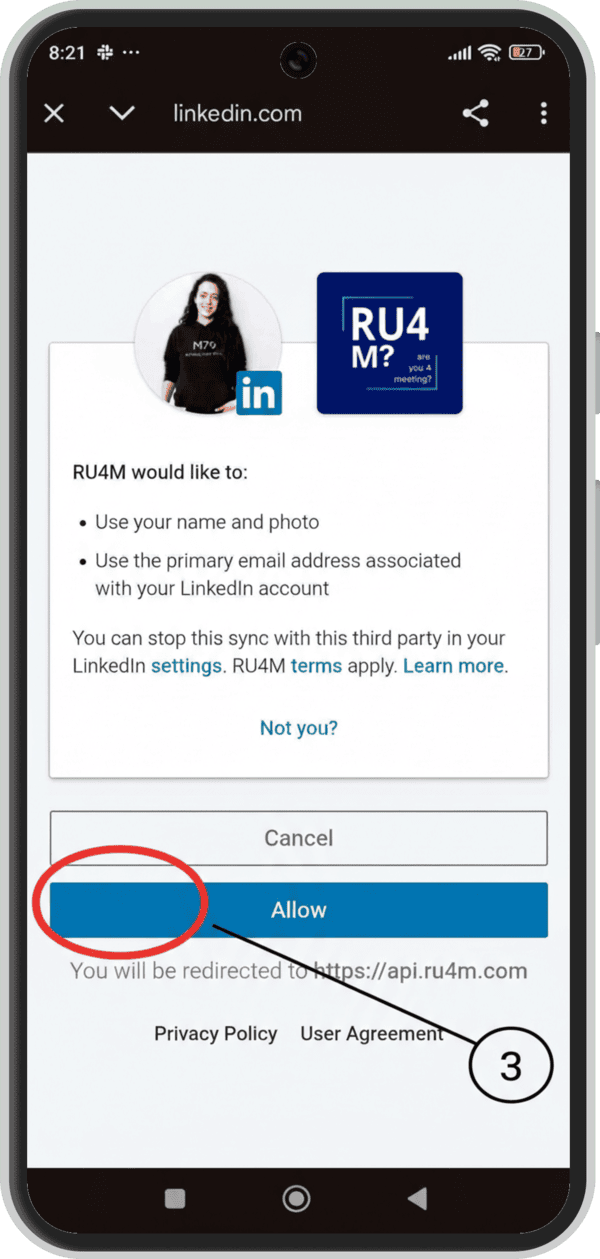
3. Grant permissions
LinkedIn will ask permission to share your profile information. Tap Allow.
4. Return to RU4M
You'll be automatically redirected back to the RU4M app with your account created.
Option C: Sign Up with Google
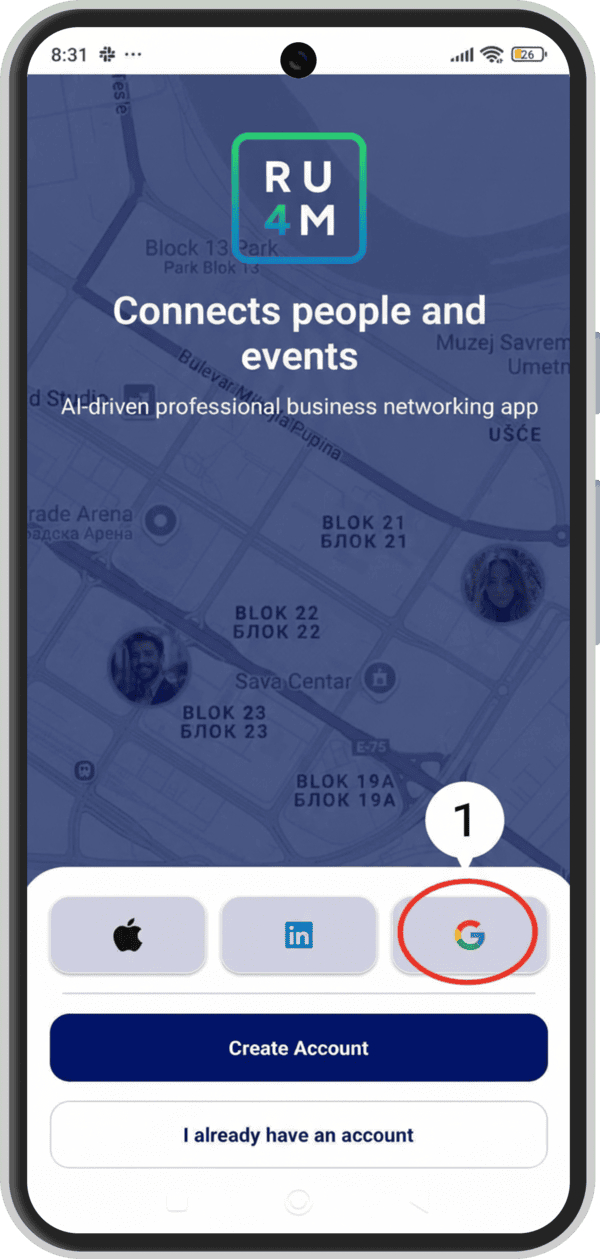
1. Tap "Sign in with Google"
On the landing screen, tap the Sign in with Google button.
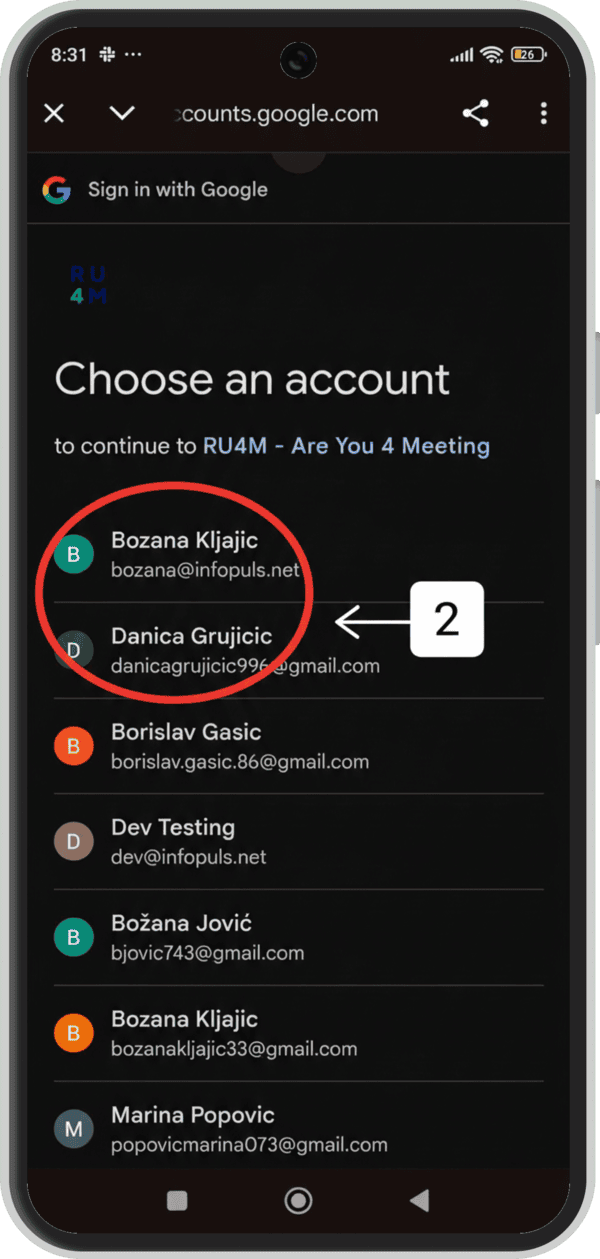
2. Select your Google account
Choose your Google account from the account picker, or sign in with a new account.
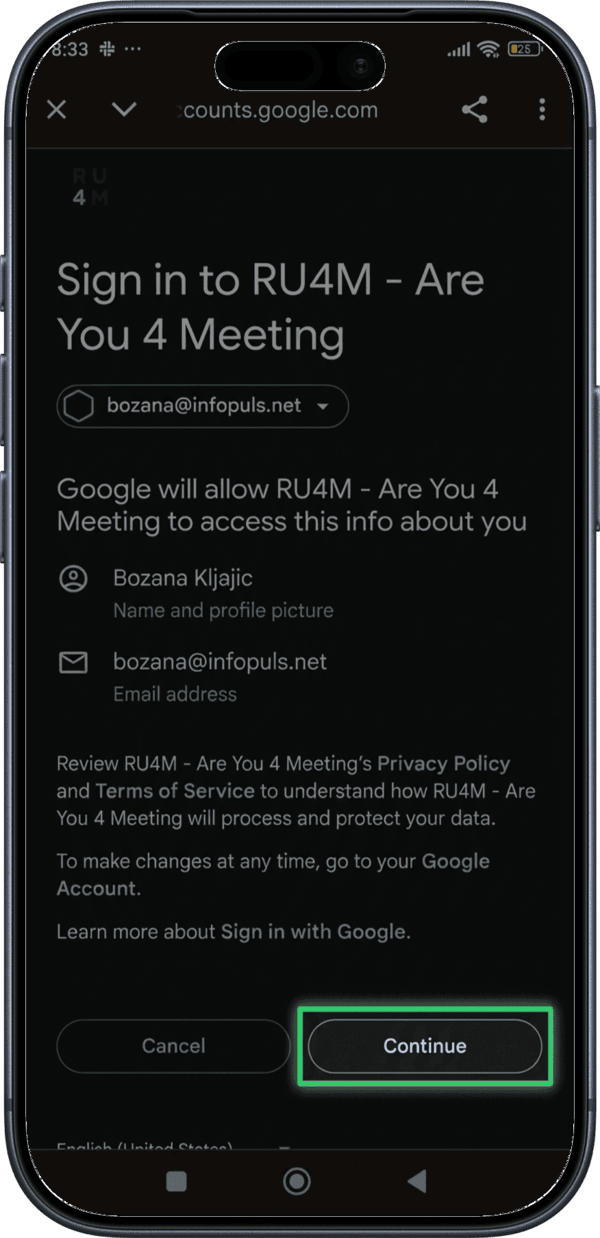
3. Grant permissions
Allow RU4M to access your basic profile information.
4. Return to RU4M
You'll be automatically redirected back to the app.
Option D: Sign Up with Apple
1. Tap "Sign in with Apple"
On the landing screen, tap the Sign in with Apple button.
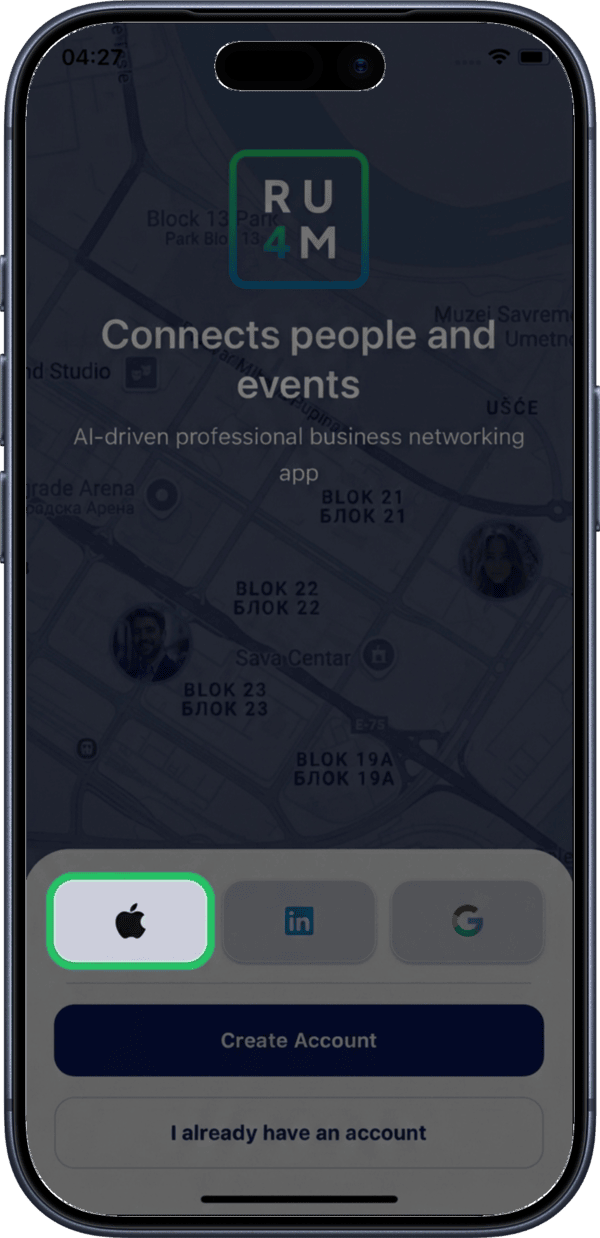
2. Apple Sign In popup
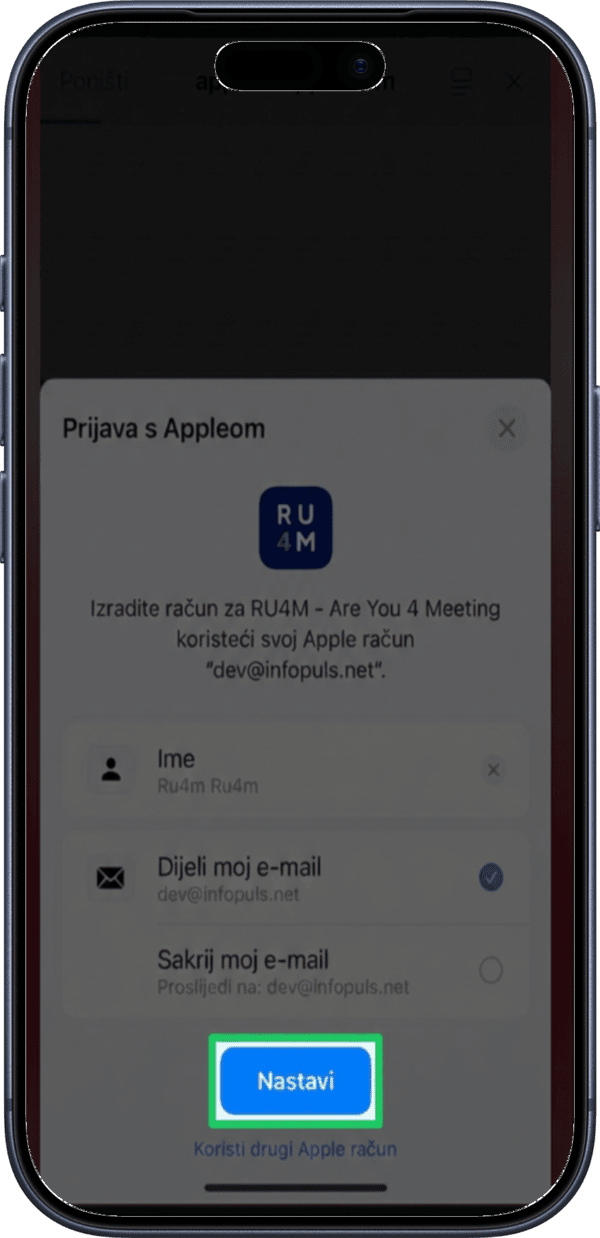
An Apple Sign In sheet will appear. You can choose to share or hide your email address.
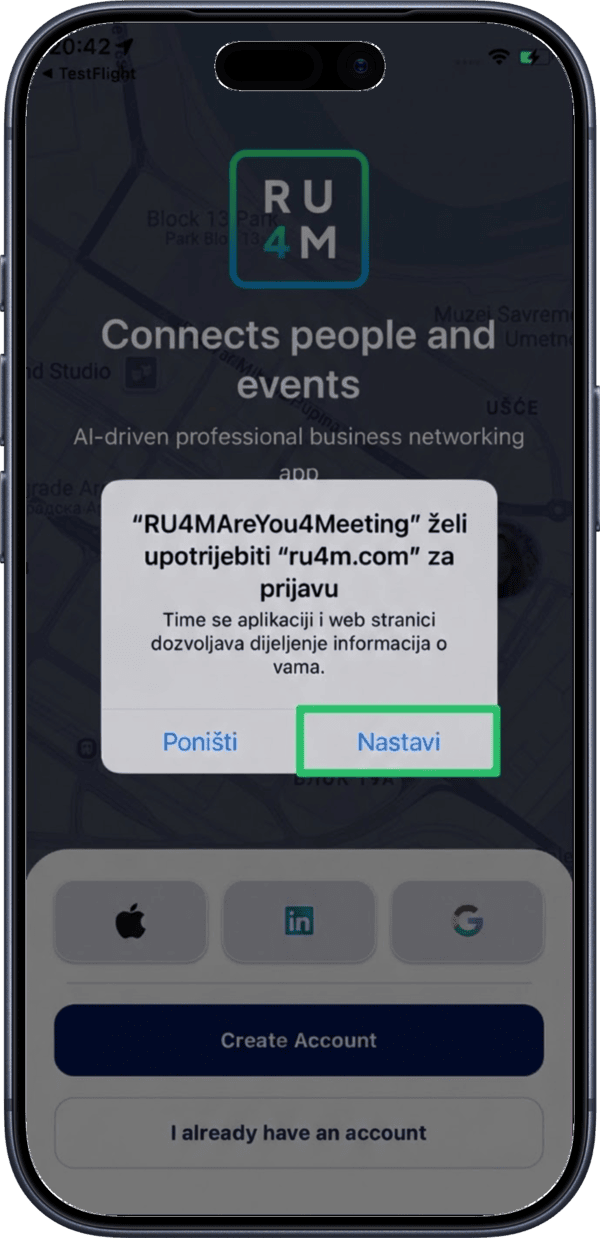
3. Choose email visibility
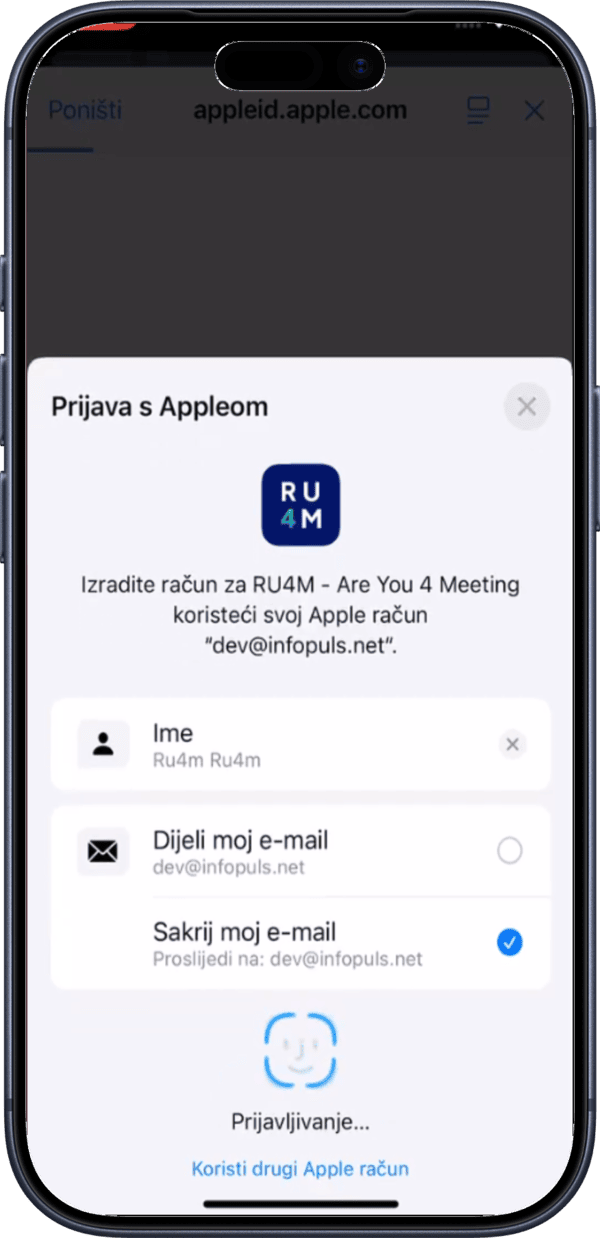
Select whether to share your real email or use Apple's private relay to hide it.
4. Confirm with Face ID or Touch ID
Authenticate using Face ID, Touch ID, or your device passcode.
What's Next?
After creating your account, you'll be guided through the onboarding process to set up your professional interests.