Calendar Overview
The RU4M Calendar helps you manage your professional meetings and schedule. View your upcoming meetings in day, week, or month views.
Prerequisites
- A registered RU4M account
Steps
1. Open the Calendar
Tap the Calendar icon in the bottom navigation bar.
2. Choose your view
Switch between different calendar views using the view switcher:
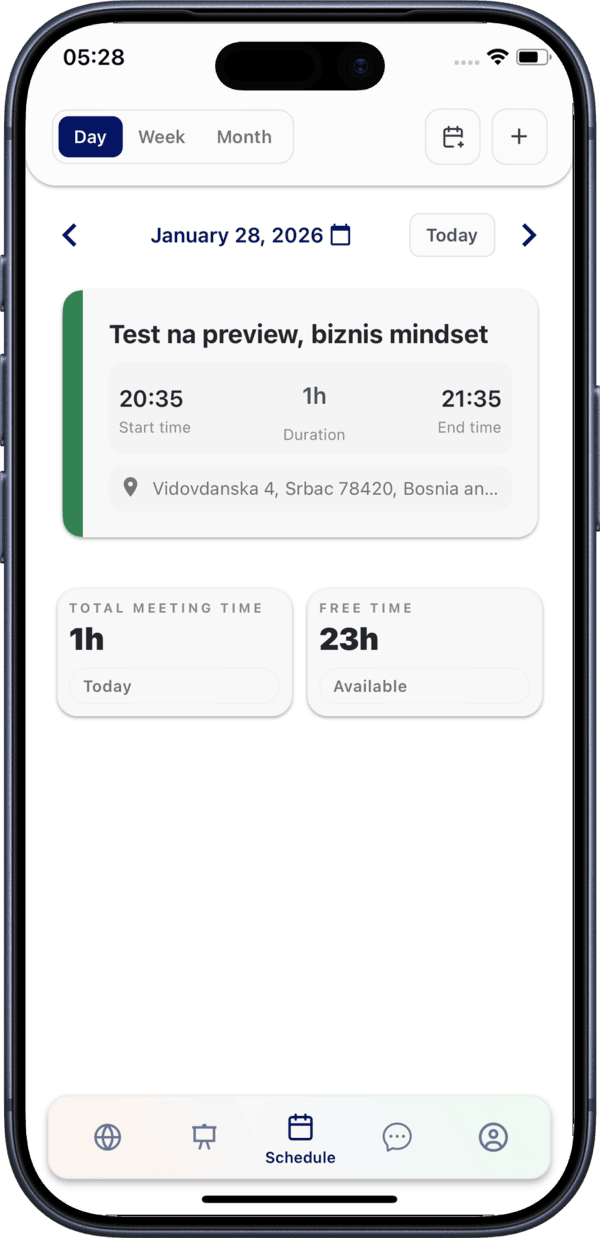
Day View
See all meetings for a single day with detailed time slots.
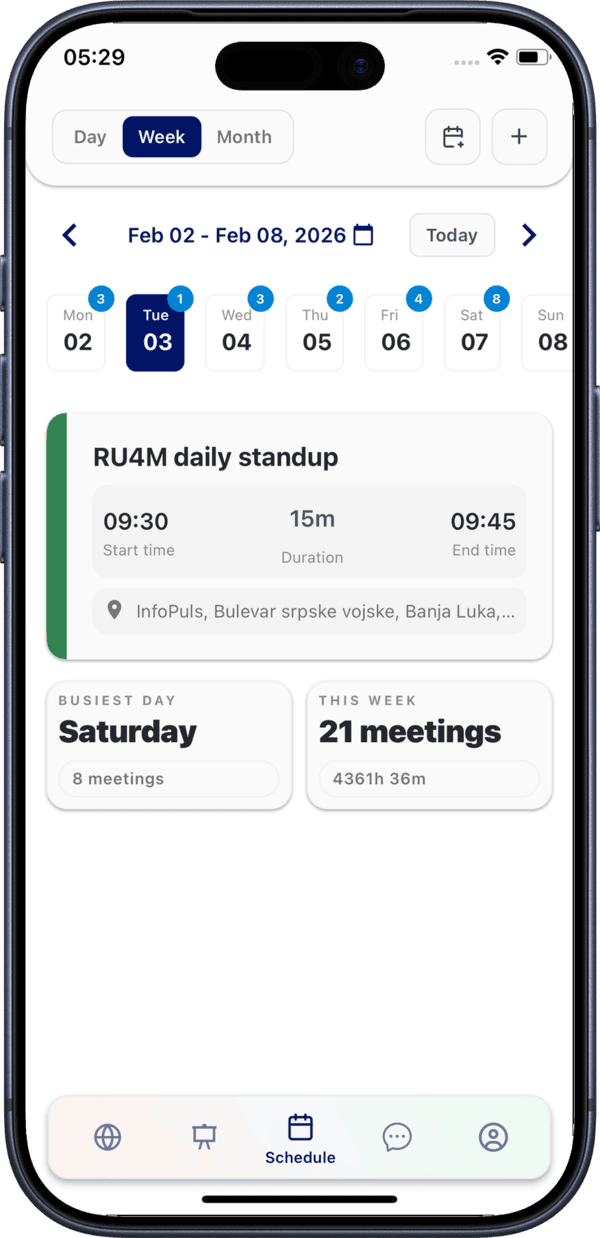
Week View
See your week at a glance with meetings displayed across days.
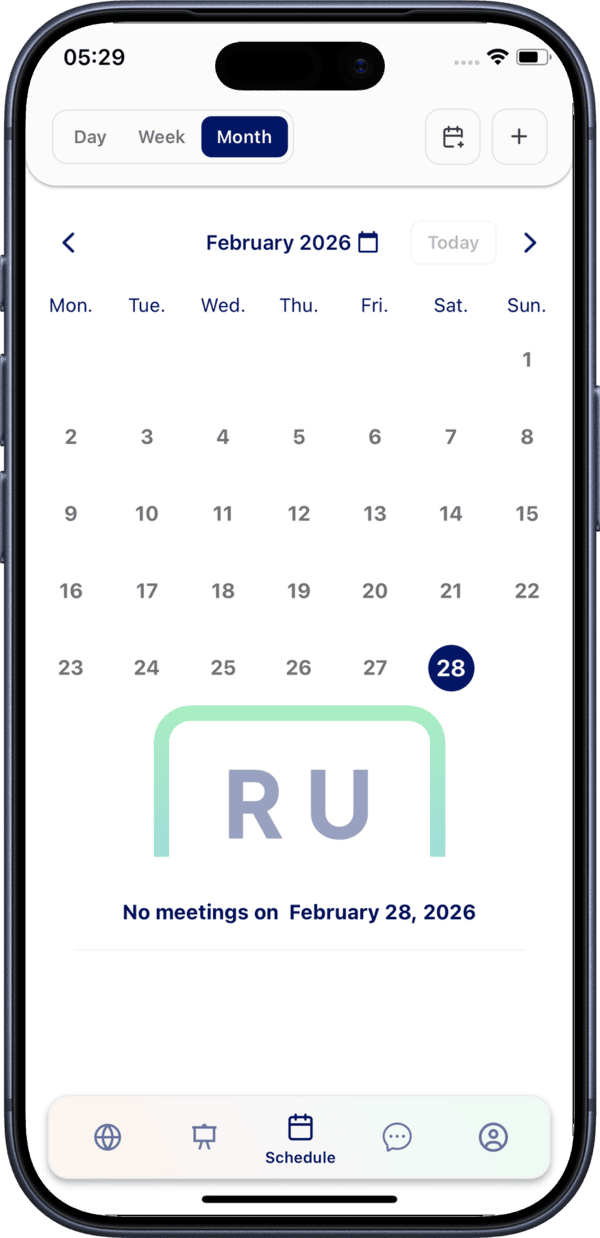
Month View
Get an overview of your entire month. Days with meetings are highlighted.
3. Tap a meeting
Tap any meeting on the calendar to see its details.
Calendar Features
- Color-coded events — Different types of meetings are color-coded for quick identification
- Calendar sync — Sync with external calendars via Calendar Integration
- Quick create — Create meetings directly from the calendar
Stay organized
Use the month view to plan ahead, and the day view when you need detailed scheduling for the current day.