Connections
Build your professional network by connecting with other RU4M users. View and search your existing connections.
Prerequisites
- A registered RU4M account
Viewing Your Connections
1. Open connections list
Navigate to your profile and tap the Connections section to see everyone you're connected with.
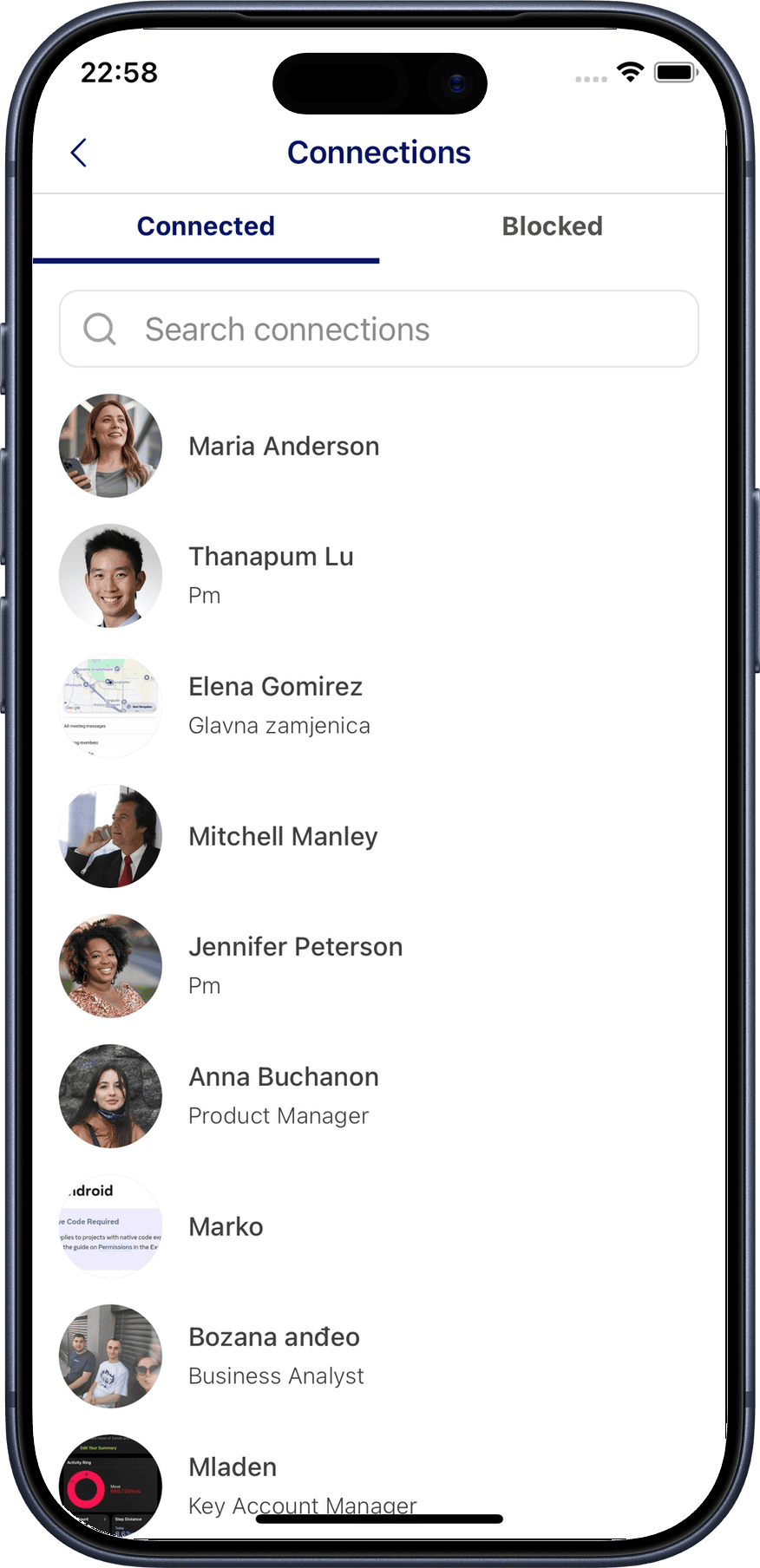
Your connections list shows all users you're connected with, including their name, photo, and job title.
2. Search connections
Use the search bar at the top of the connections list to find a specific connection by name.
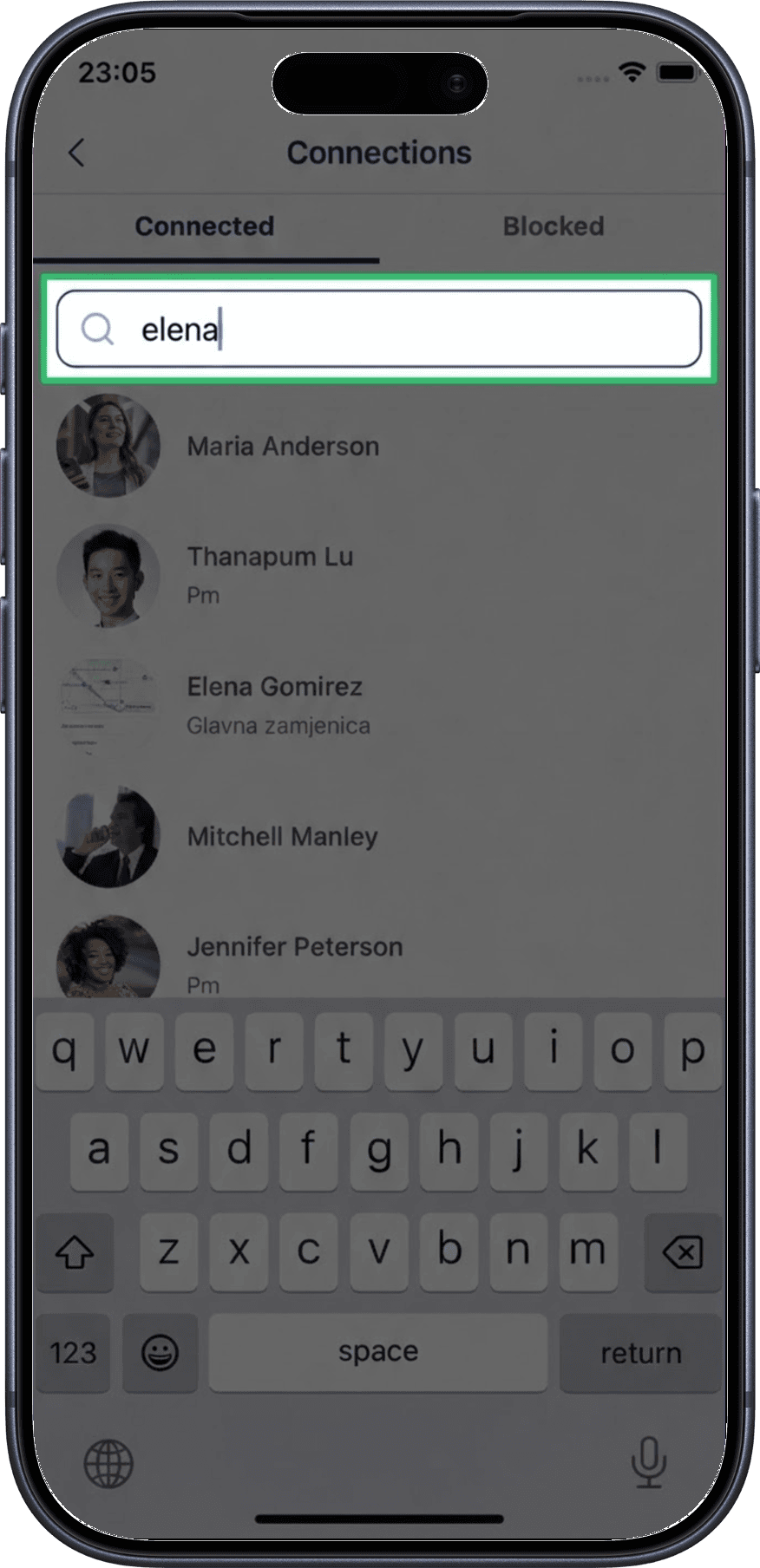
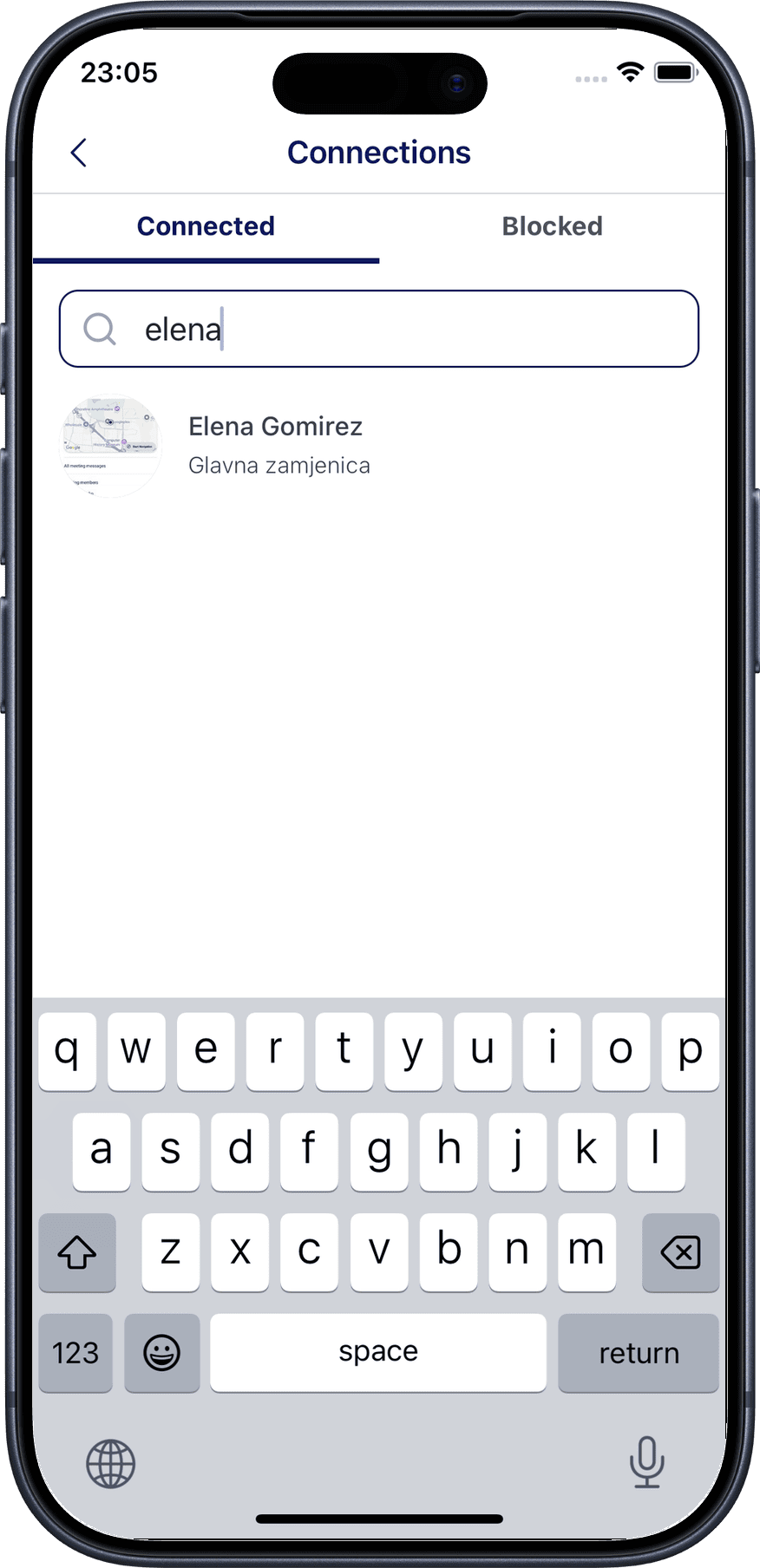
3. View search results
Browse the filtered results to find the connection you're looking for. Tap a connection to view their full profile.
Managing Connections
To send, accept, decline, remove, or block connections, visit the other user's profile. See Other User's Profile for details on:
- Sending a connection request
- Accepting or declining a connection request
- Removing a connection
- Blocking or reporting a user
Benefits of Connections
- Direct messaging — Send messages to your connections
- Meeting scheduling — Easily schedule meetings with connections
- Network visibility — Your connections can see your profile updates