My Profile
Your RU4M profile is your professional identity. It shows your name, photo, job title, company, bio, and interests to other users on the platform.
Prerequisites
- A registered RU4M account
Steps
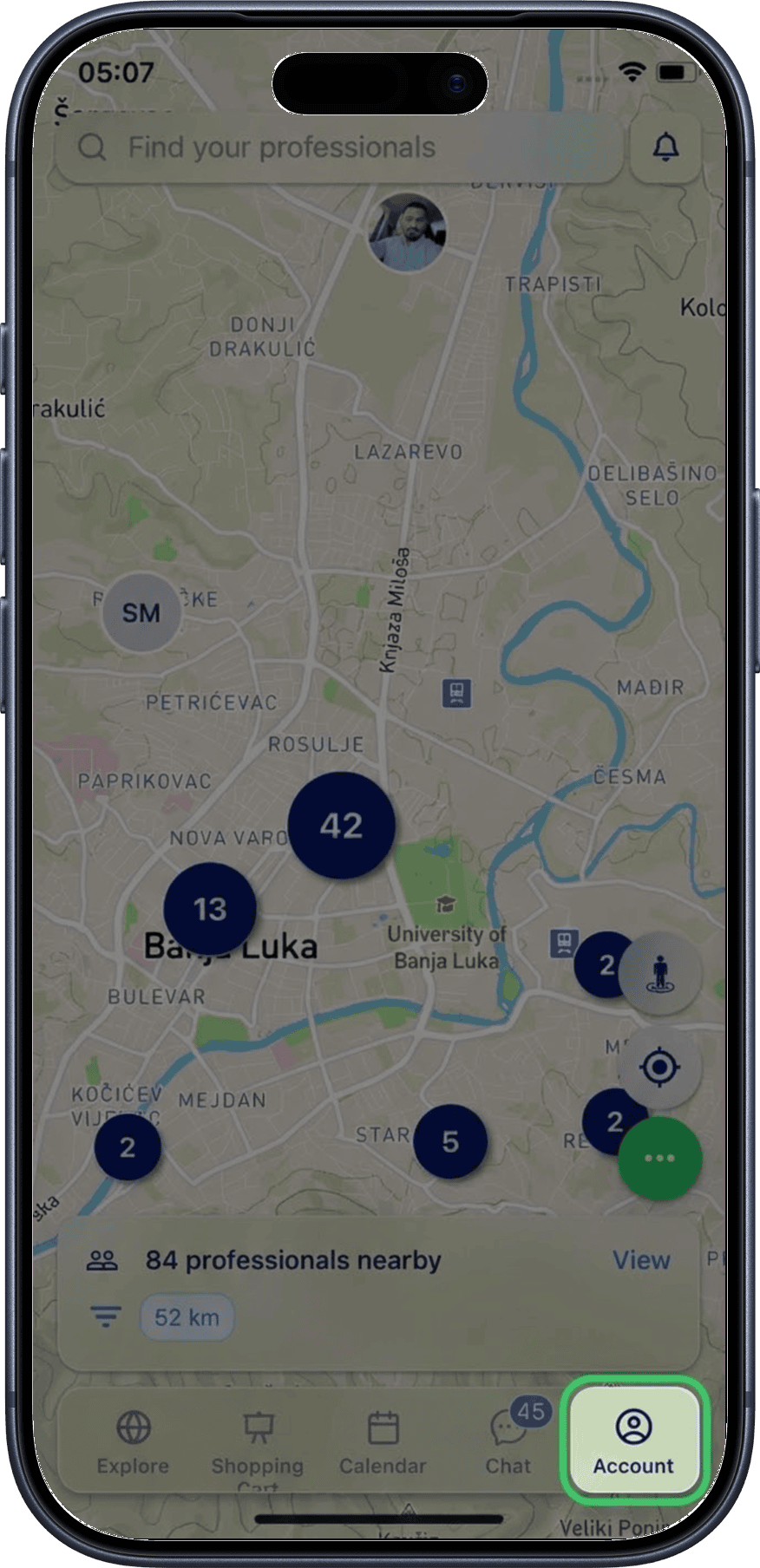
1. Tap My Account
Open the app and tap the My Account icon in the bottom navigation bar.
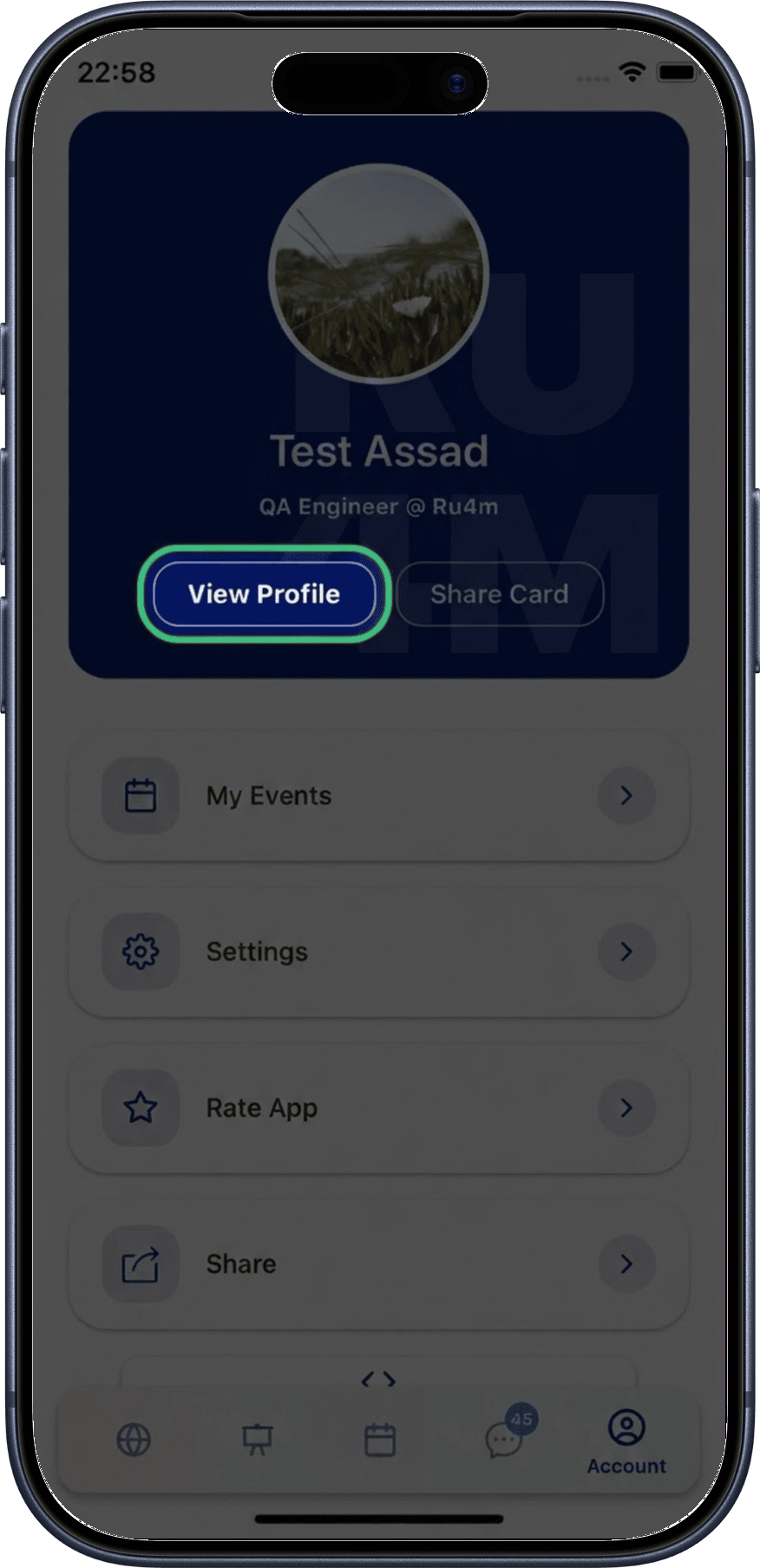
2. Tap View Profile
Tap the View Profile button to open your full profile screen.
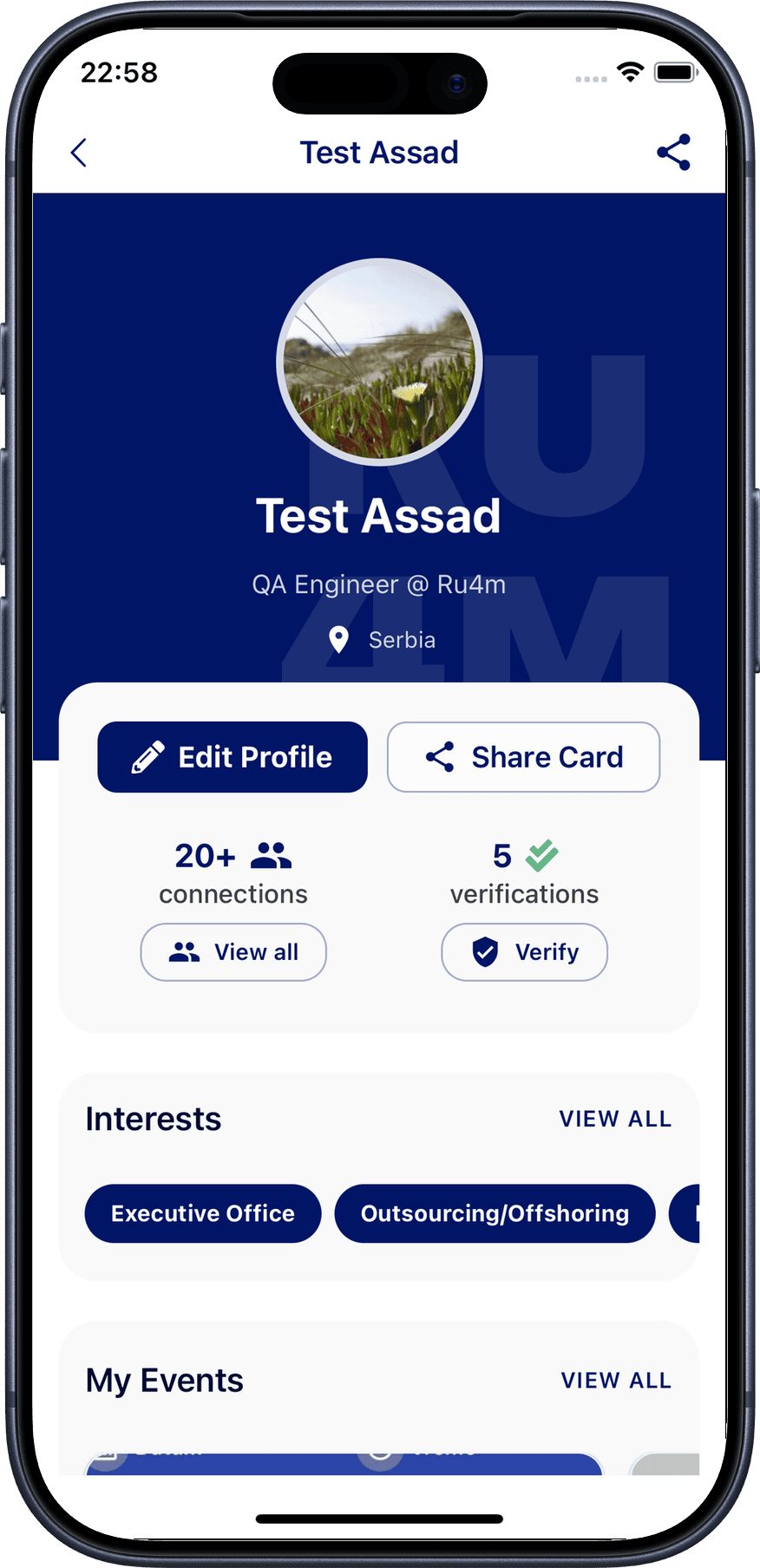
3. Profile Overview
Your profile displays the following information:
- Profile photo — Your professional headshot
- Name — Your first and last name
- Job title & company — Your current professional role and workplace
- Bio — Your professional biography (About Me)
- Interests — Your selected professional interests
What's Next?
From your profile screen, you can:
- Edit your profile — Update your name, photo, job title, company, country, and bio. See Edit Profile.
- Manage connections — View and search your professional connections. See Connections.
- Share your profile — Share via QR code or link. See Share Profile.
- Edit interests — Update your professional interests. See Edit Interests.
- AI Profile Completion — Review AI-generated profile suggestions. See AI Profile Completion.
Keep your profile complete
A complete and up-to-date profile helps you appear in more search results and makes a better impression on other professionals.