Other User's Profile
View other professionals' profiles and interact with them on RU4M. You can send connection requests, request meetings, and manage your connections.
Prerequisites
- A registered RU4M account
Viewing Another User's Profile
You can reach another user's profile from the Explore map, Events, Connections, or Chat.
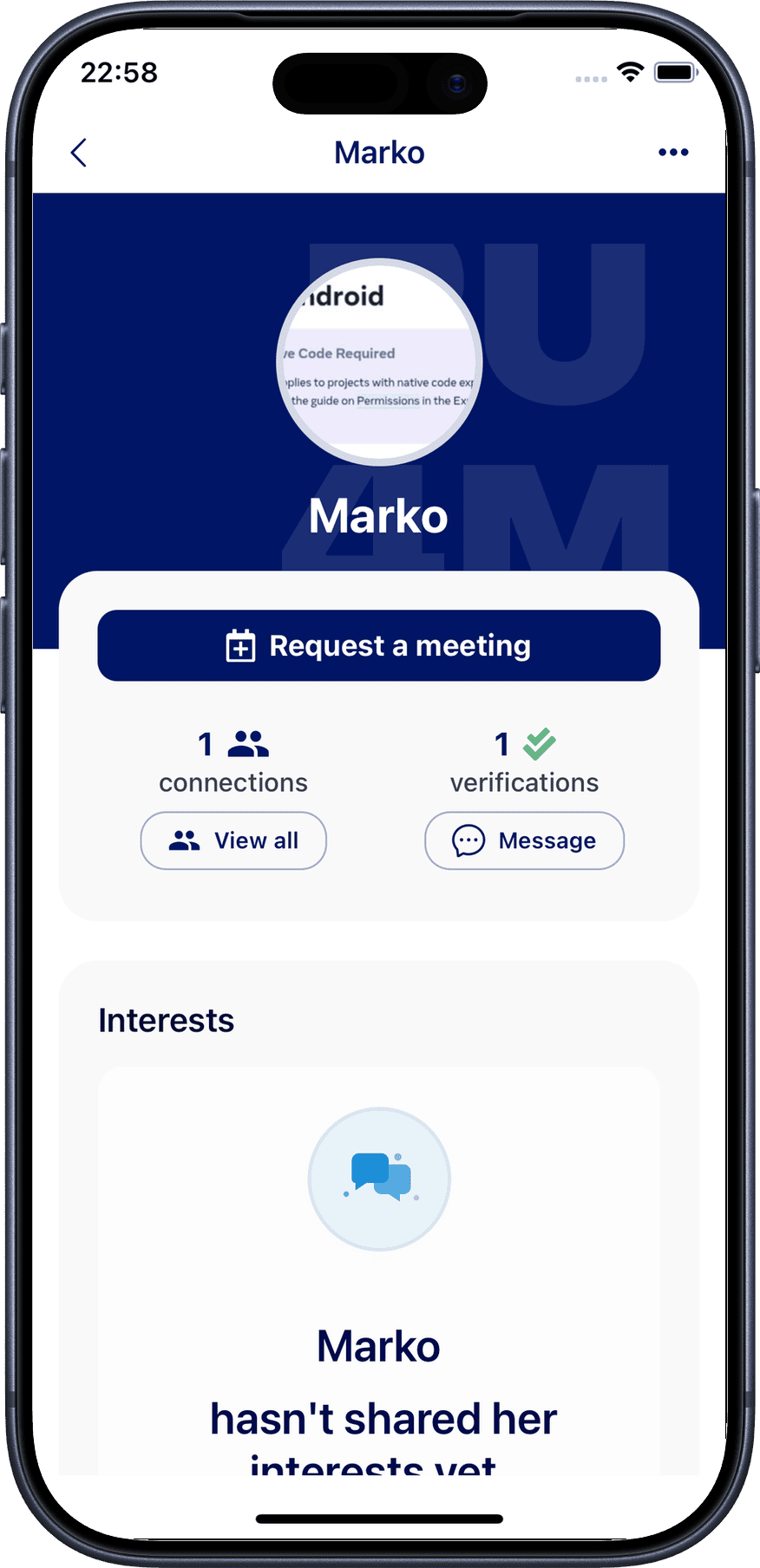
1. View profile
The profile displays the user's photo, name, job title, company, bio, and interests.
Connecting with a User
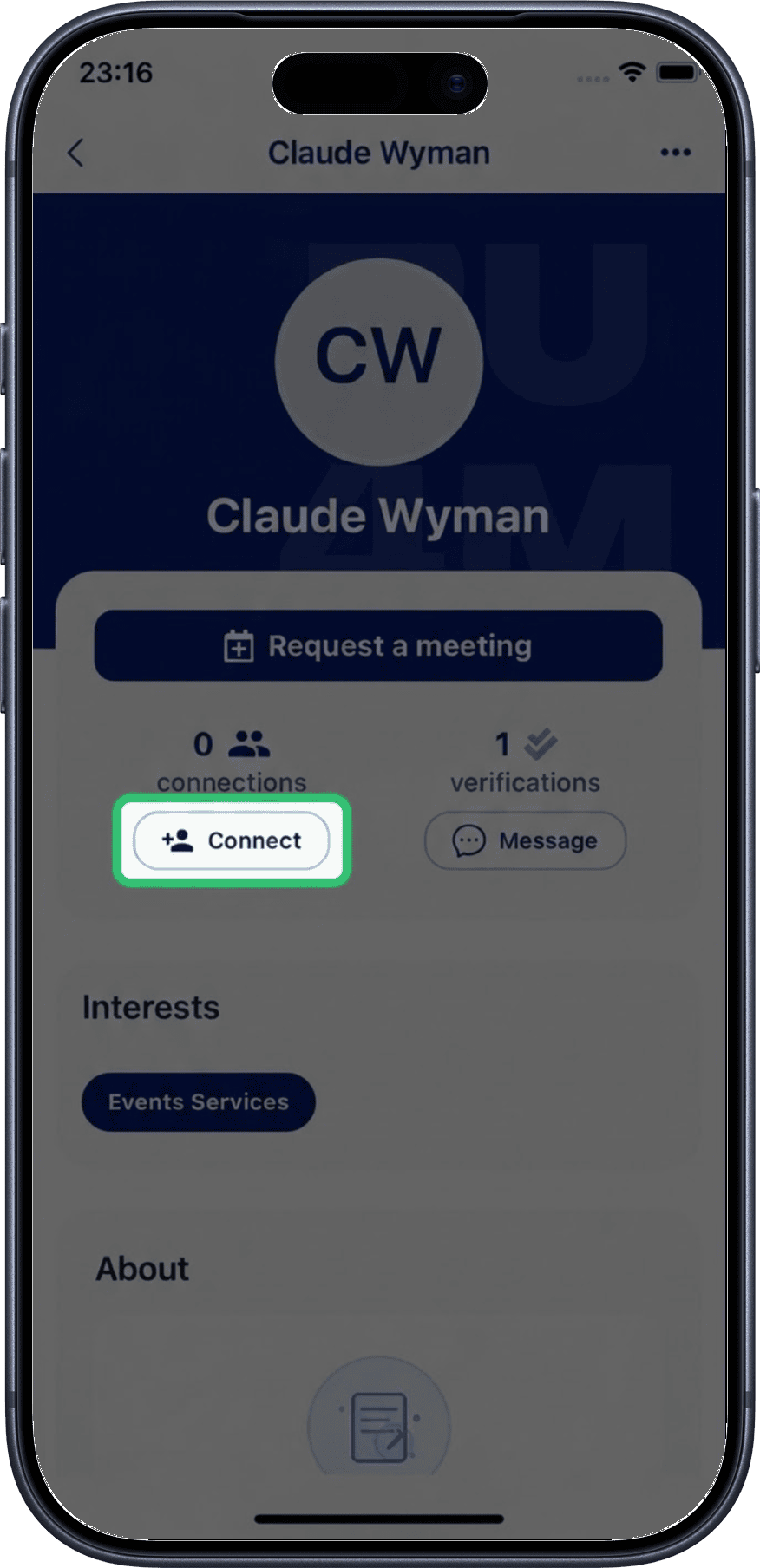
2. Send connection request
If you're not yet connected, tap the Connect button to send a connection request. The user will receive a notification.
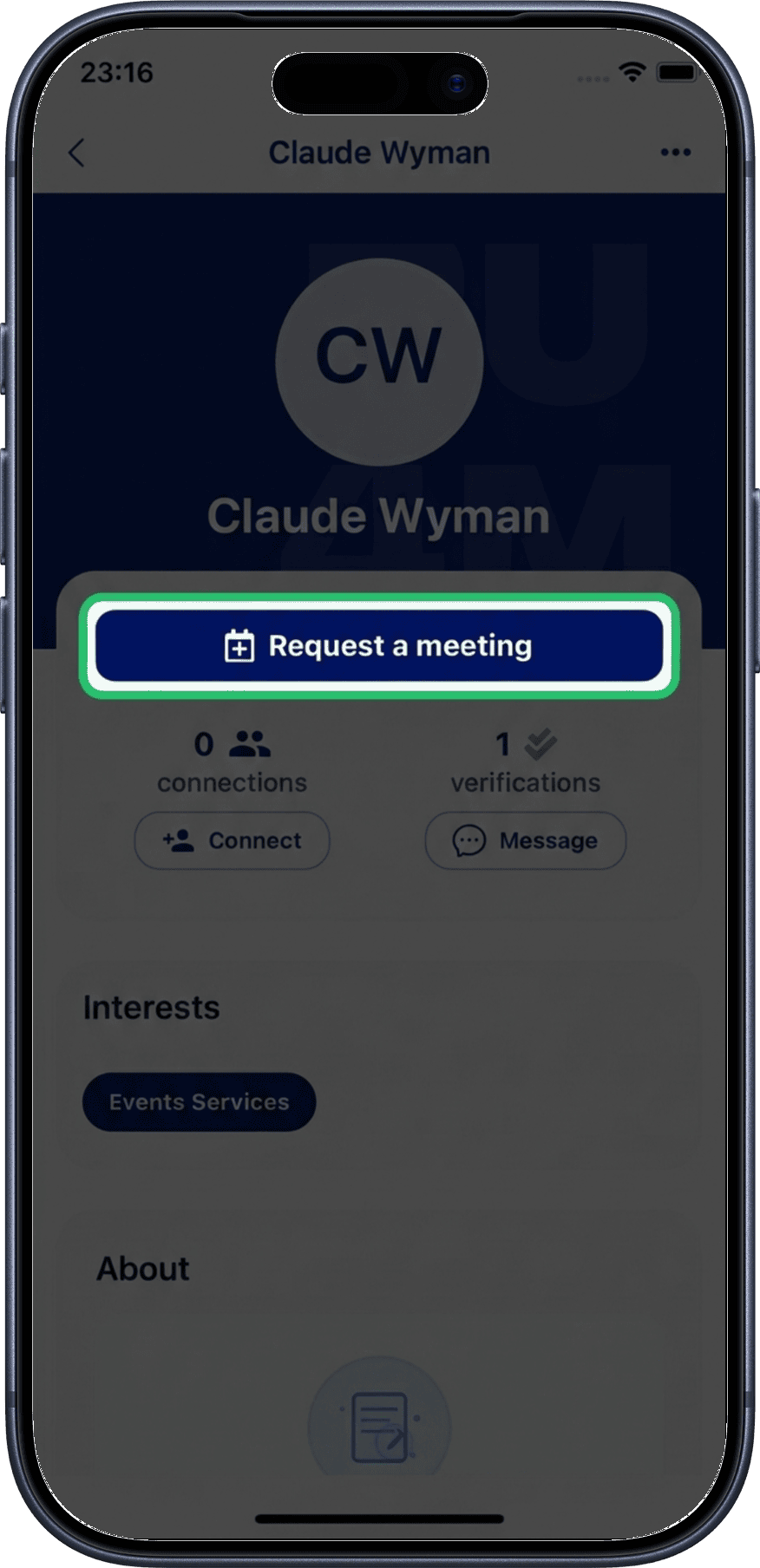
3. Request a meeting
Tap the Request Meeting button to schedule a meeting with this user. You'll be taken to the meeting creation screen.
Managing an Existing Connection
If you're already connected with a user, you have additional options.
4. Manage connection
Tap the connection management options to see available actions.
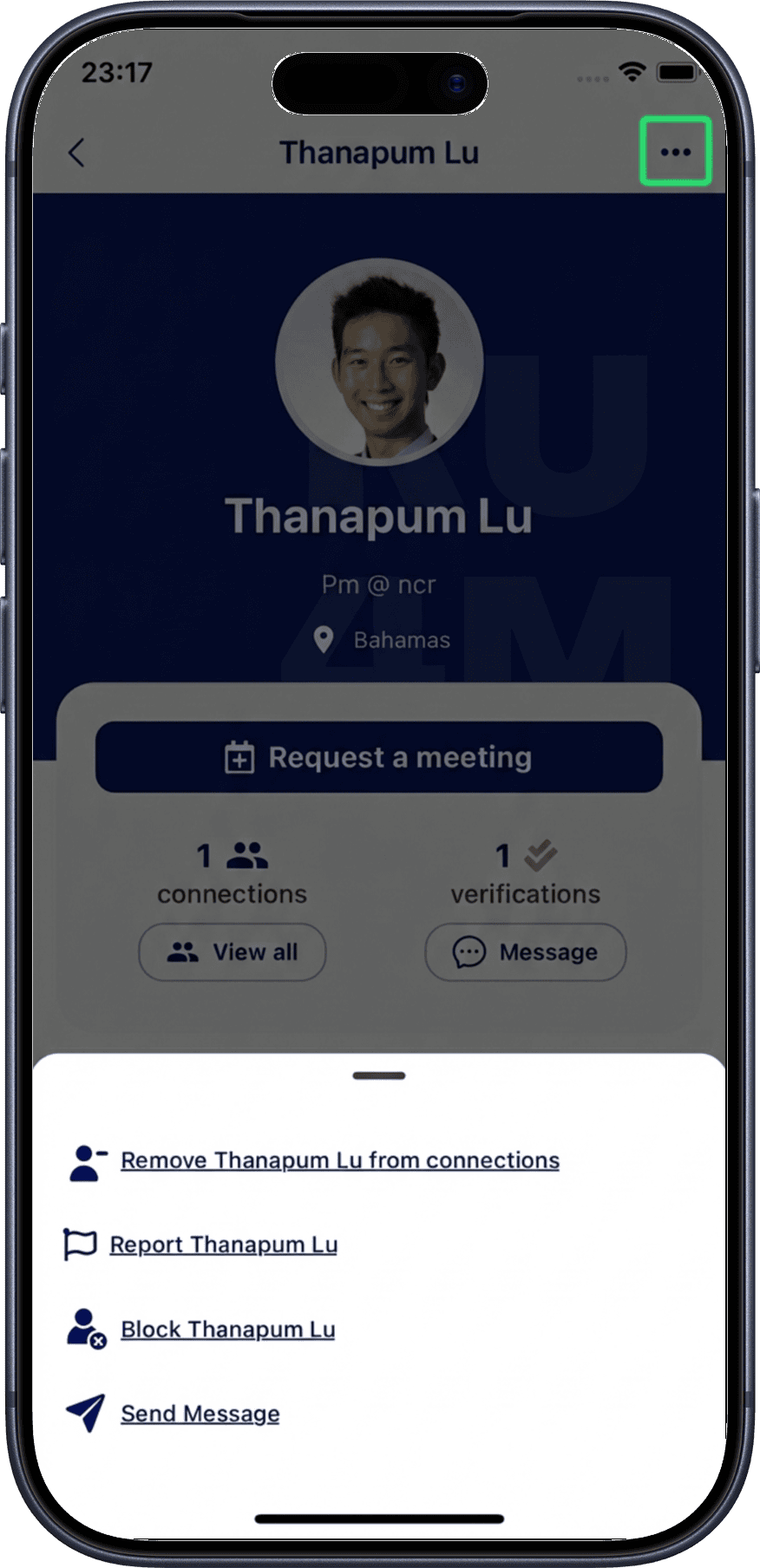
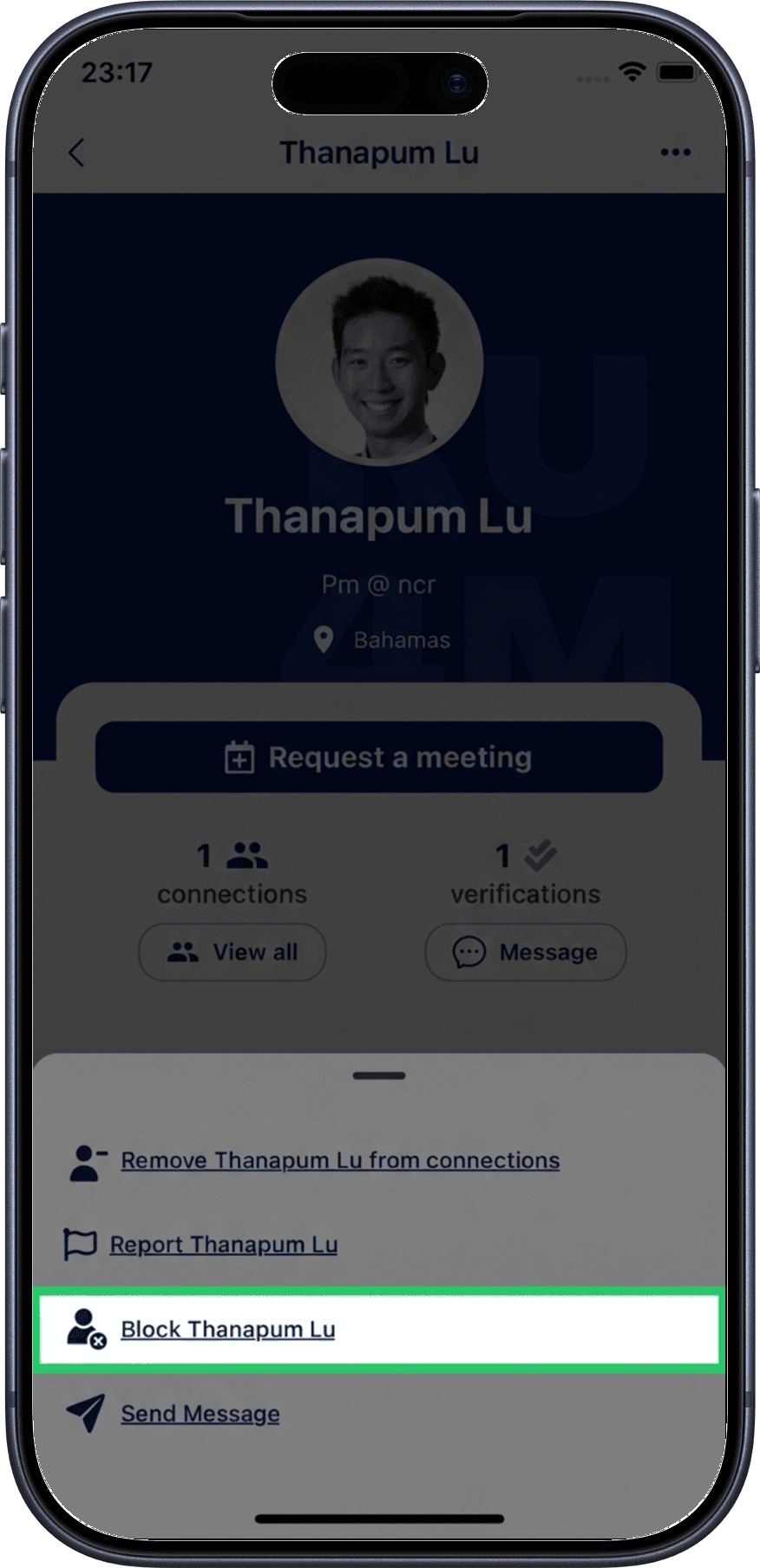
5. Block a user
Select Block to prevent this user from seeing your profile or contacting you.
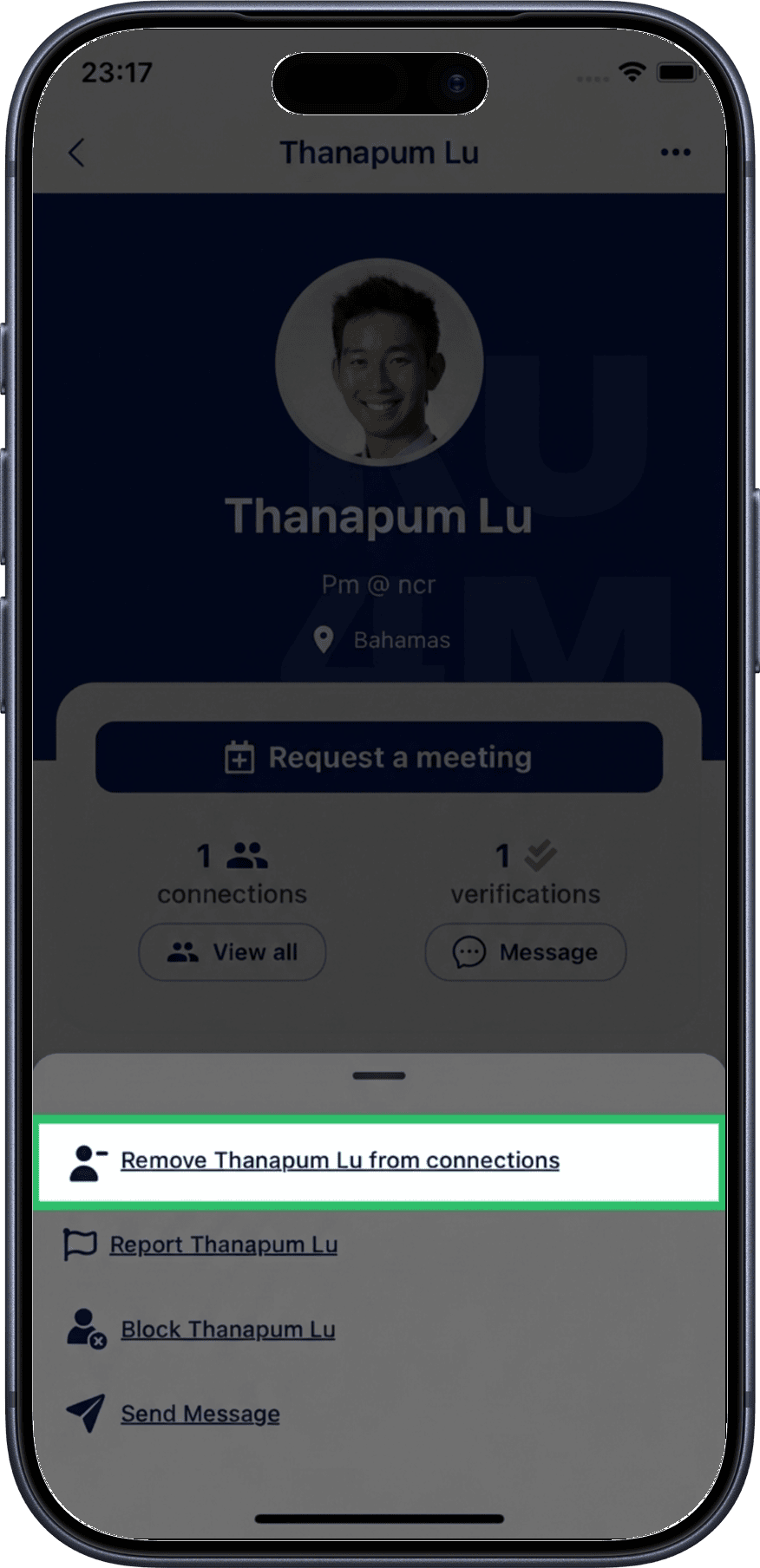
6. Remove a connection
Select Remove Connection to disconnect from this user. They will no longer appear in your connections list.
Removing connections
Removing a connection is permanent. The other user won't be notified, but they will no longer appear in your connections list.
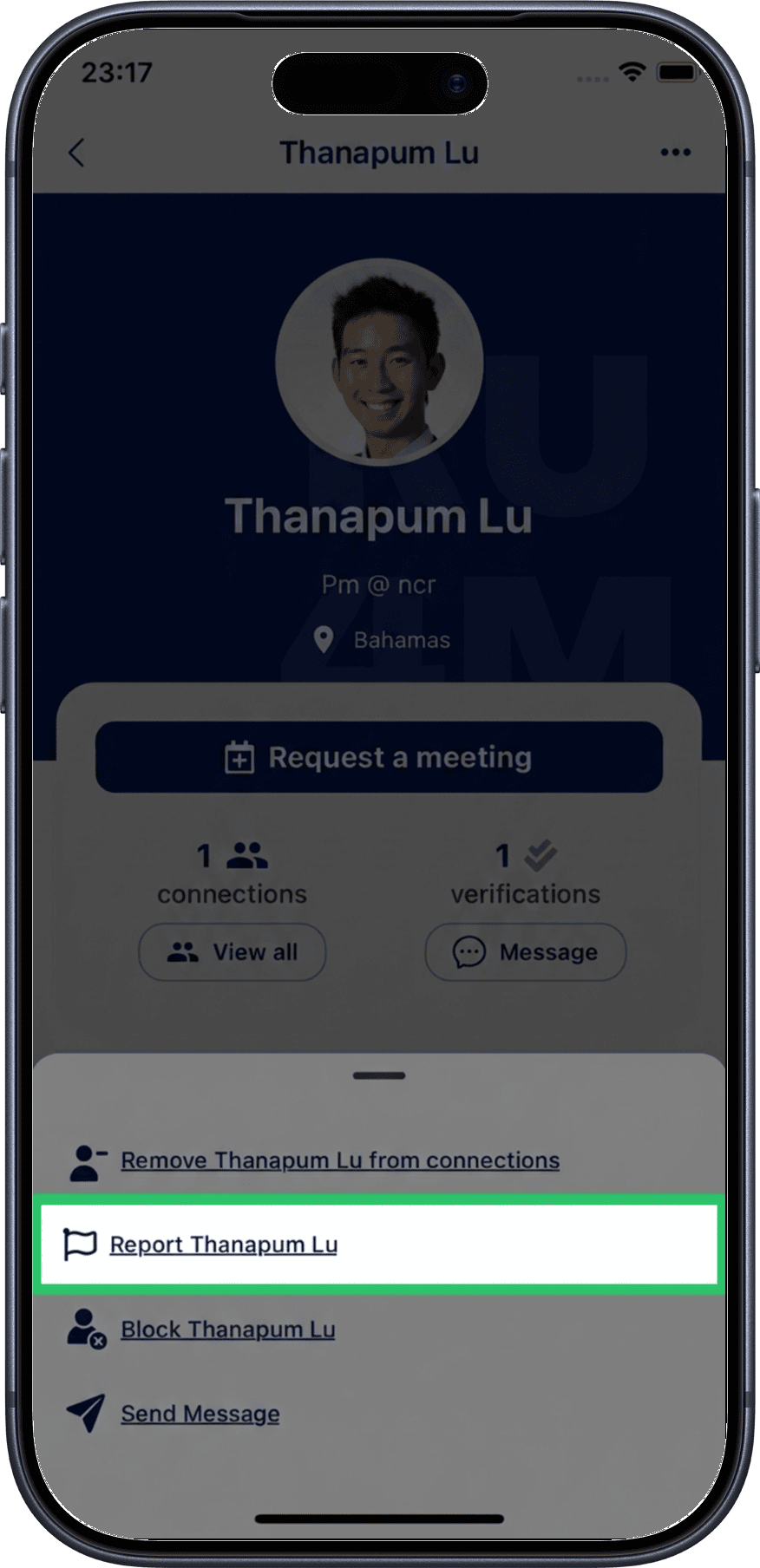
7. Report a user
Select Report to report inappropriate behavior or content from this user.
Responding to Connection Requests
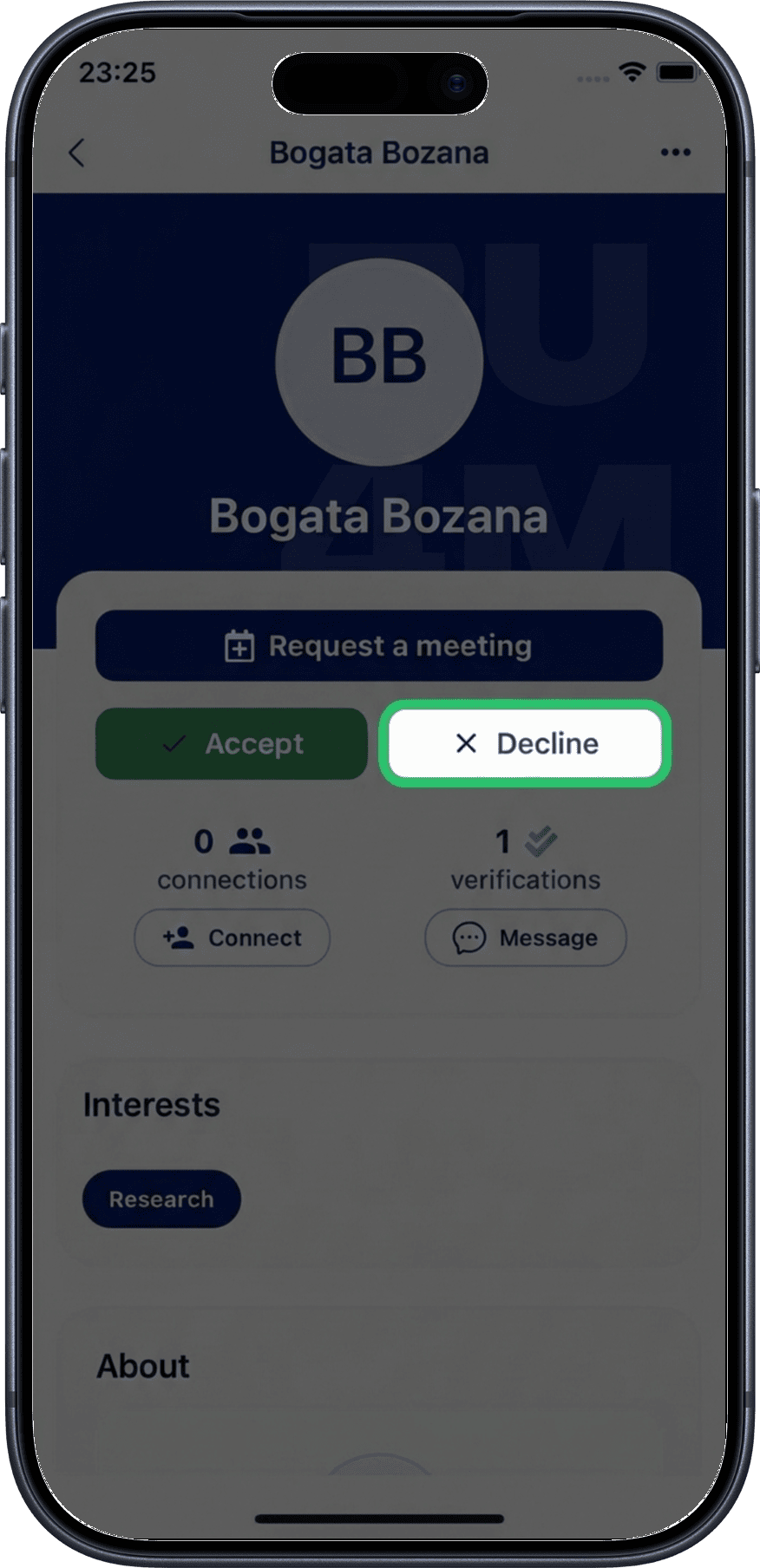
When someone sends you a connection request, you can accept or decline it.
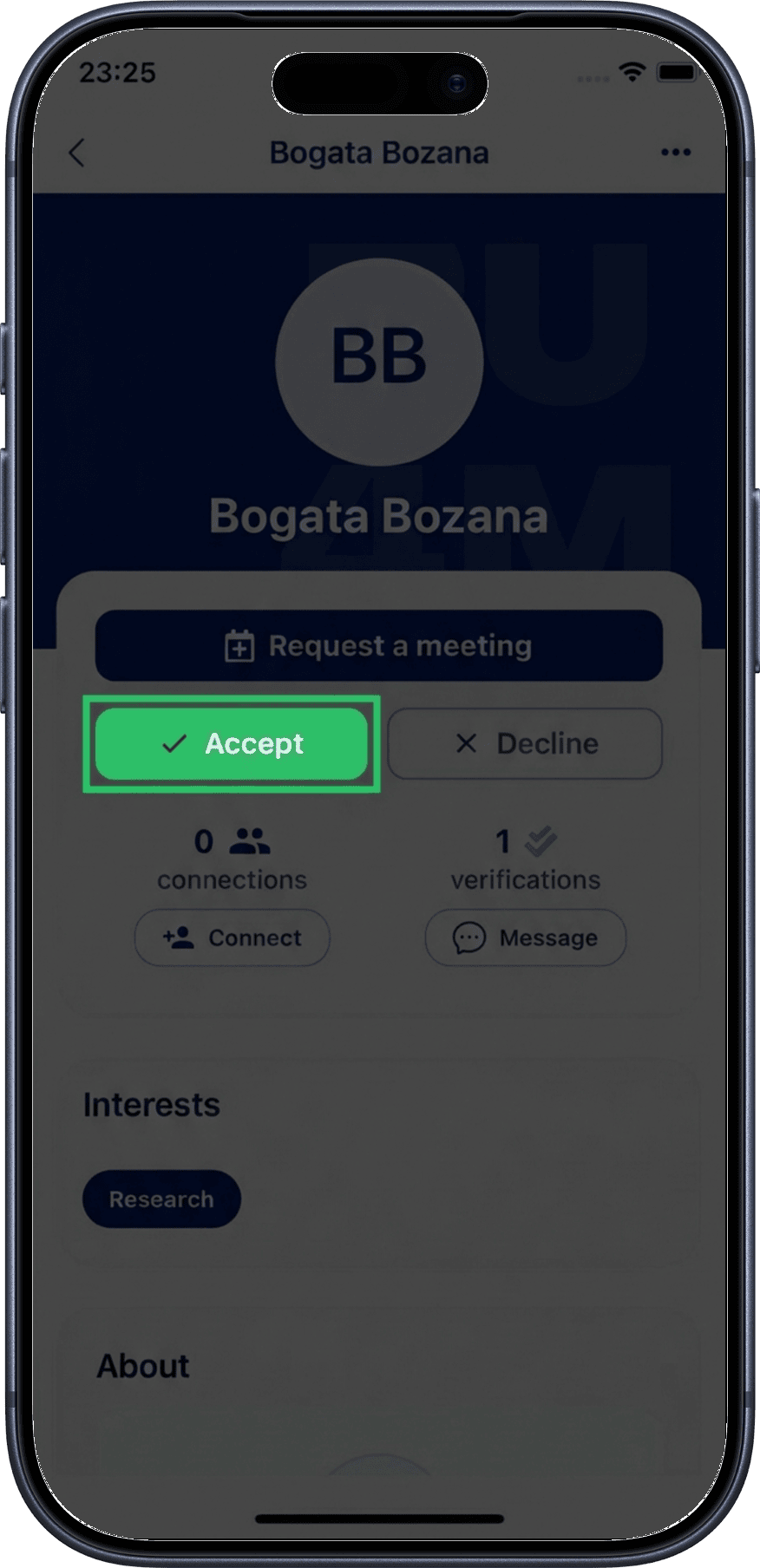
8. Accept a request
Tap Accept to add the user to your connections. You'll then be able to message each other and schedule meetings.
9. Decline a request
Tap Decline if you don't want to connect with this user. They won't be notified that you declined.
Related
- My Profile — View and manage your own profile
- Connections — View and search your connections
- Direct Messages — Message your connections
- Create Meeting — Schedule a meeting