View & Edit Profile
Your RU4M profile is your professional identity. It shows your name, photo, job, bio, and interests to other users.
Prerequisites
- A registered RU4M account
Viewing Your Profile
1. Open your profile
Tap the Profile icon in the bottom navigation bar.

2. View your information
Your profile displays:
- Profile photo — Your professional headshot
- Name — Your first and last name
- Job title & company — Your current professional role
- Bio — Your professional biography

3. View your interests
Scroll down to see your selected professional interests.

Editing Your Profile
4. Tap "Edit"
Tap the Edit button on your profile screen.

5. Update your name
Edit your first and last name.

6. Change your photo
Tap the profile photo to upload a new one from your gallery or take a new photo.

7. Update job and company
Edit your job title and company name.

8. Update your bio
Write or edit your professional biography.

9. Save changes
Tap Save to apply your profile changes.

Keep it updated
A complete and up-to-date profile helps you appear in more search results and makes a better impression on other professionals.
Viewing Other Users' Profiles
You can view other users' profiles from the Explore map, Events, or Connections.
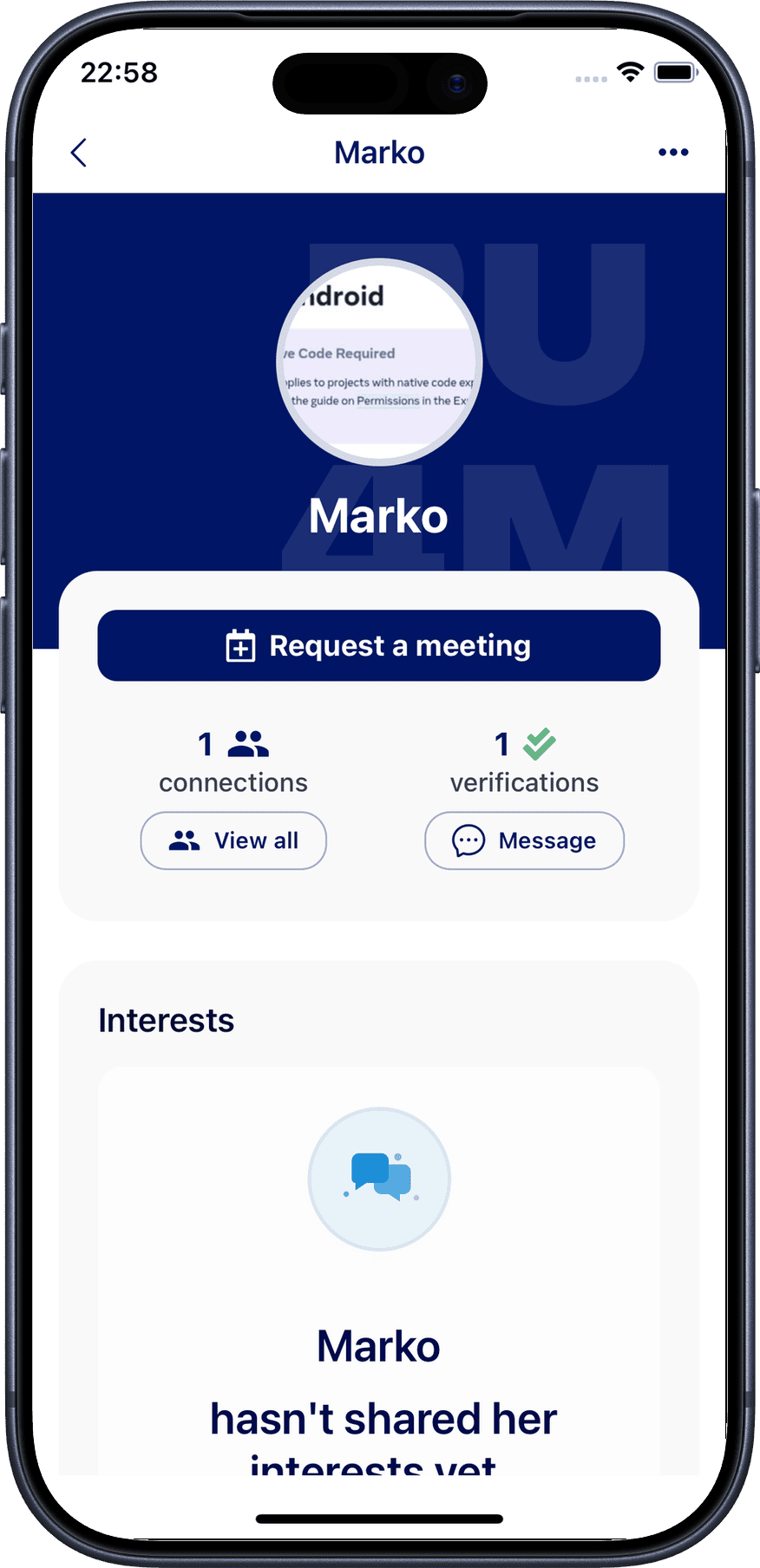
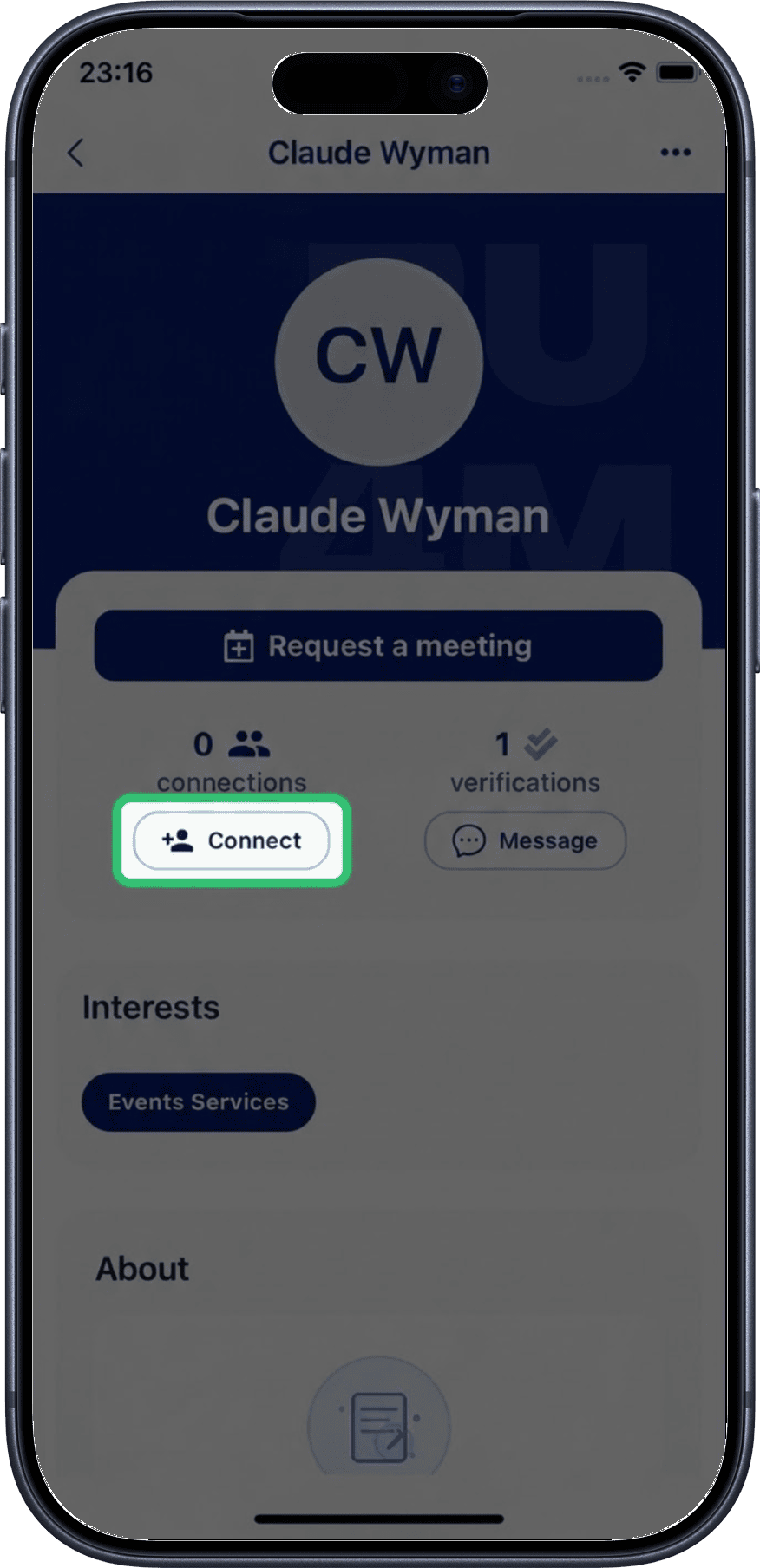
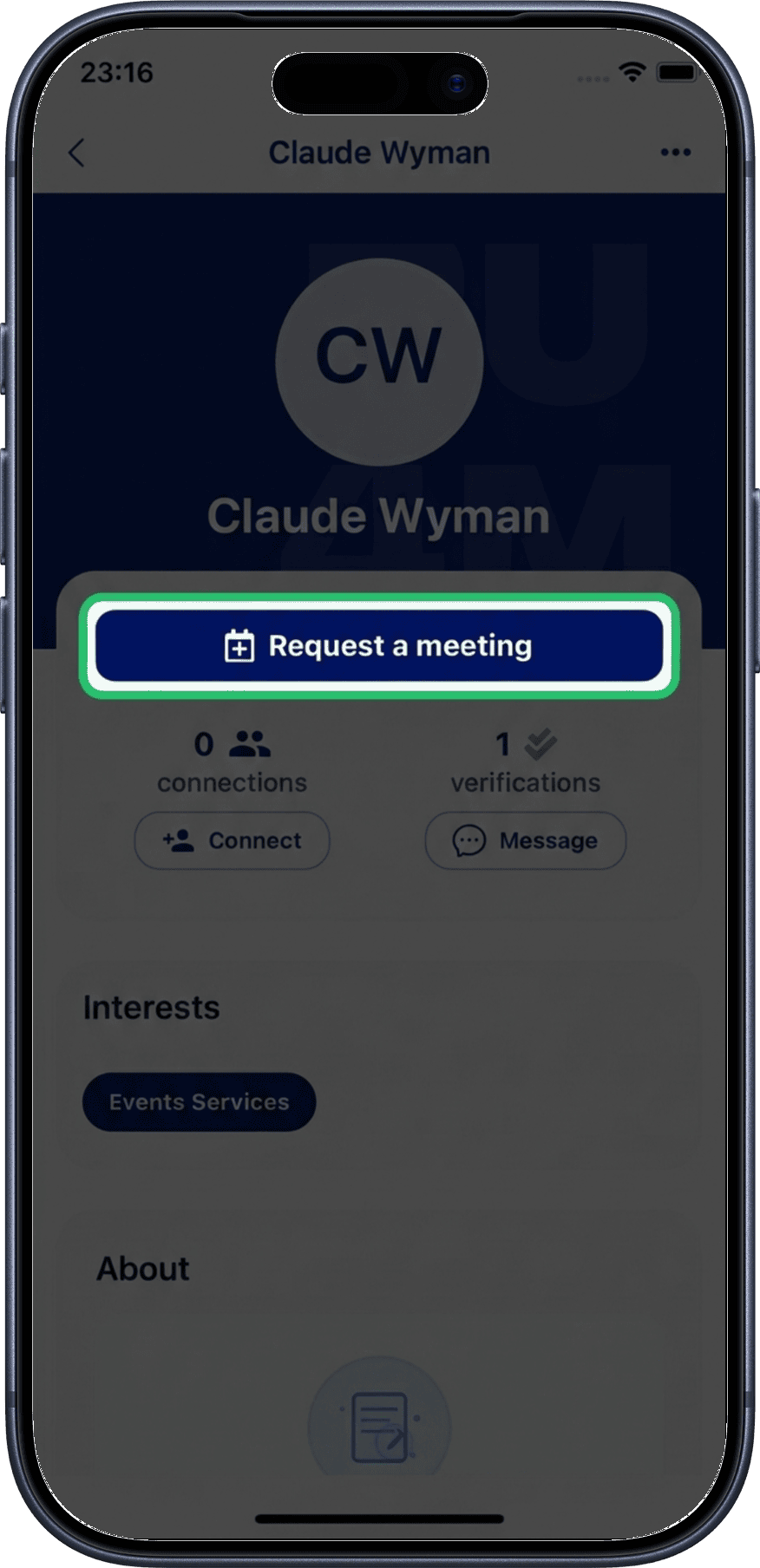
From another user's profile, you can:
- Connect — Send a connection request
- Message — Start a direct message
- Request meeting — Schedule a meeting