Group Messages
View and participate in group conversations created from meetings you are part of. All messaging features available in direct messages are also available in group chats.
Prerequisites
- A registered RU4M account
- Participation in at least one meeting
Viewing Group Messages
1. Open the Group messages tab
Tap the Group messages tab to see group conversations created from meetings you are a participant of.

2. Open a group conversation
Tap any group conversation to open the chat and see the messages exchanged within it. All features available in direct messages — attachments, reactions, replies — are also available in group conversations.
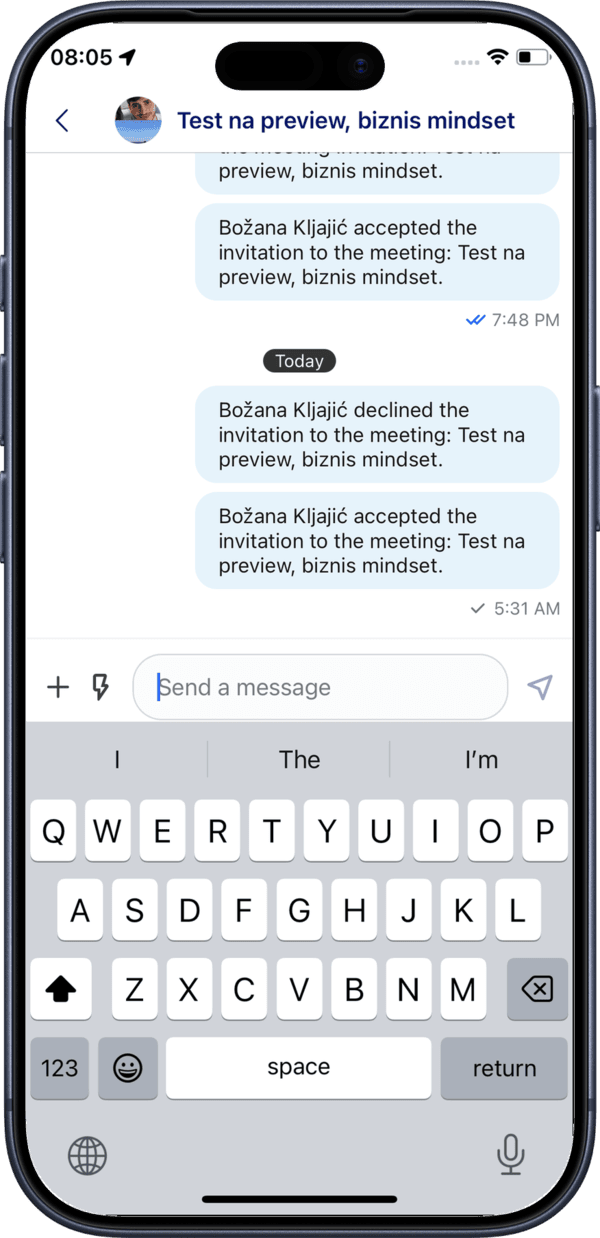
Meeting groups
Group conversations are automatically created when a meeting is scheduled with multiple participants. Each meeting has its own dedicated group chat.