Location Controls
RU4M gives you full control over how your location appears on the map. The third button on the right side of the Explore screen (three dots icon) opens a menu with two options: Lock Location and Hide My Location.
Prerequisites
- The Explore map is open
- Location services enabled on your device
Opening the Menu
Tap the three dots button (the third action button on the right side of the Explore screen) to open a menu with two options: Lock Location and Hide My Location.
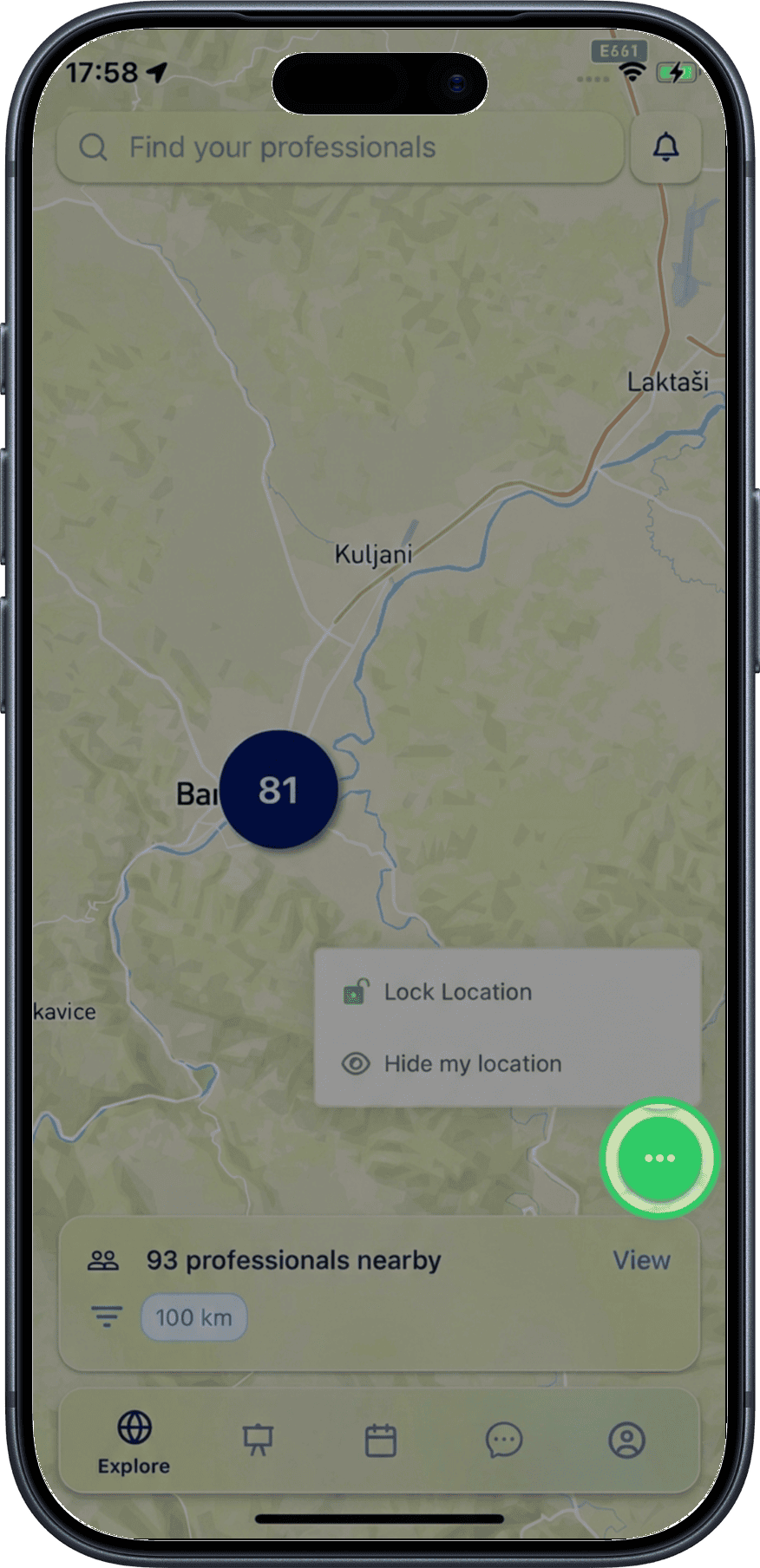
Lock Location
Locking your location fixes your pin to a specific place on the map, regardless of where you physically are. This is useful if you want to appear in a particular city or area.
1. Tap "Lock Location"
Select Lock Location from the menu. A new page opens with a search input field and the keyboard ready for typing.
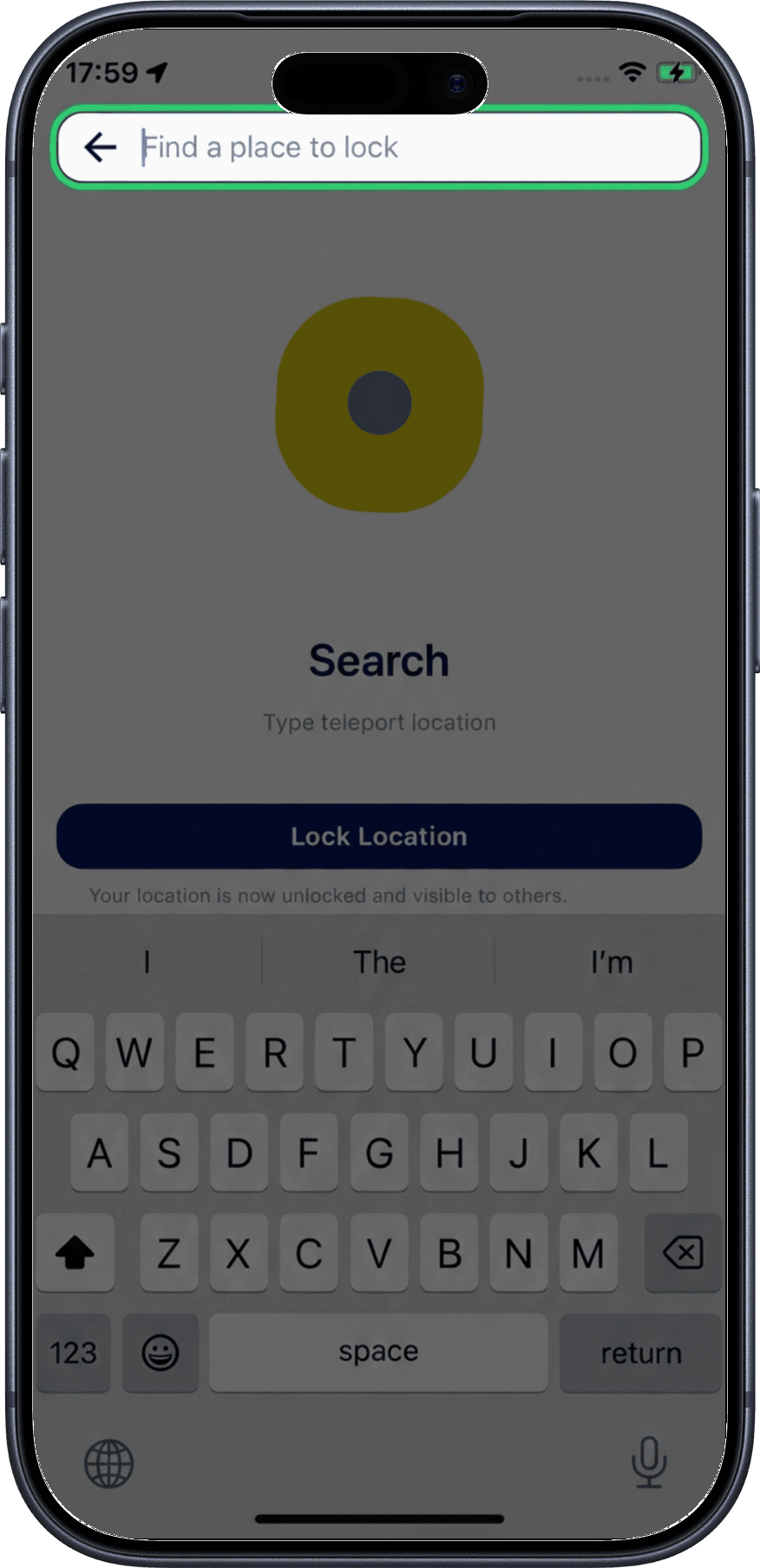
2. Search for a location
Start typing — after three characters, location results appear sorted by proximity to your current position.
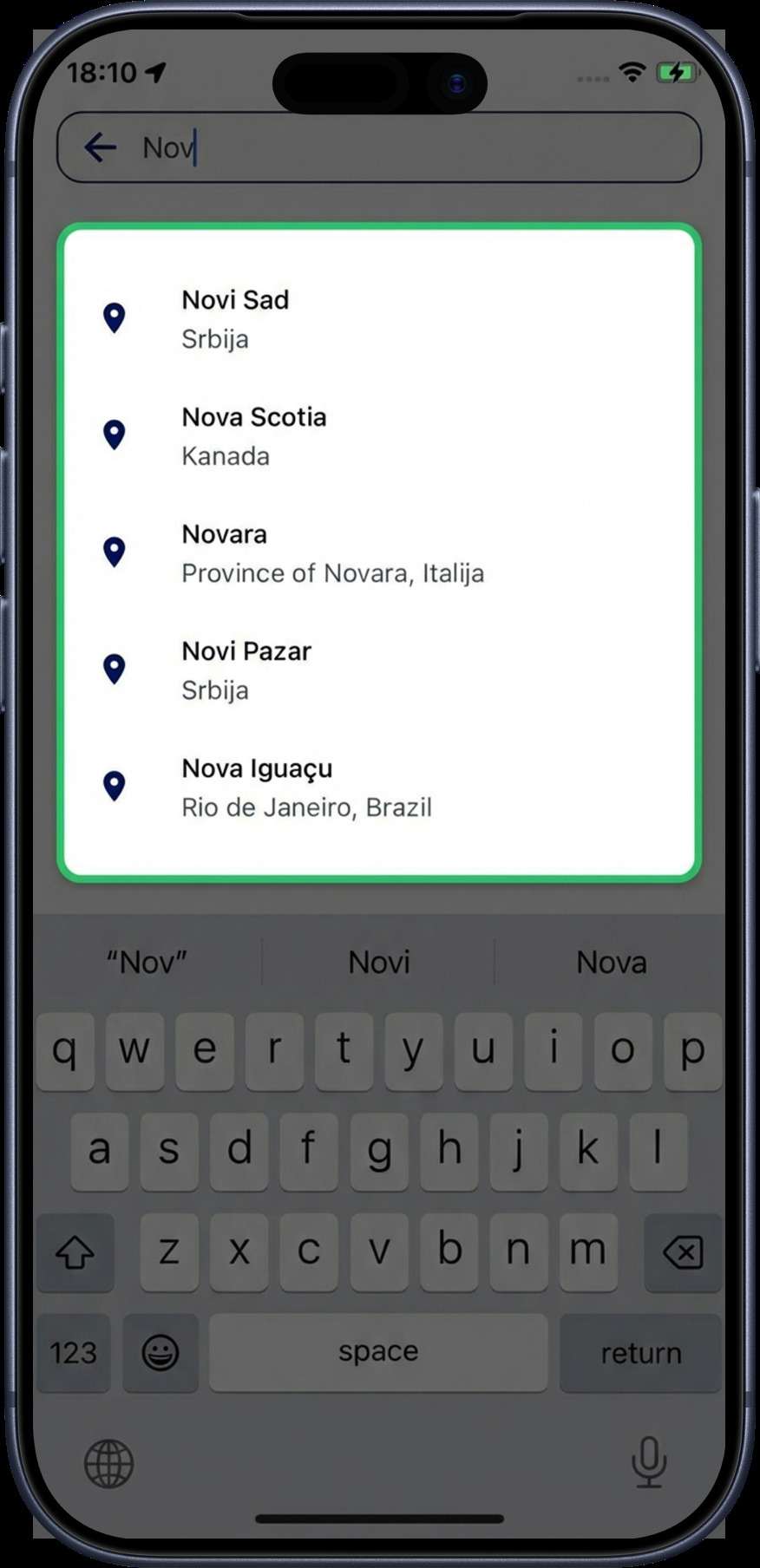
3. Location locked
After selecting a location from the results, the page refreshes. The Explore map now shows your pin at the chosen location, and a confirmation message appears.
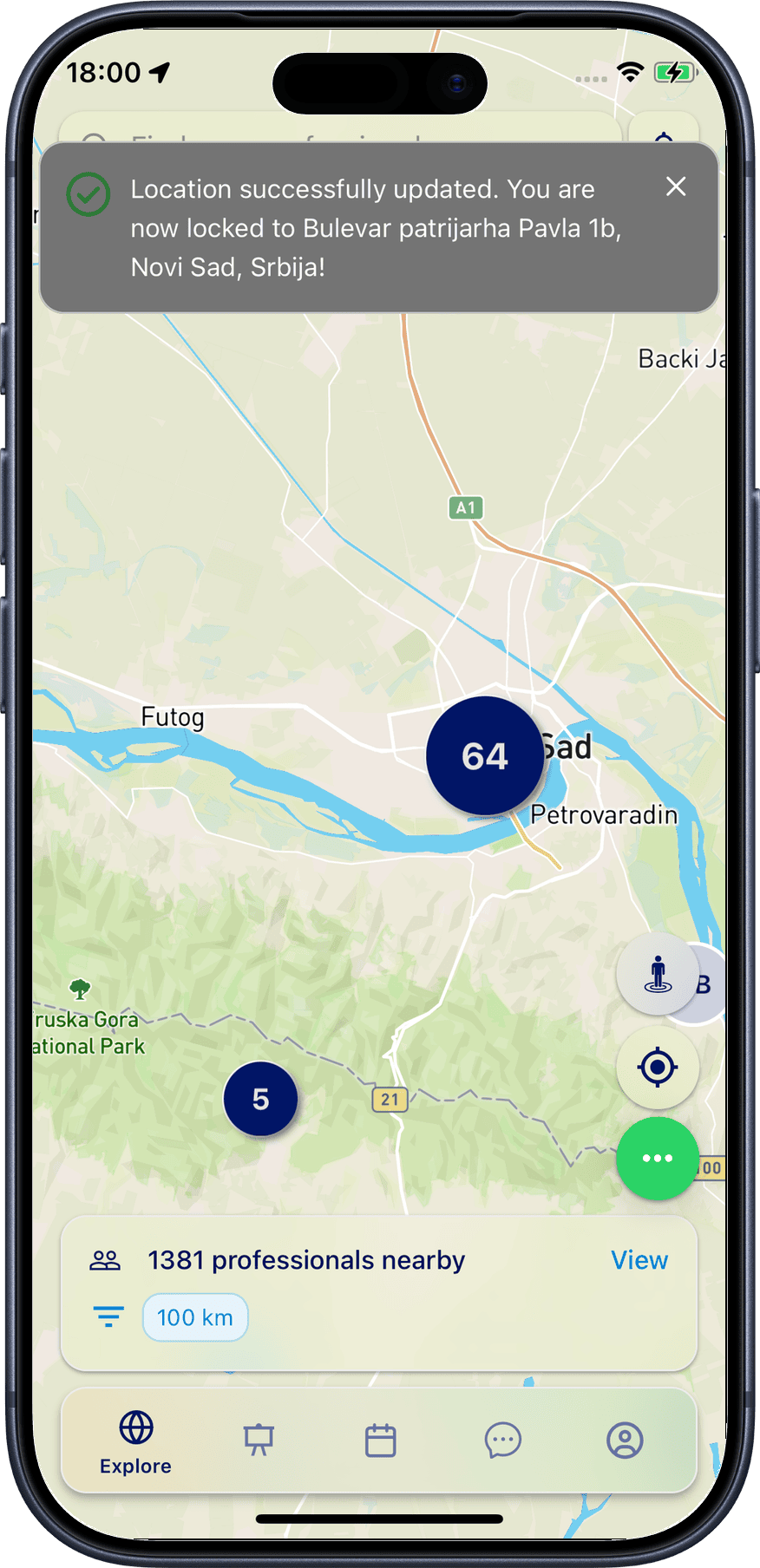
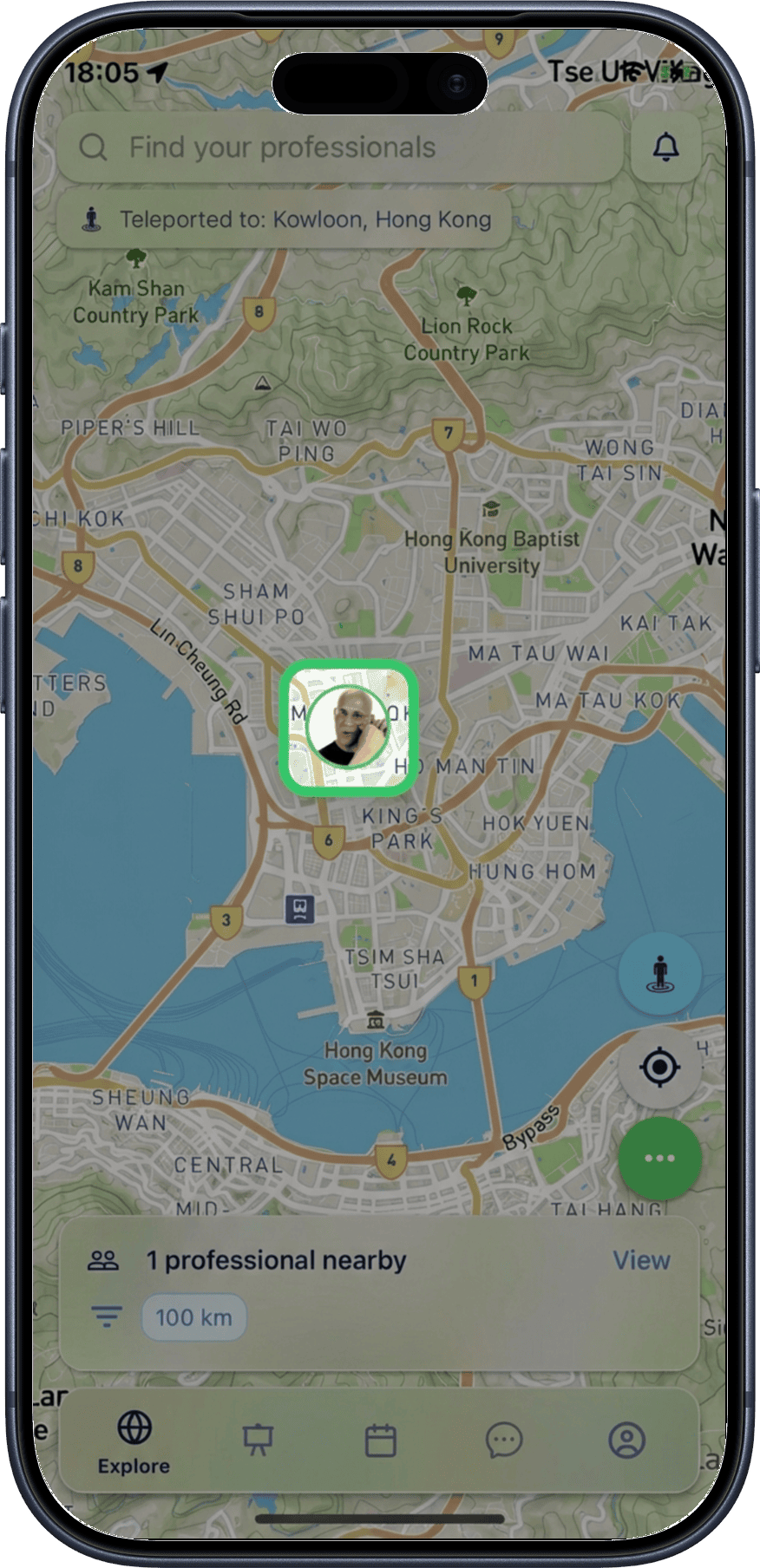
4. Locked user indicator
Users with a locked location are displayed on the map with a green border around their pin.
How it works
When your location is locked, your map pin stays at the chosen position even if you move physically. This is great for appearing in a city you plan to visit or work from remotely. The Back to Home button will navigate to your locked location instead of your GPS position.
Unlock Location
Unlocking returns your pin to your real-time GPS position.
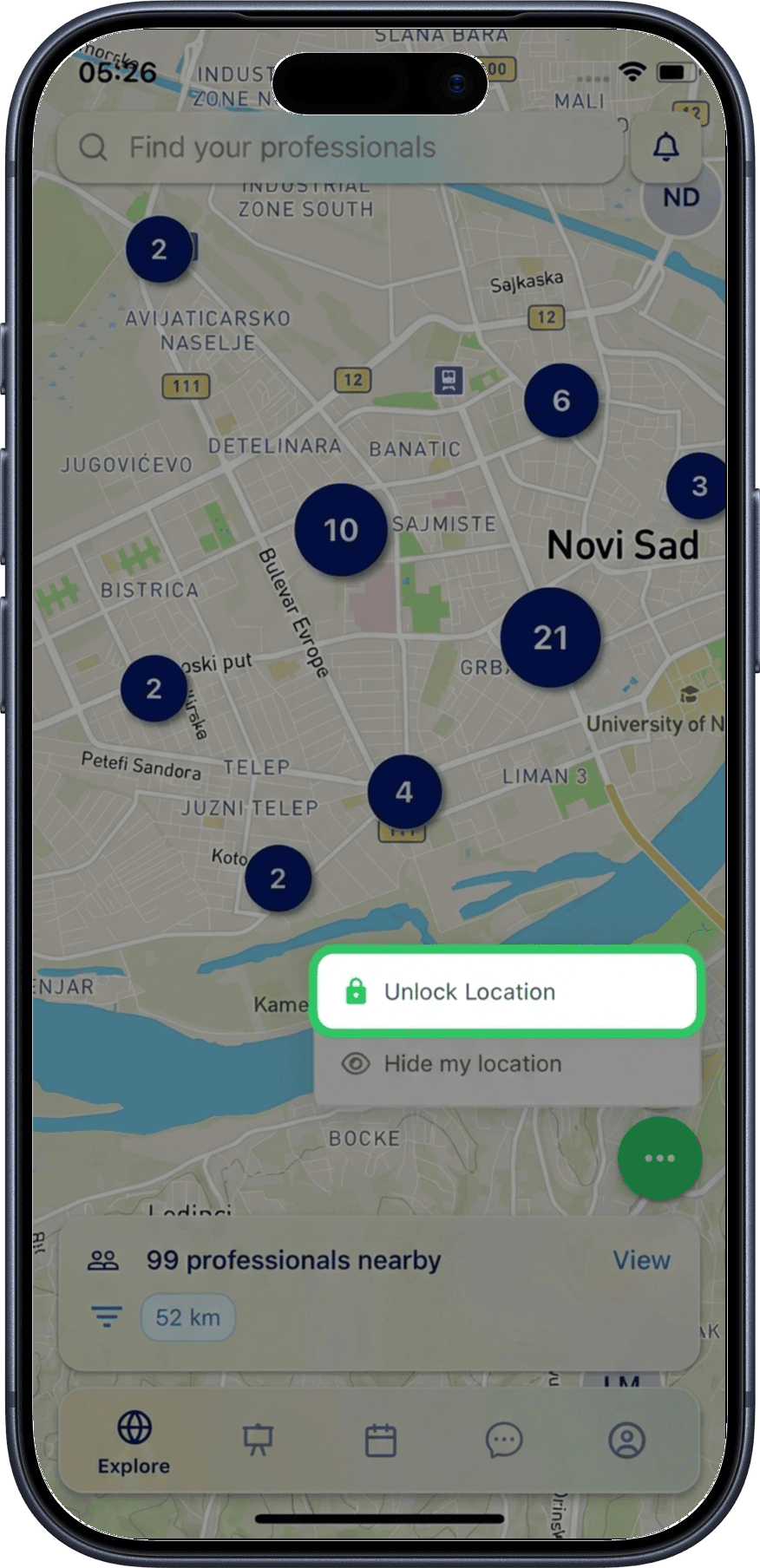
1. Tap "Unlock Location"
Open the three-dot menu and select Unlock Location.
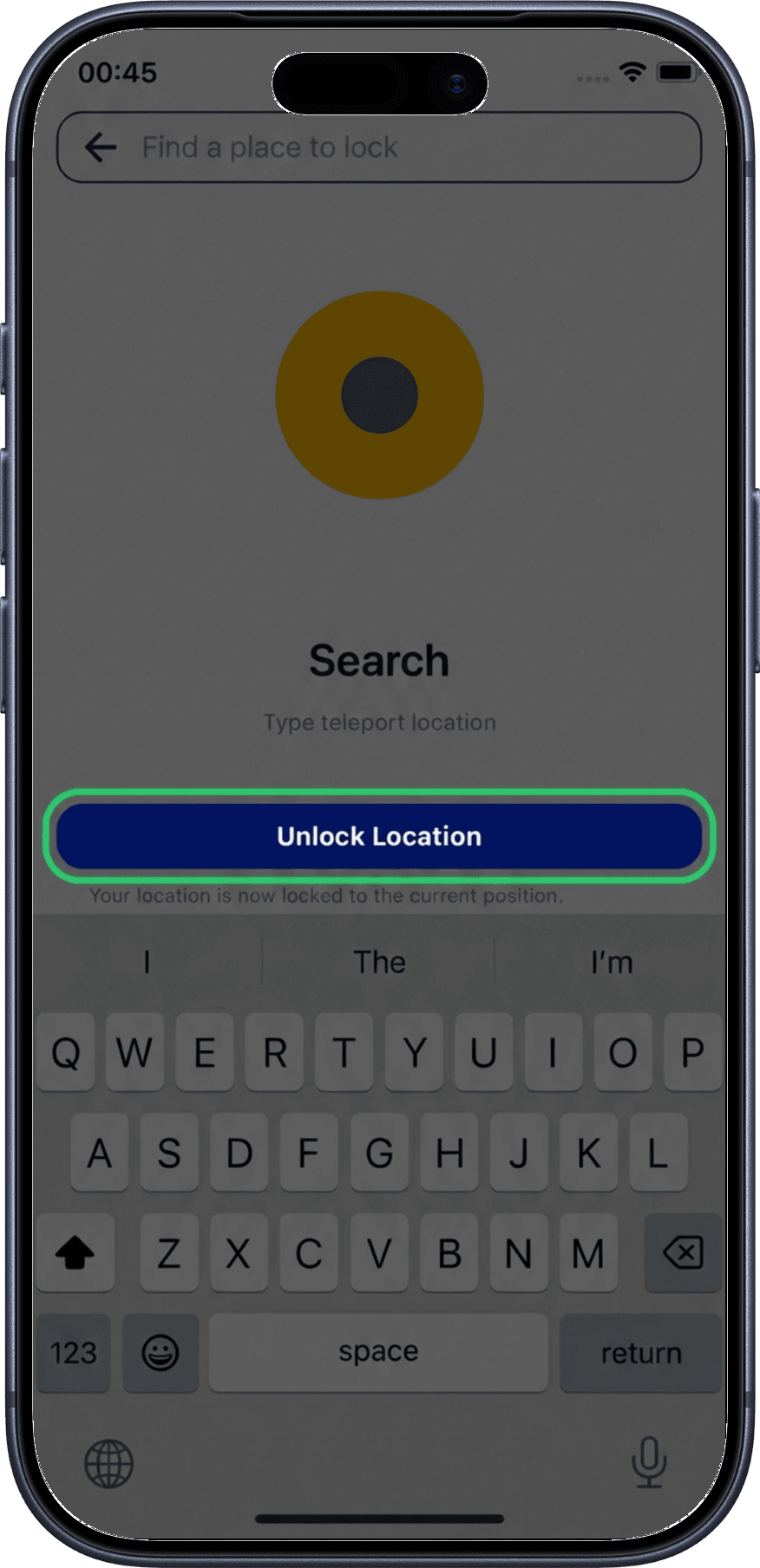
2. Confirm the unlock
A confirmation page appears. Tap Unlock Location to proceed.
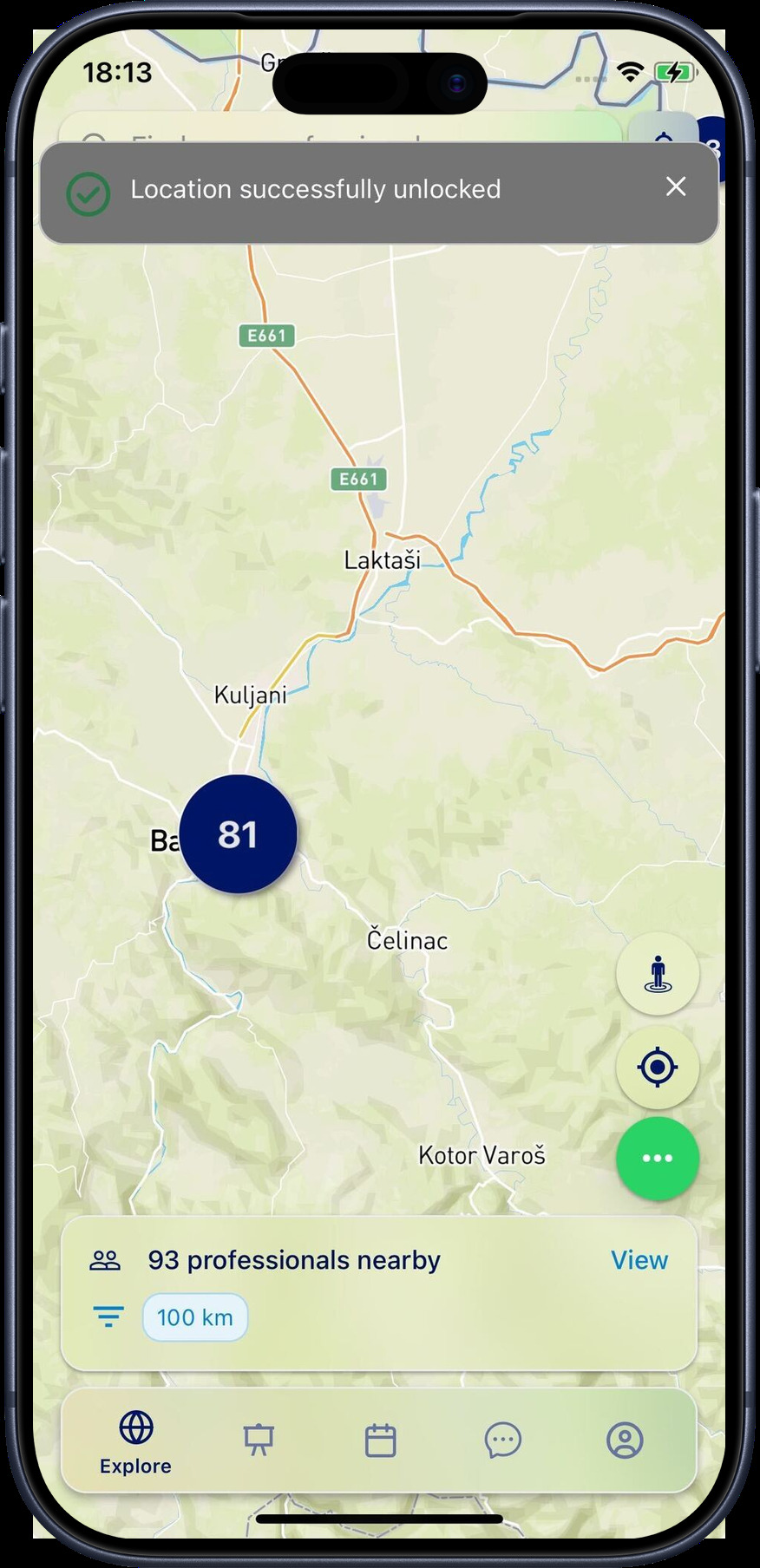
3. Location unlocked
Your pin now follows your real-time GPS position again. A confirmation message appears, and the map adjusts to your actual location.
Hide My Location
Hiding your location removes your pin from the map entirely. Other users will not be able to see you on the Explore map.
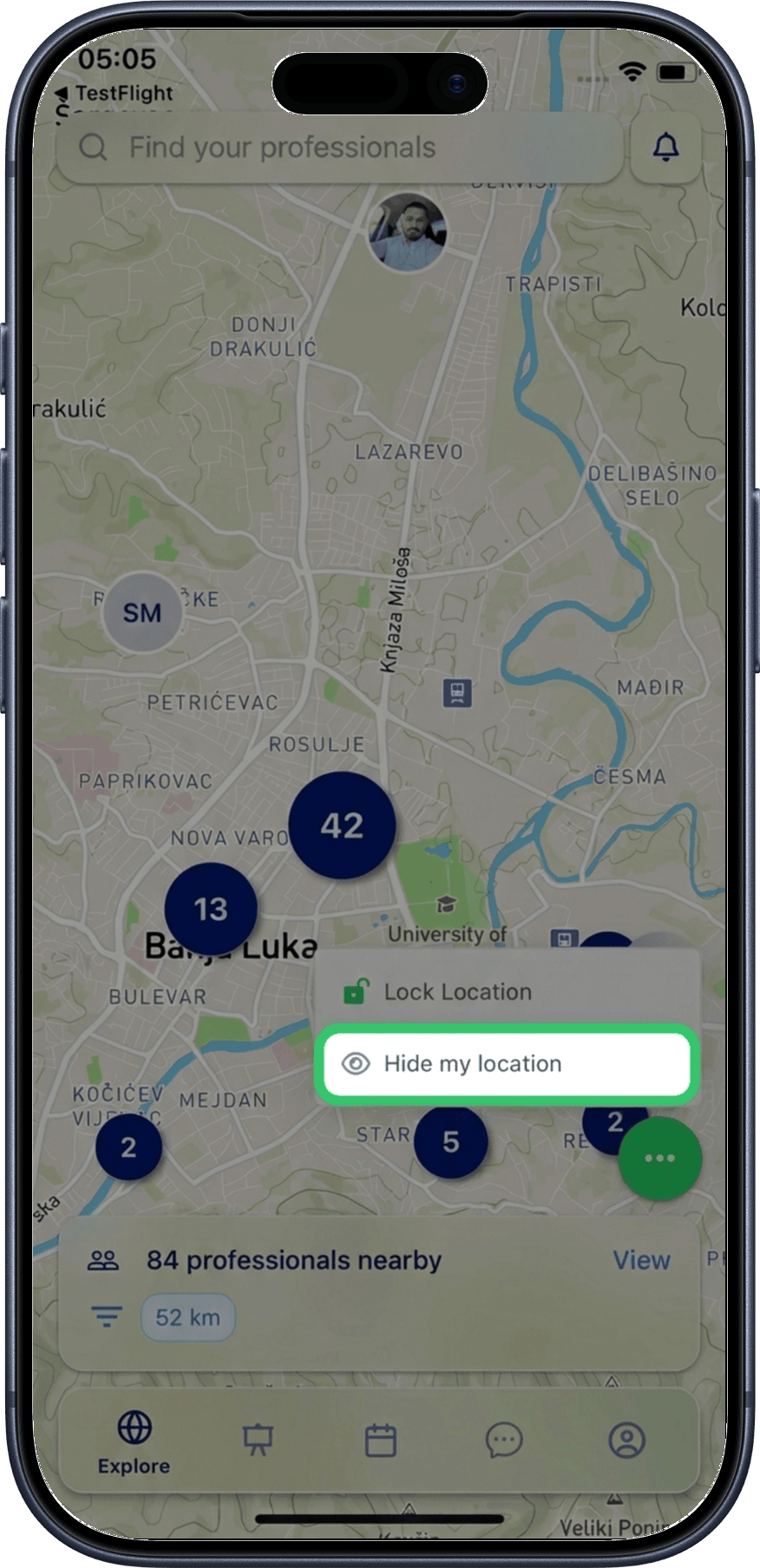
1. Tap "Hide My Location"
Open the three-dot menu and select Hide My Location.
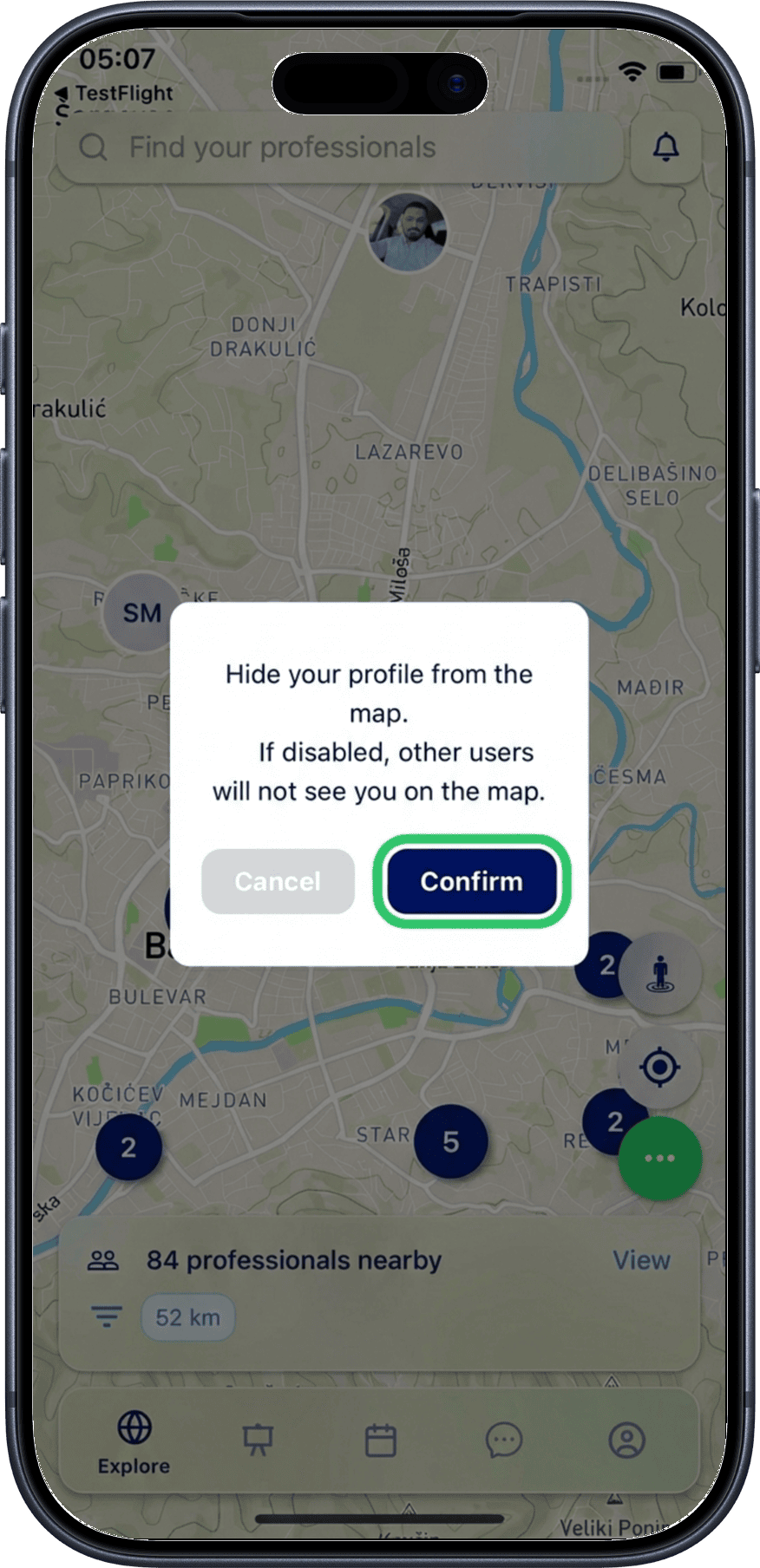
2. Confirm hiding
A confirmation modal appears with Confirm and Cancel buttons. Tap Confirm to hide your pin from the map.
You become invisible
While your location is hidden, no one can find you on the Explore map. You can still browse and search for other professionals, but they won't see your pin. To reappear, use Lock Location to set a position or Unlock Location to return to GPS tracking.
Summary
| Feature | What it does | Pin indicator |
|---|---|---|
| Lock | Fixes your pin to a specific location you choose | Green border |
| Unlock | Returns your pin to your real-time GPS position | Standard pin |
| Hide | Removes your pin from the map entirely | Not visible |
What's Next?
- Teleport — explore any location worldwide without changing your pin position
- Professionals Nearby — browse and filter professionals within 100 km
- Map Overview — learn about navigating the Explore map