Calendar Integration
Connect your external calendars to RU4M to keep all your meetings in sync. RU4M supports Google Calendar and Microsoft Calendar integration.
Prerequisites
- A registered RU4M account
- A Google or Microsoft account with calendar access
Connect Google Calendar
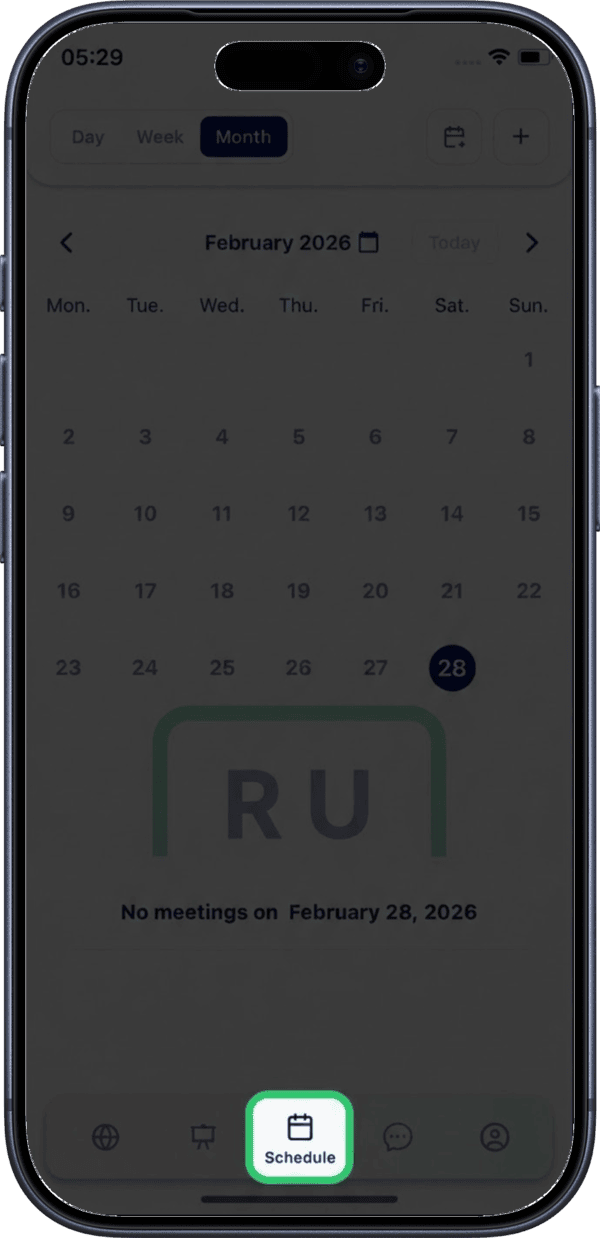
1. Tap the calendar icon
Open the calendar settings by tapping the calendar icon.
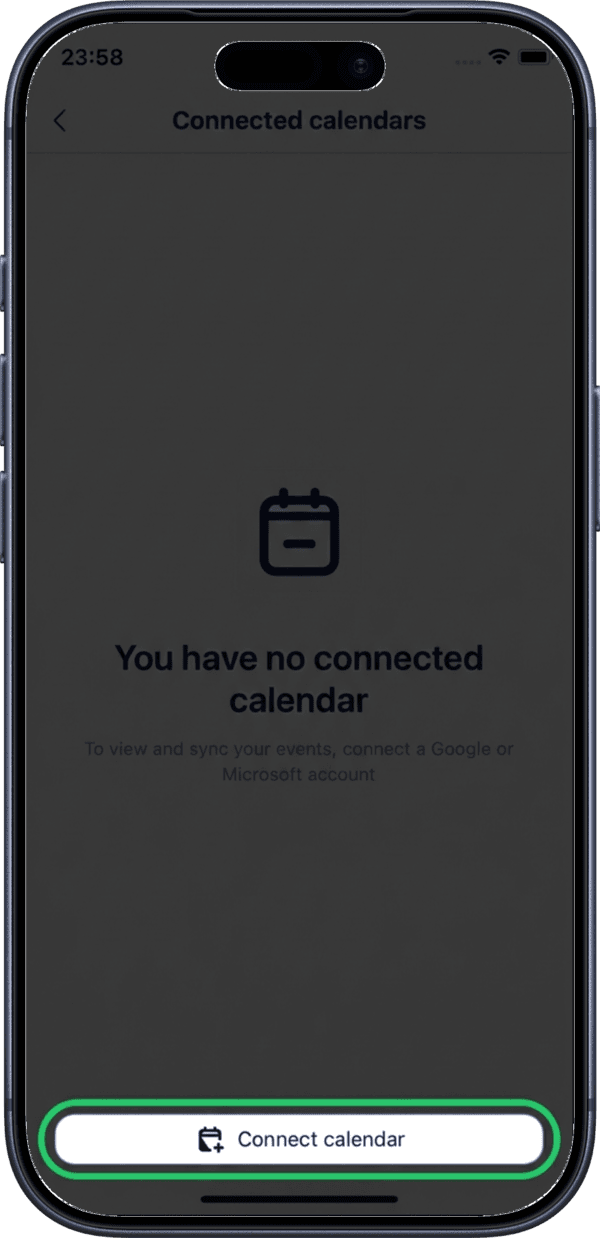
2. Tap Connect Calendar
Tap Connect Calendar to begin the integration process.
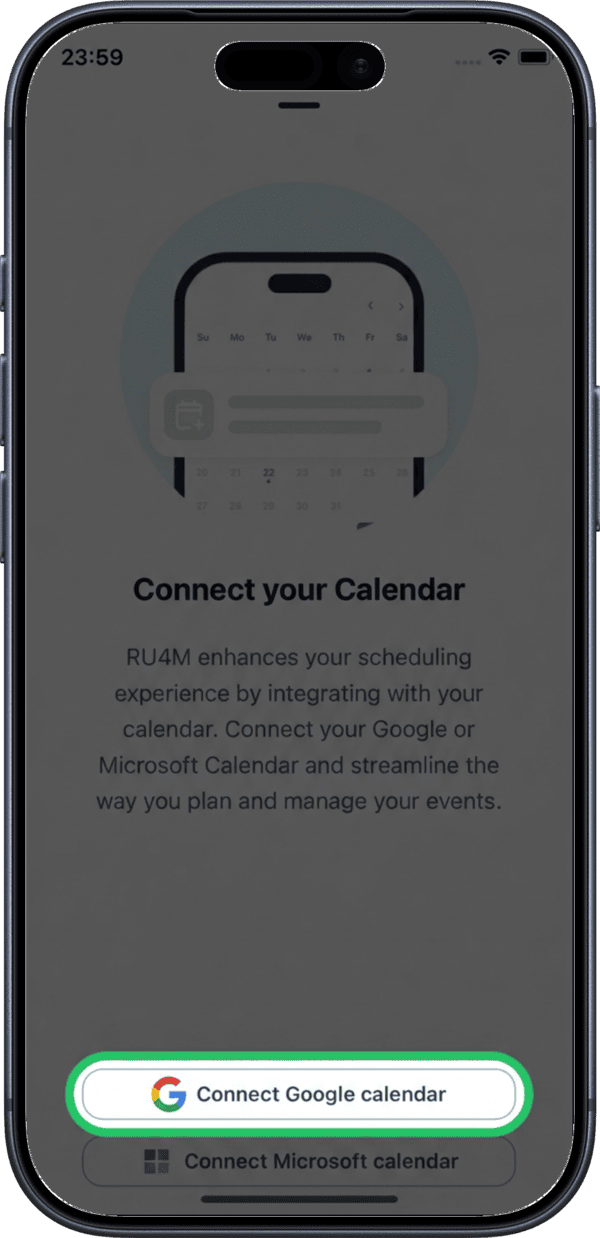
3. Select Google Calendar
Tap Google Calendar from the list of available calendar providers.
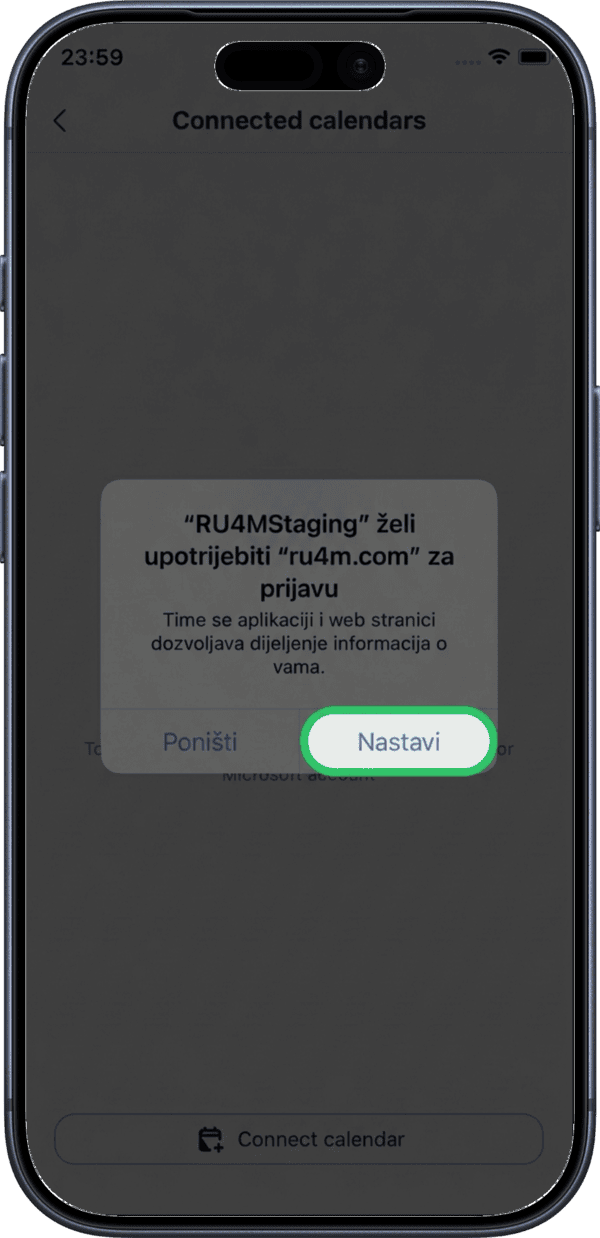
4. Allow permissions
Grant the necessary permissions for RU4M to access your Google Calendar.
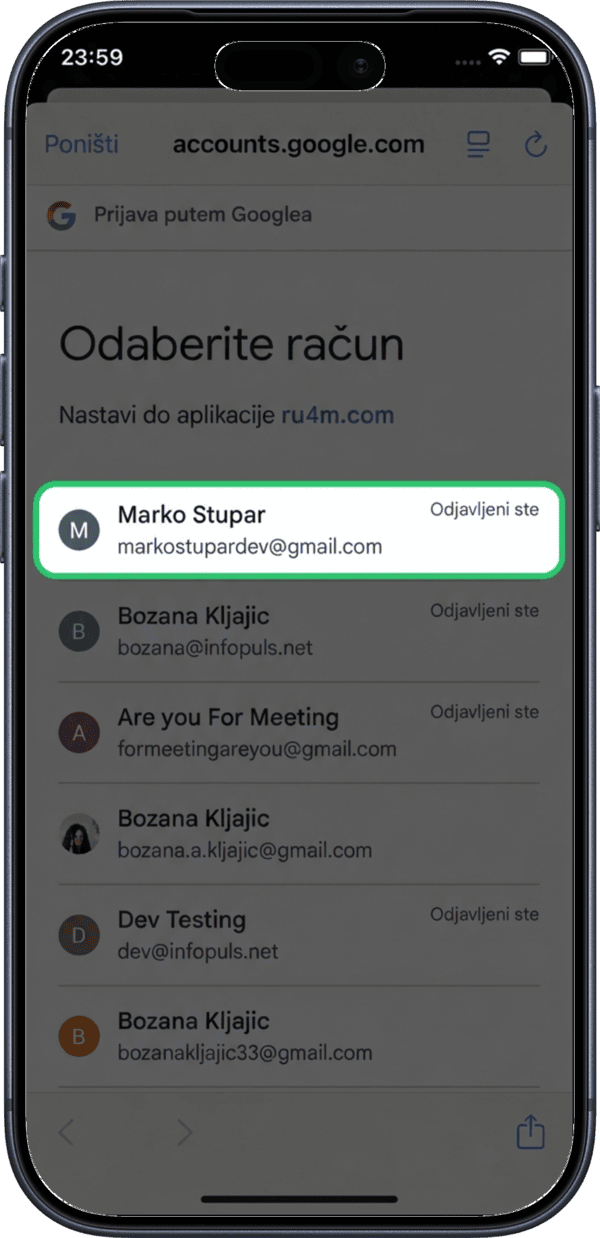
5. Choose your Google account
Select the Google account you want to connect.
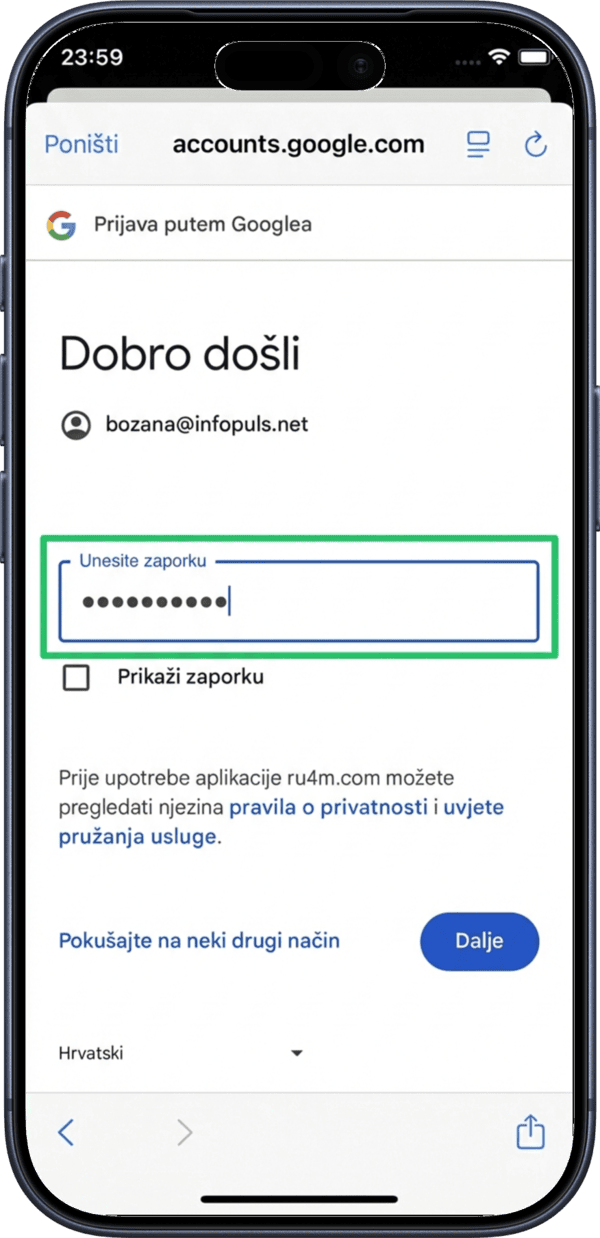
6. Enter your password
Enter your Google account password to authenticate.
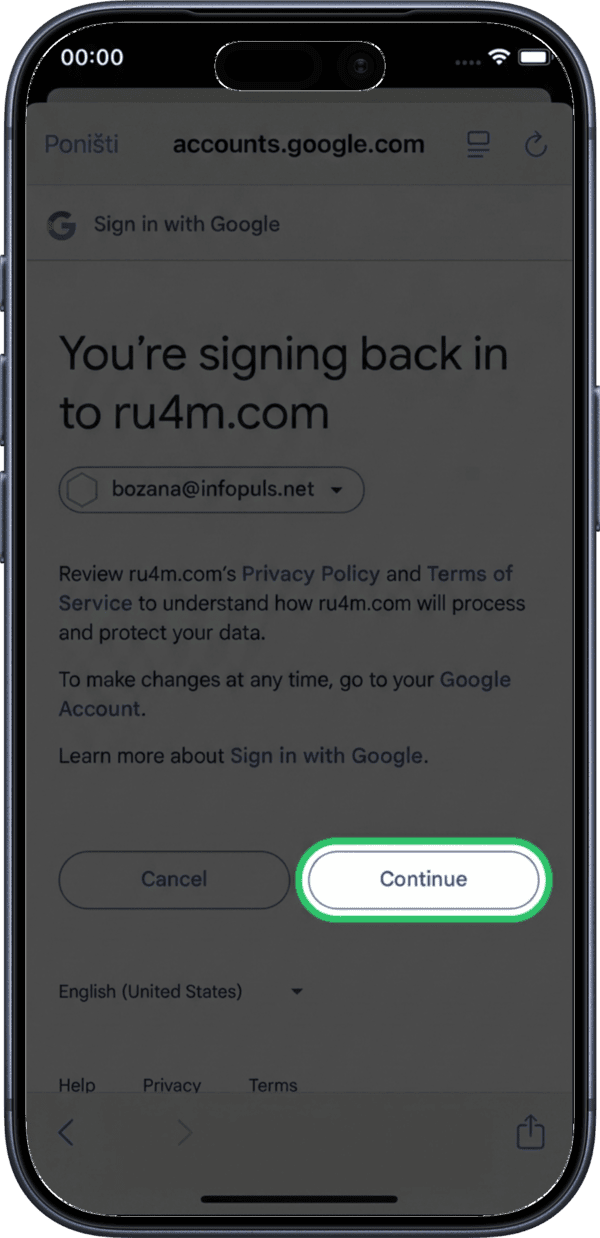
7. Confirm login
Confirm the login to proceed with the connection.
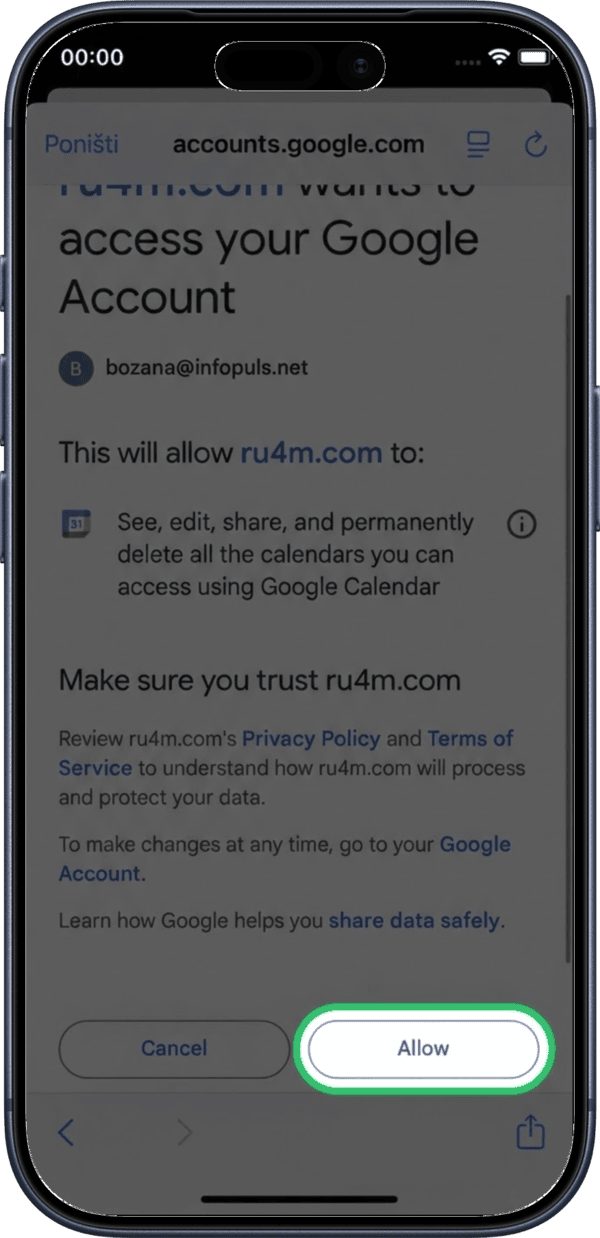
8. Allow calendar access
Allow RU4M to access your Google Calendar data.
9. Connected successfully
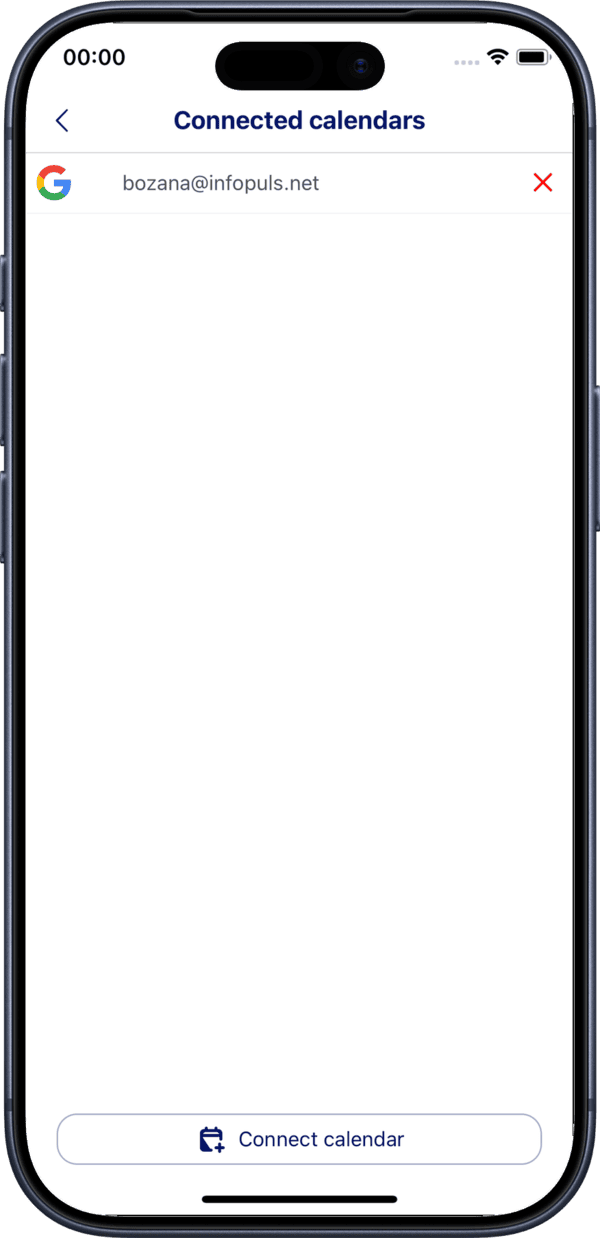
Your Google Calendar is now connected. You will see a confirmation with the connected calendar details.
Disconnect a Calendar
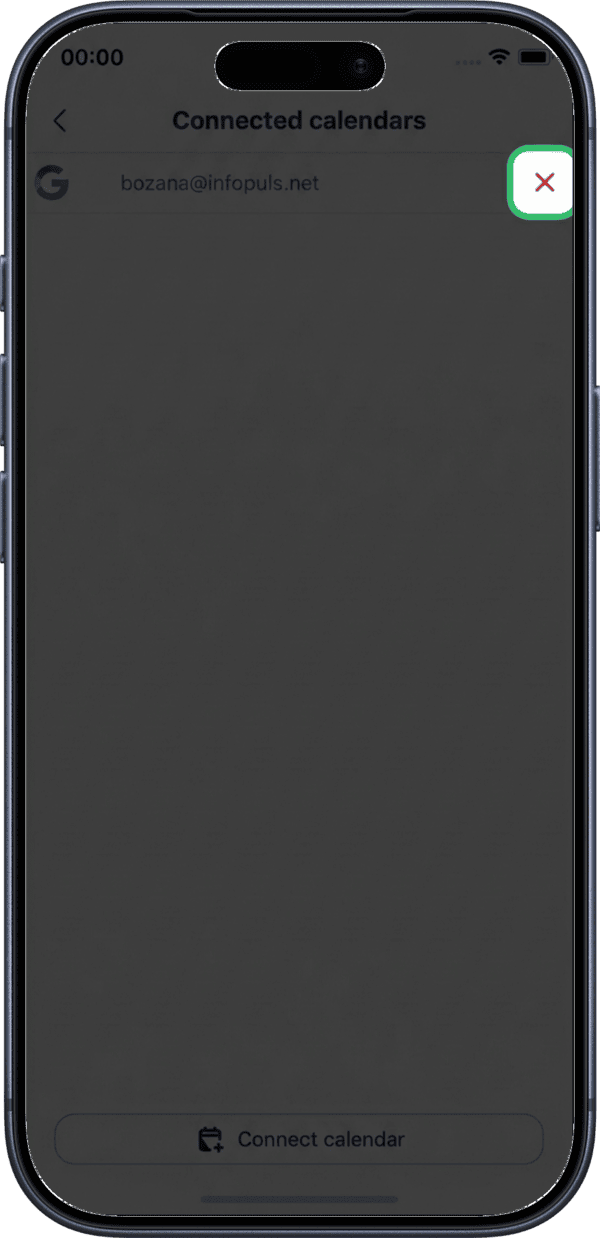
10. Tap X to disconnect
To disconnect a calendar, tap the X button next to the connected calendar.
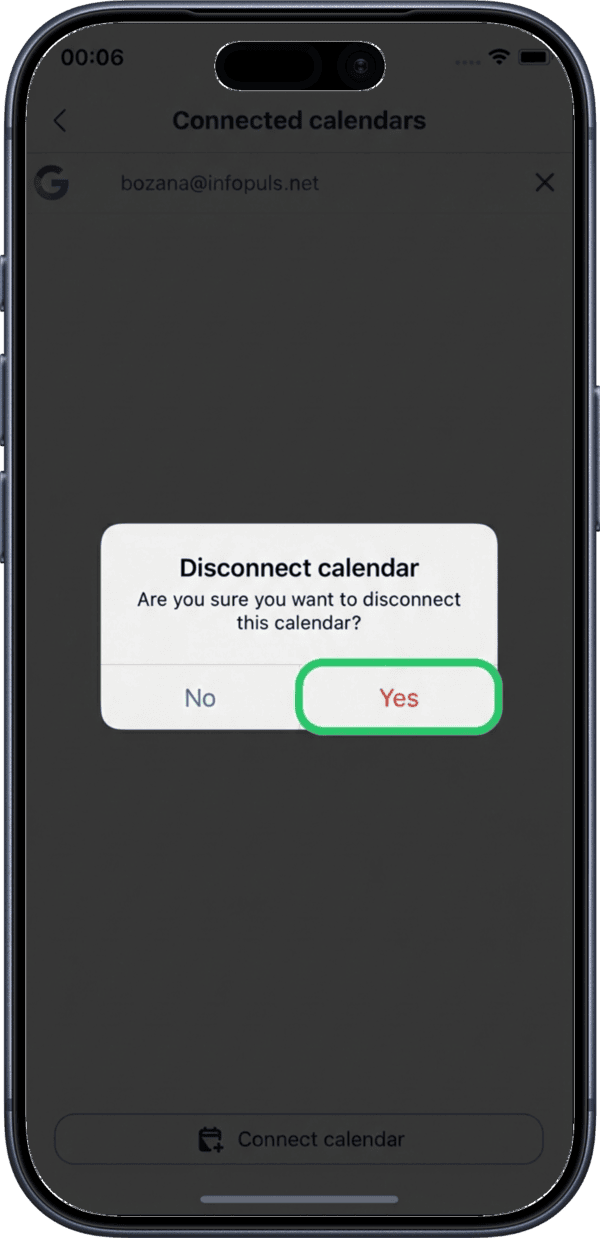
11. Confirm disconnection
Tap Yes to confirm that you want to disconnect the calendar.
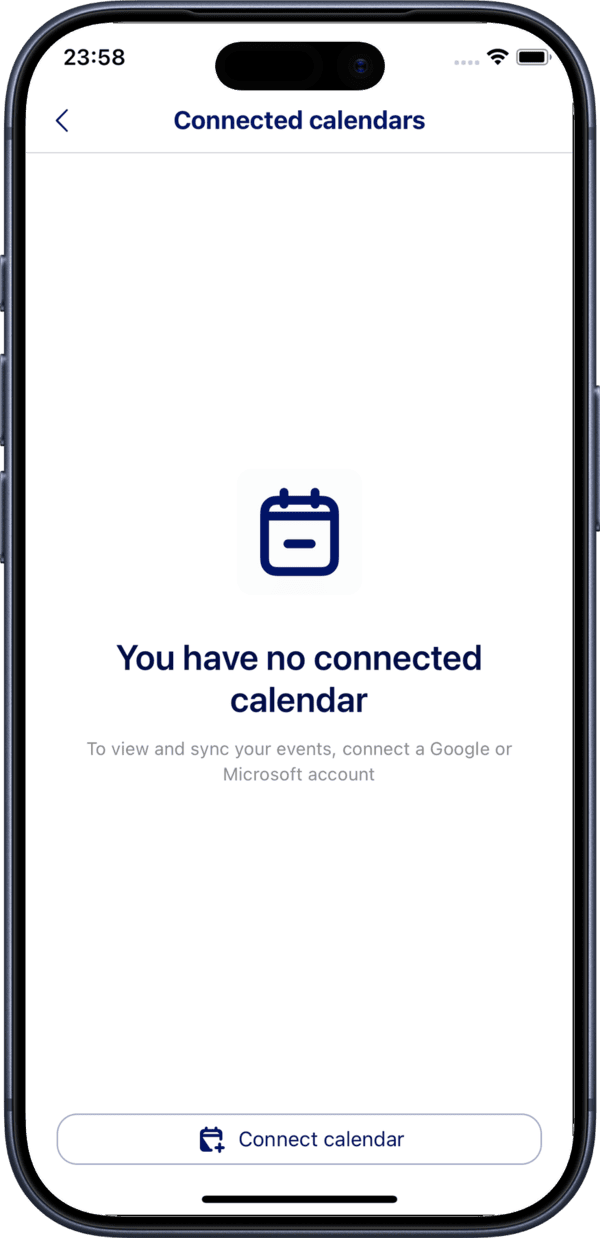
12. No connected calendars
After disconnecting, you will see the empty state with no connected calendars.
Connect Microsoft Calendar
13. Select Microsoft Calendar
Tap Microsoft Calendar from the list of available calendar providers.
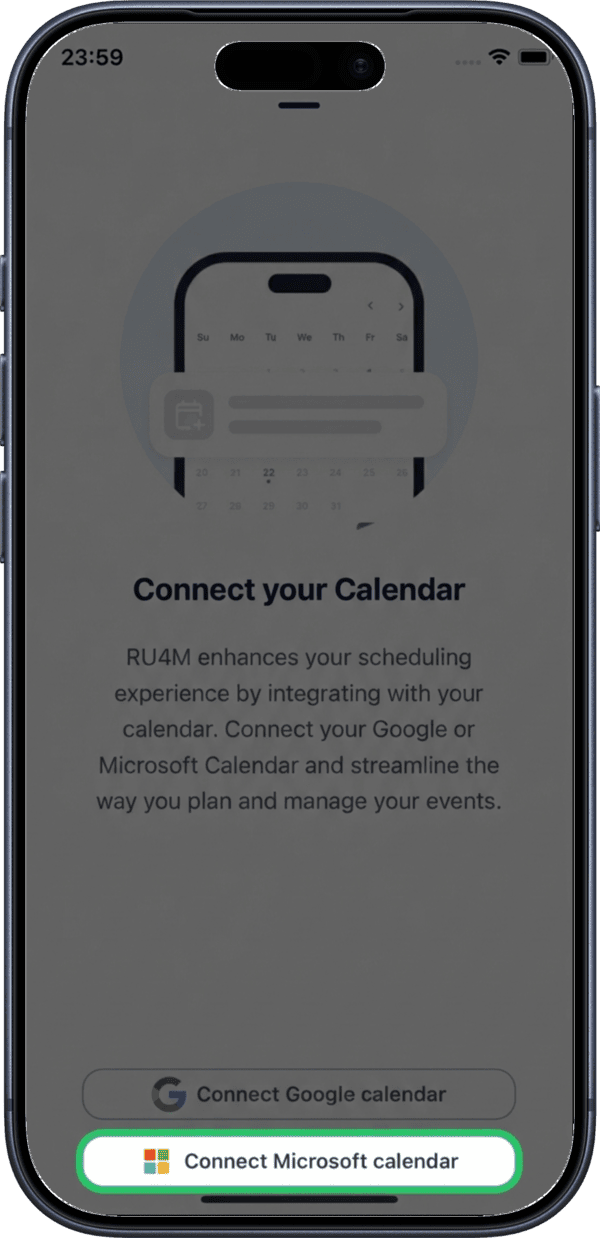
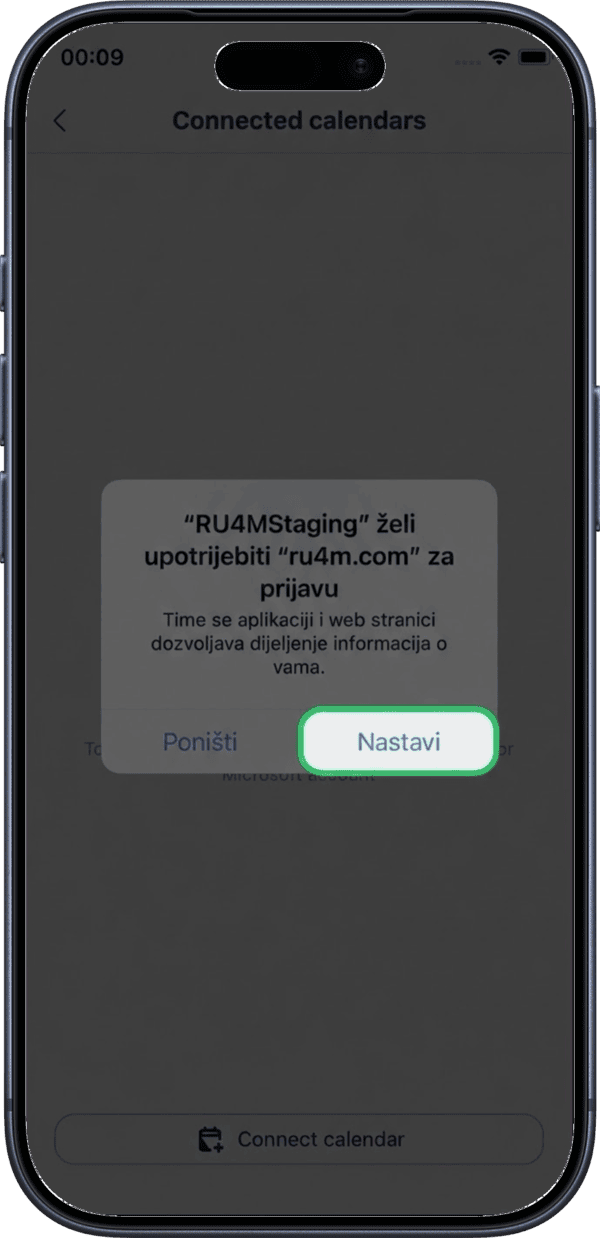
14. Allow permissions
Grant the necessary permissions for RU4M to access your Microsoft Calendar.
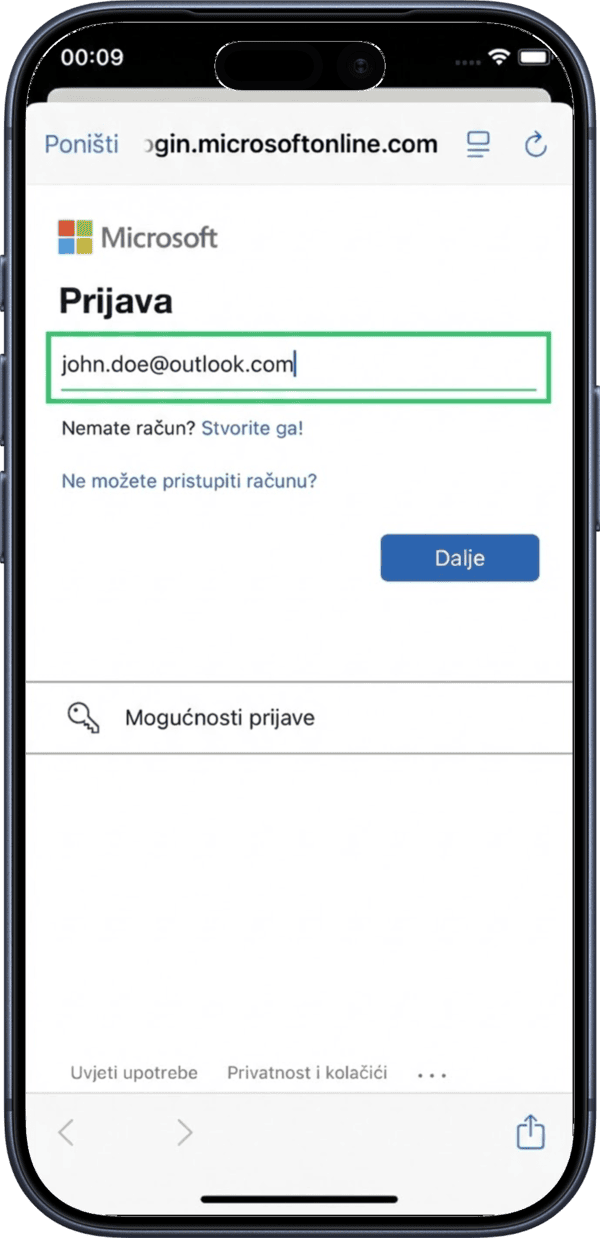
15. Enter your Microsoft email
Enter your Microsoft account email address.
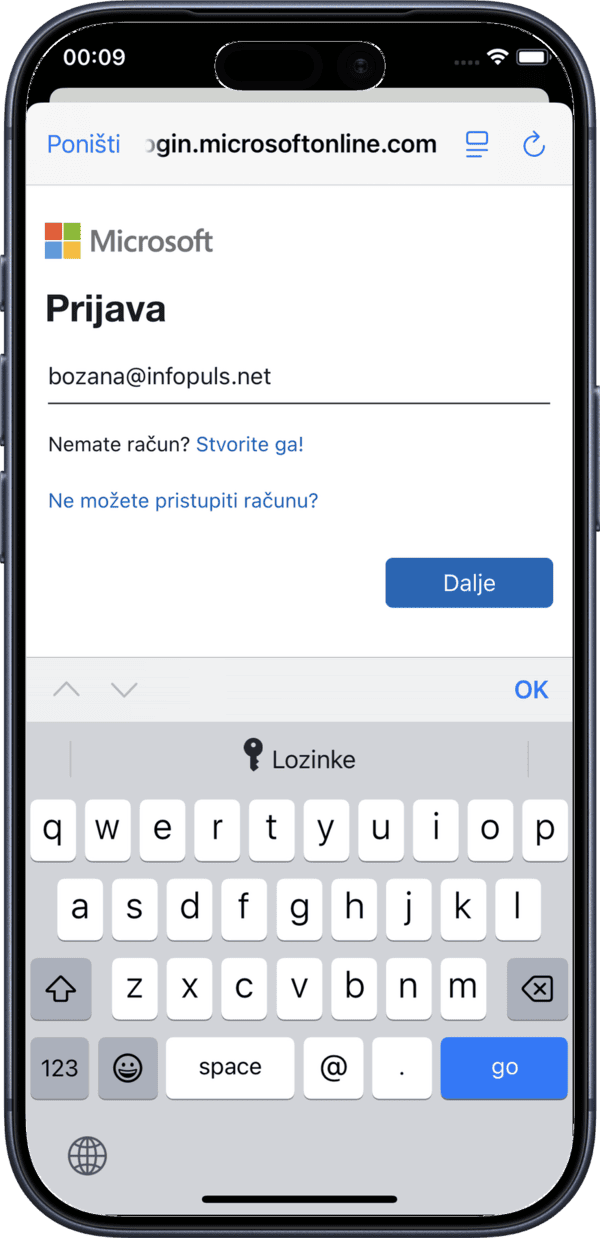
16. Confirm login
Confirm the login to proceed with the Microsoft connection.
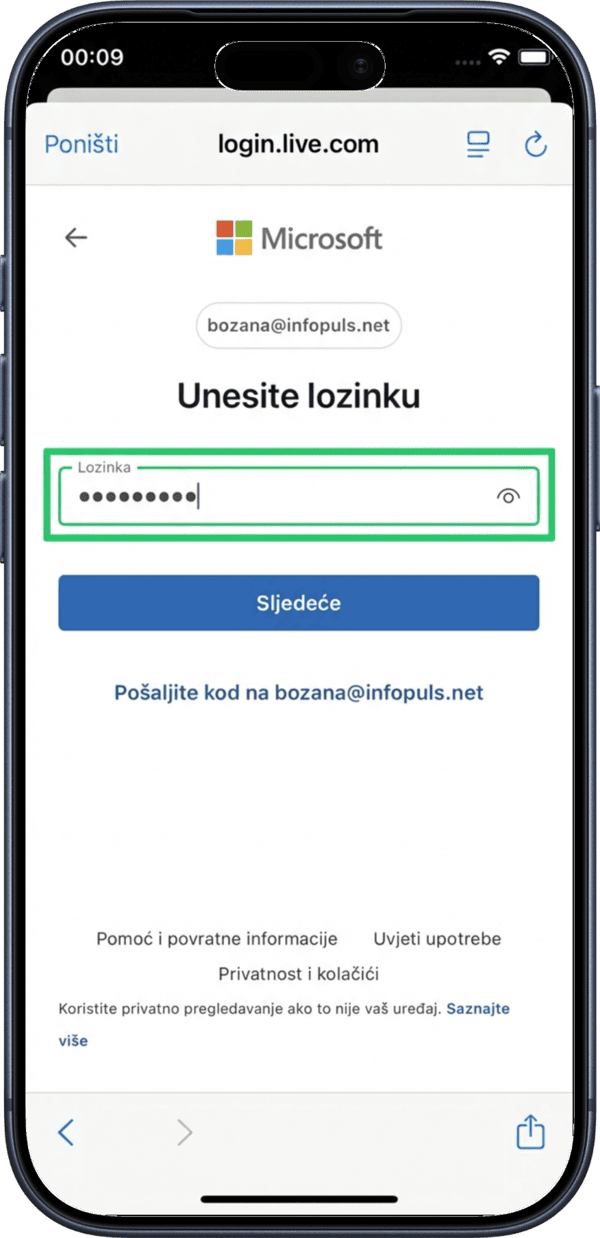
17. Log in with password
Enter your Microsoft account password to authenticate.
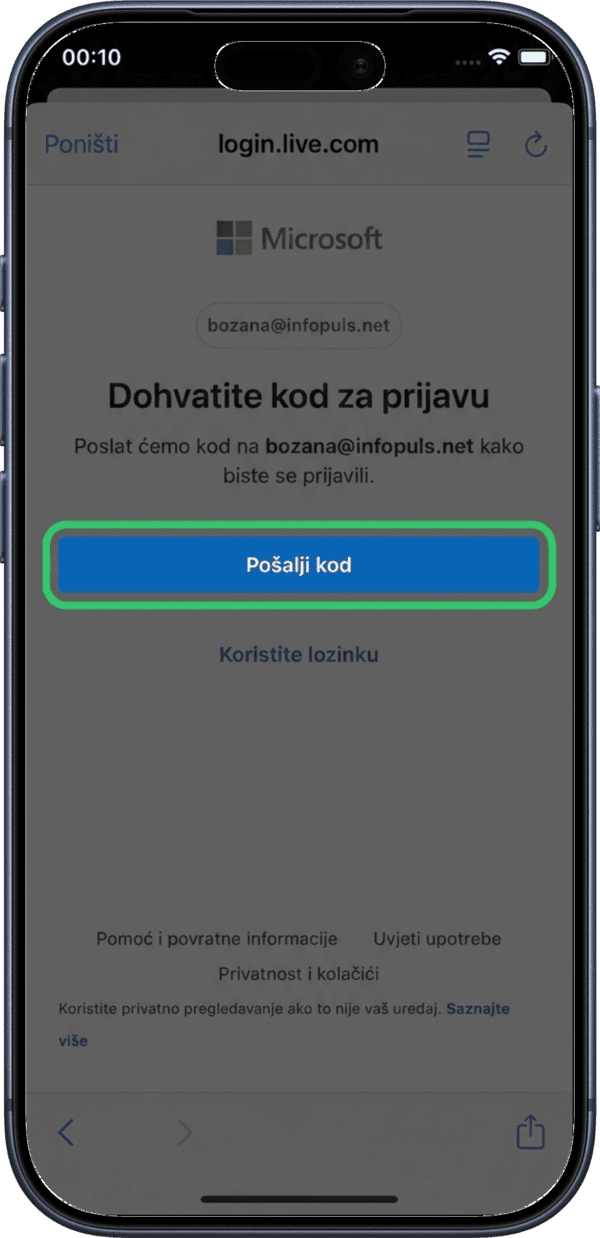
18. Log in with email code
Alternatively, you may be prompted to log in using an email code sent to your inbox.
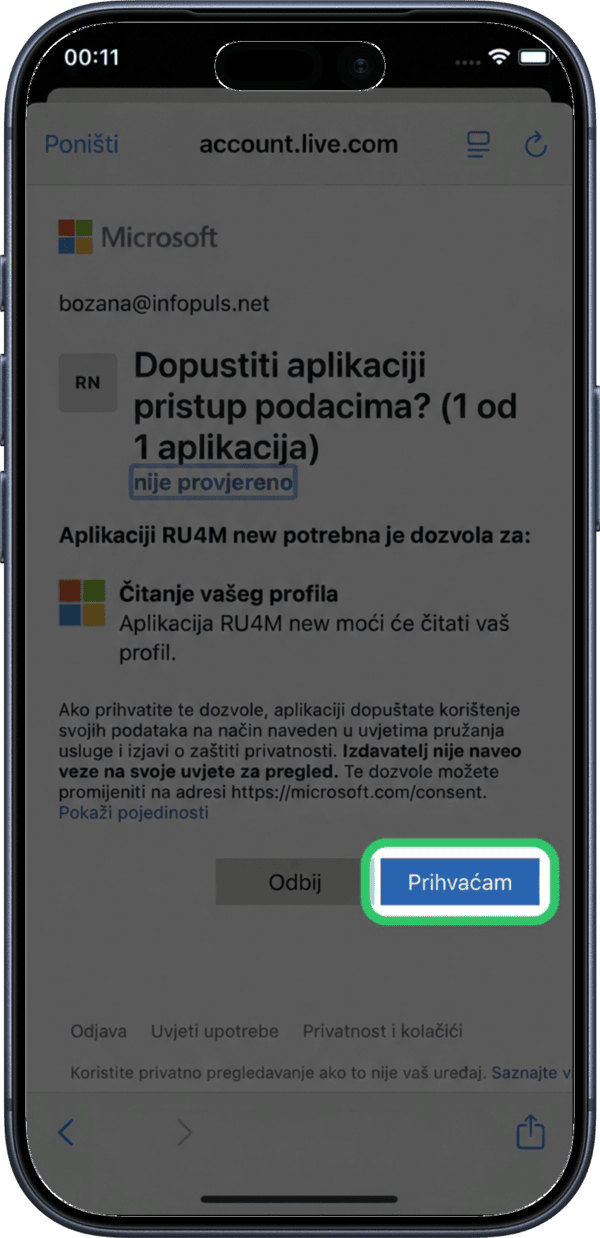
19. Allow calendar access
Allow RU4M to access your Microsoft Calendar data.
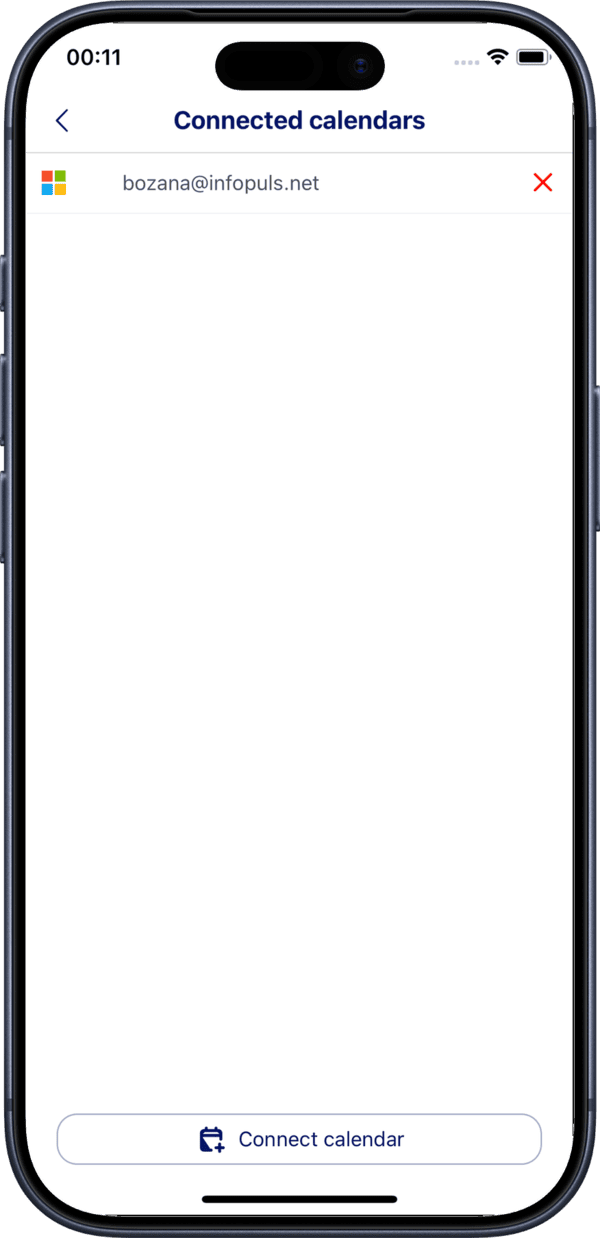
20. Connected successfully
Your Microsoft Calendar is now connected. You will see a confirmation with the connected calendar details.
How Sync Works
- Two-way sync — Meetings created in RU4M appear in your external calendar, and external events are visible in RU4M
- Automatic updates — Changes to meetings are synced automatically
- Multiple calendars — You can connect both Google and Microsoft calendars at the same time
Keep calendars in sync
Connecting your external calendar ensures you never double-book. All your RU4M meetings will appear alongside your other events.
Sync frequency
Calendar sync happens periodically. Changes may take a few minutes to appear across platforms.