Create a Meeting
Schedule professional meetings with other RU4M users. Set the title, time, participants, and location — then send the meeting request.
Prerequisites
- A registered RU4M account
- At least one connection or know the user you want to meet
Steps
1. Tap the create button
On the Calendar screen, tap the + (plus) button to start creating a new meeting.
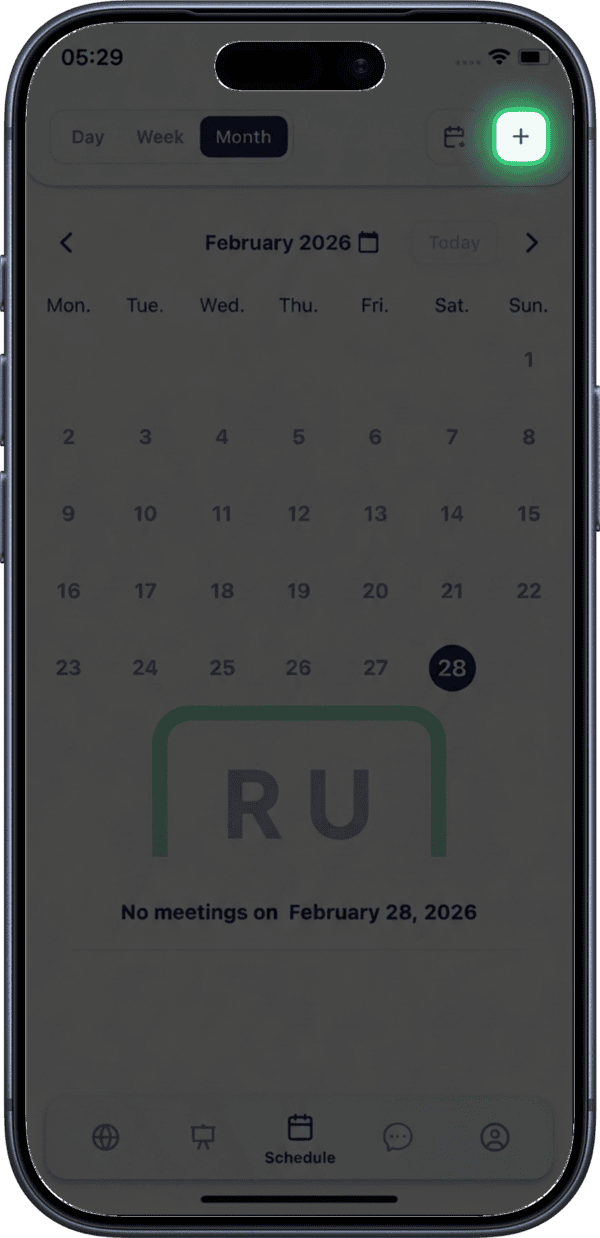
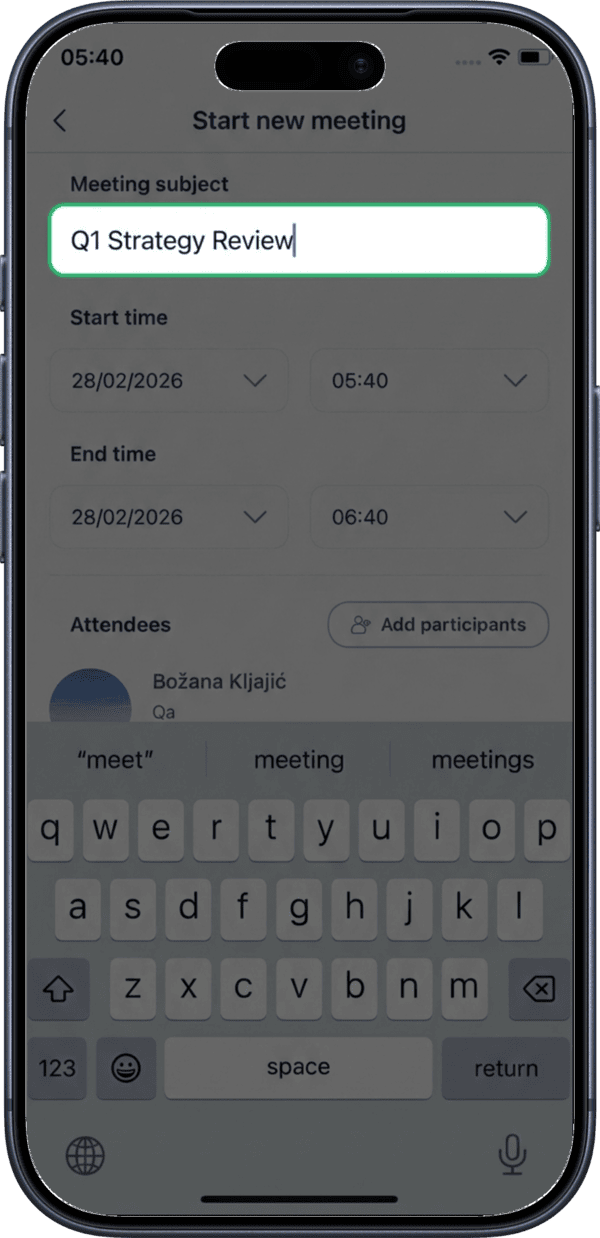
2. Enter meeting title
Type a descriptive title for your meeting.
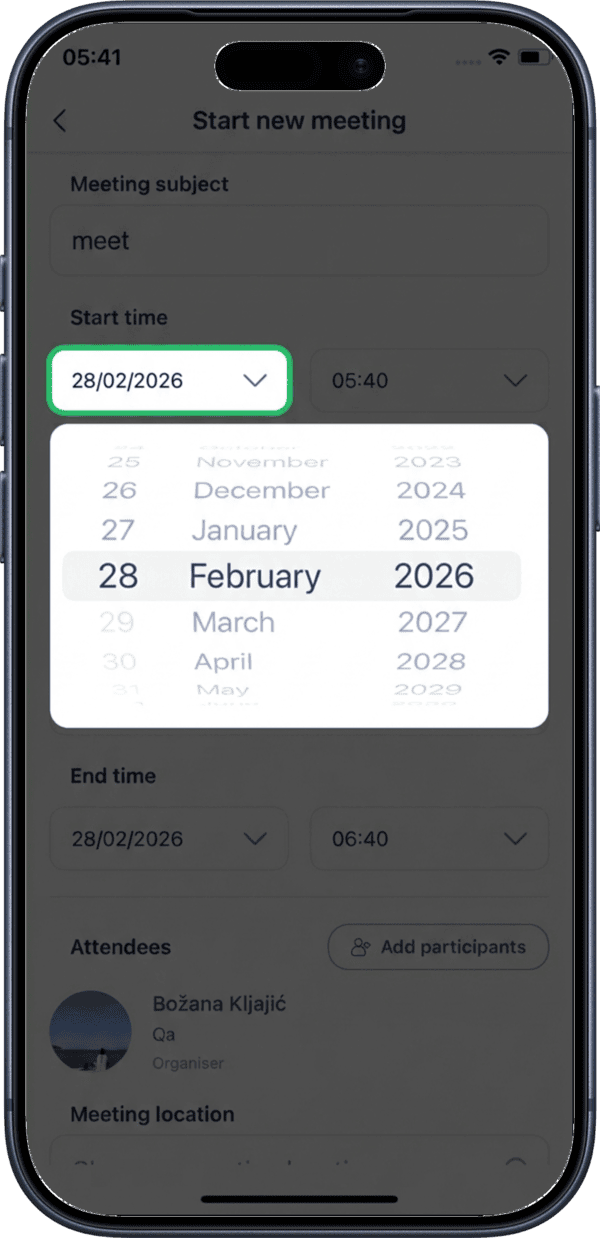
3. Select start date
Choose the start date for your meeting using the date picker.
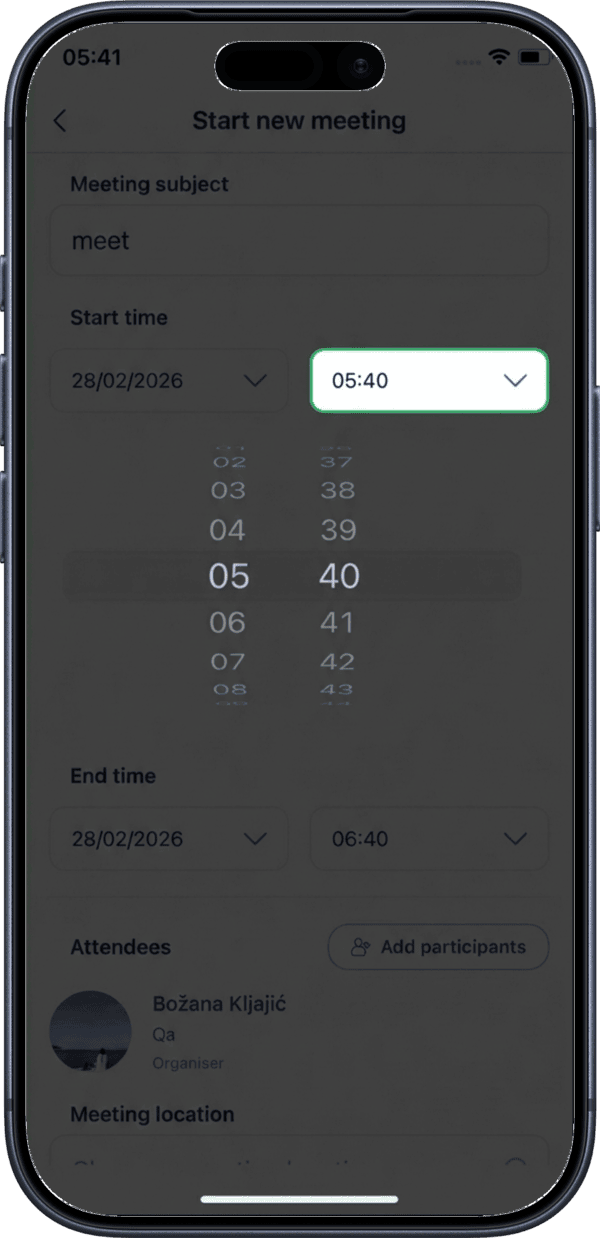
4. Select start time
Choose the start time for your meeting.
5. Select end date
Choose the end date. For same-day meetings, this will match the start date.
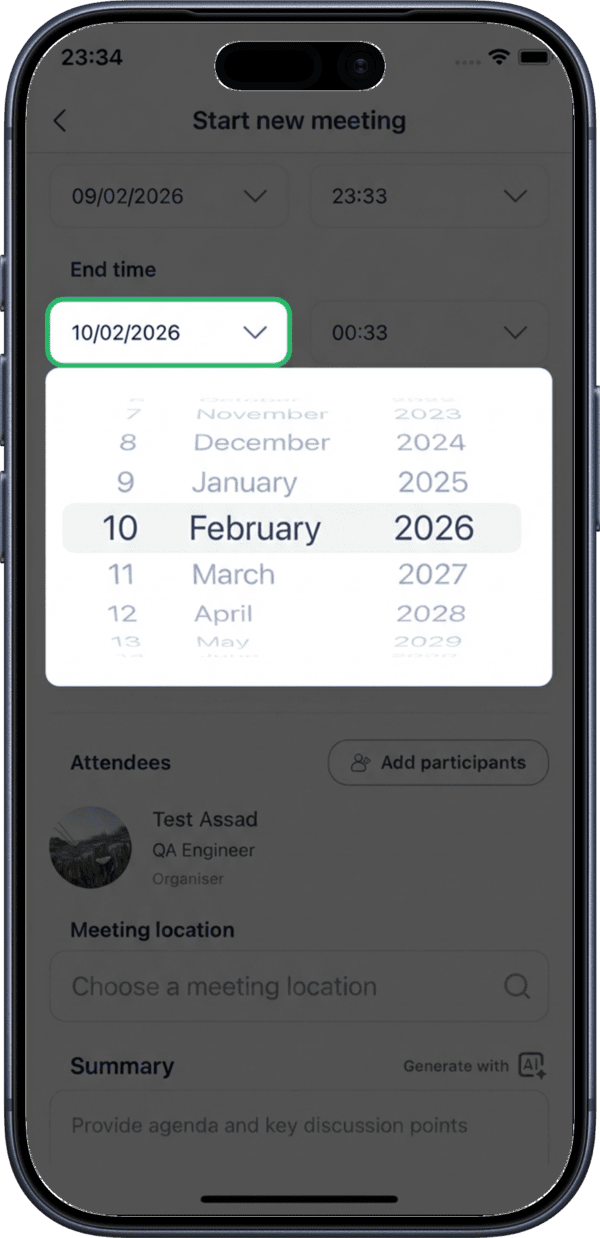
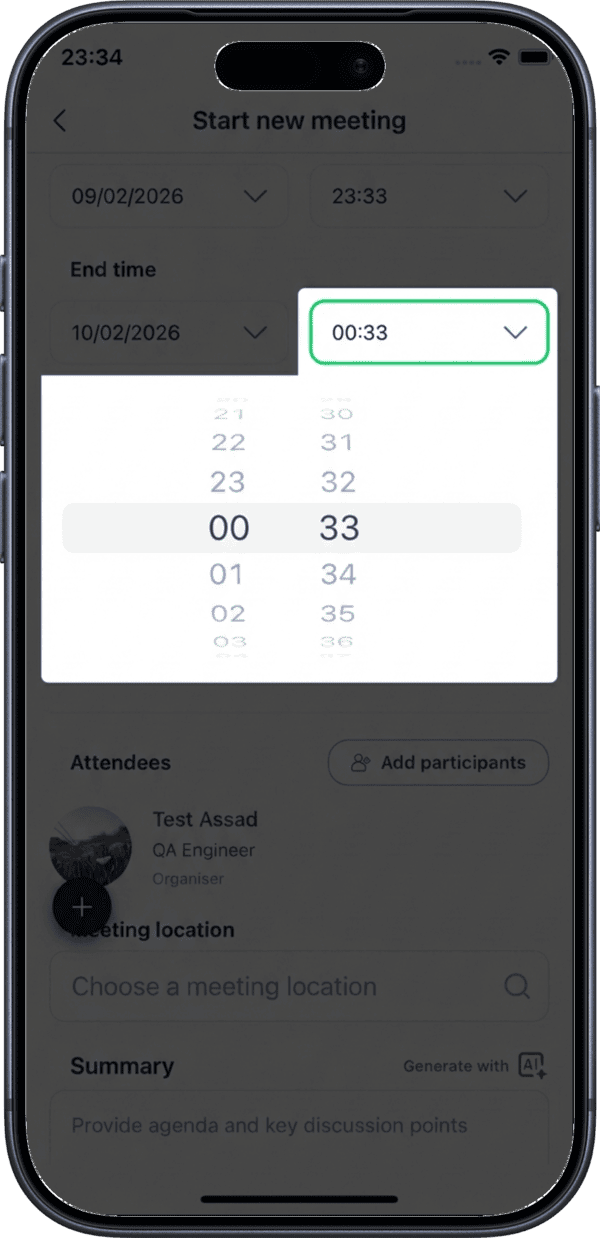
6. Select end time
Choose the end time for your meeting.
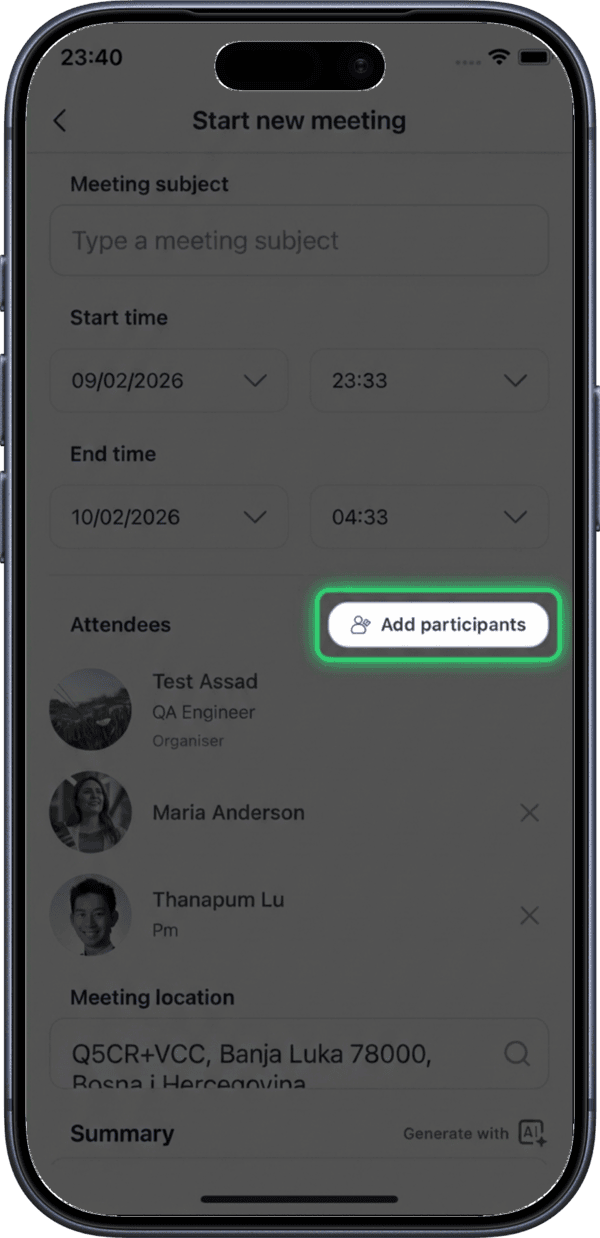
7. Add participants
Tap Add Participants to invite other RU4M users to the meeting.
8. Search for participants
Type a name to search for users you want to invite.
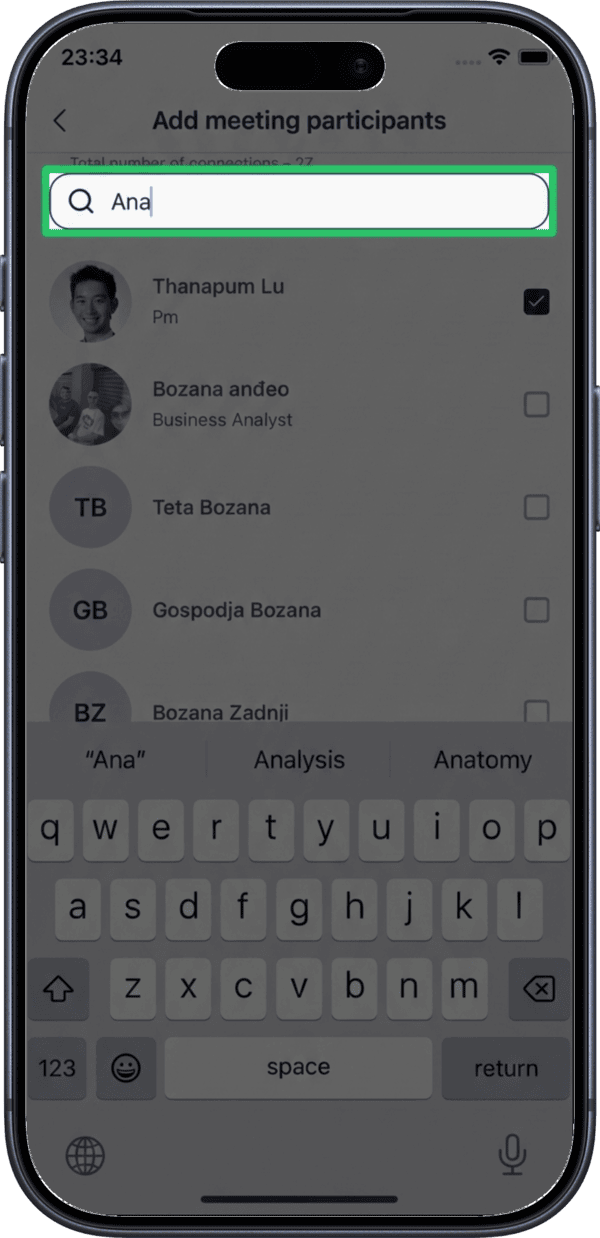
9. Select participants
Tap on users from the search results to add them as meeting participants.
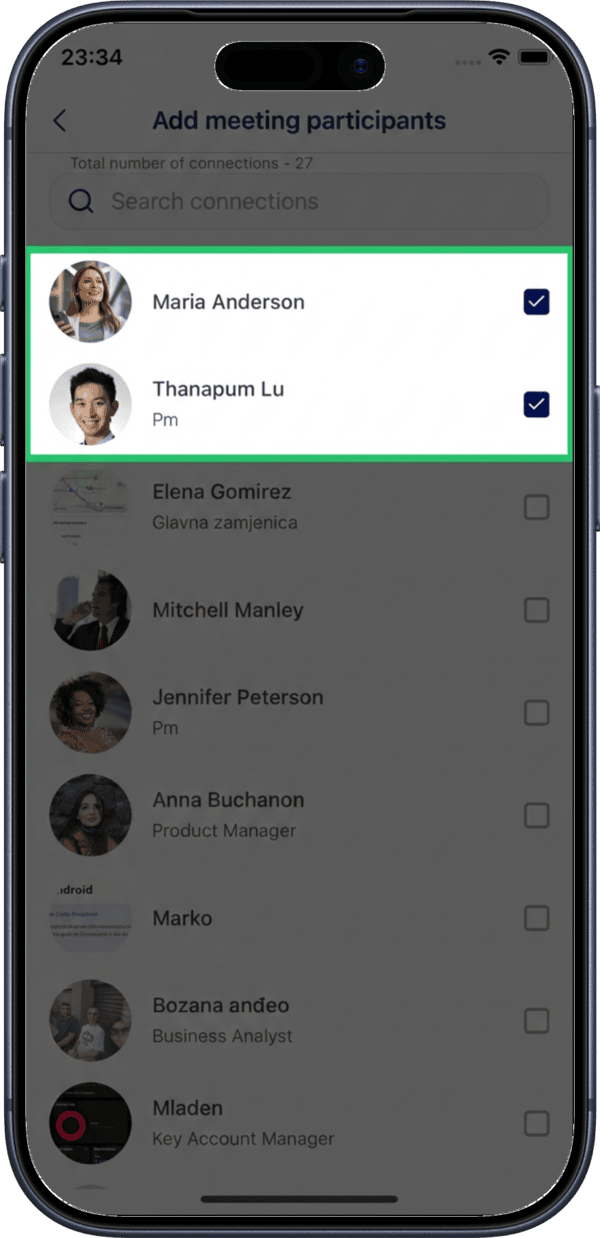
10. Tap Choose Location
Tap Choose Location to set a meeting place.
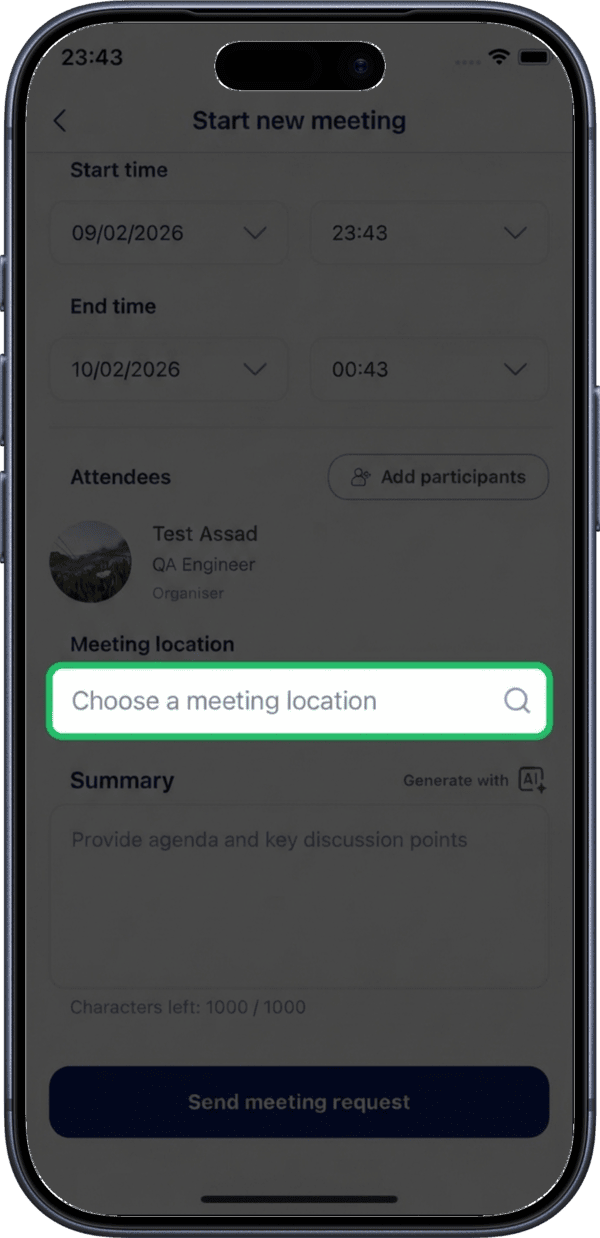
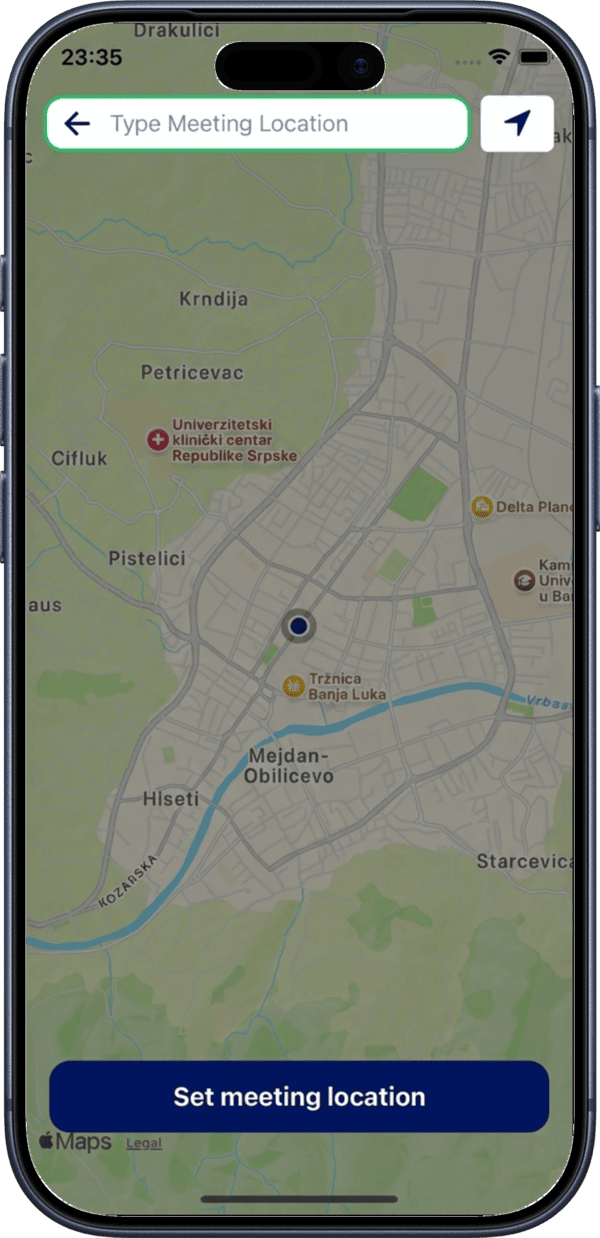
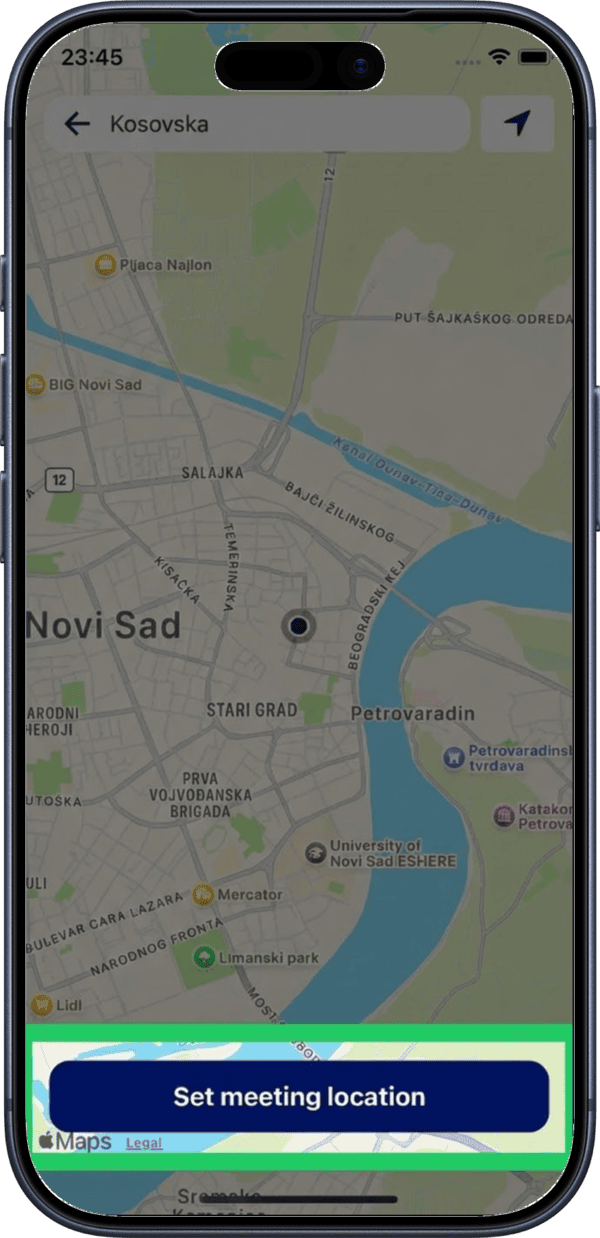
11. View the location map
The map opens showing your current area. You can pan and zoom to find the meeting spot.
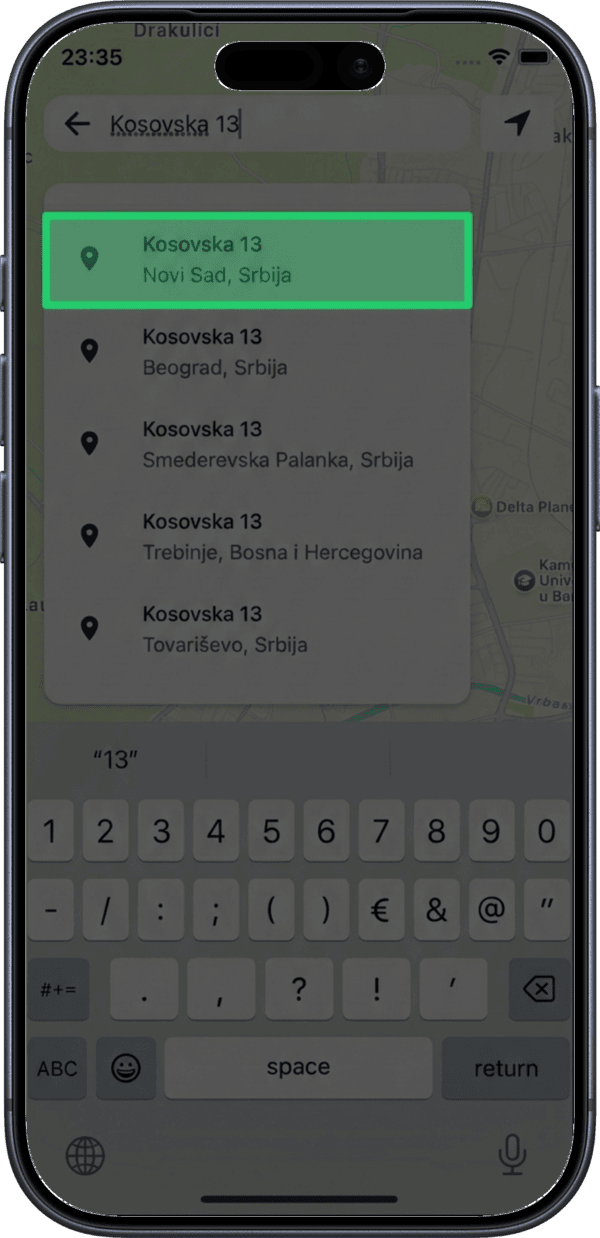
12. Search for a location
Use the search bar to find a specific address or venue.
13. Tap Set Meeting Location
Once you have found the right spot on the map, tap Set Meeting Location to confirm.
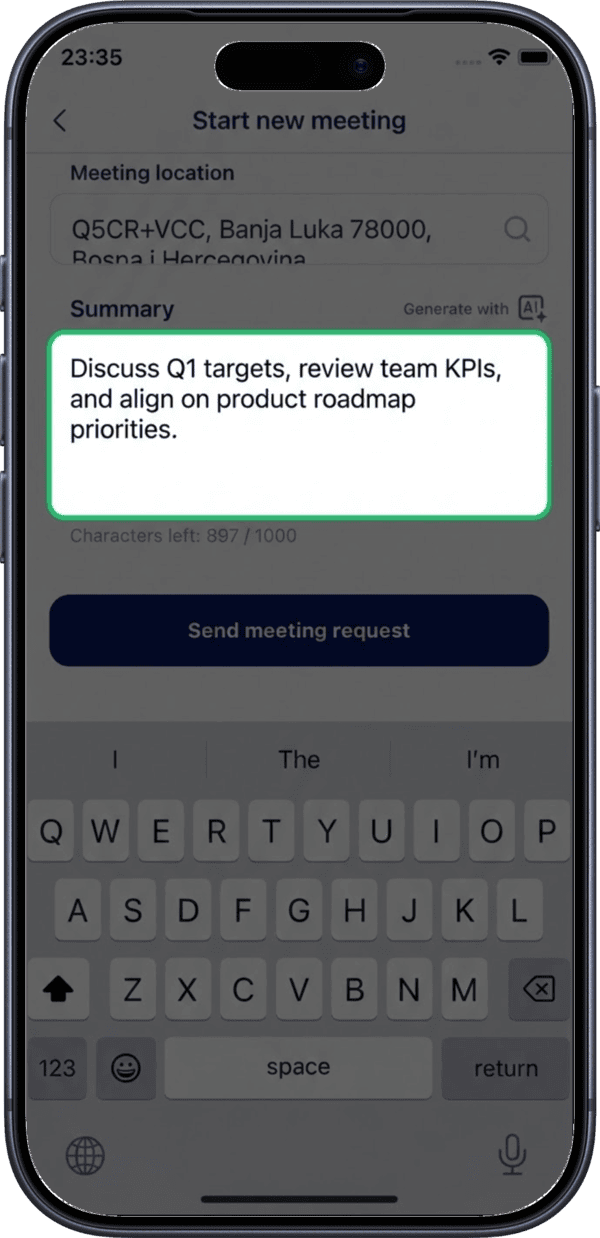
14. Review the summary
Review all meeting details on the summary screen before sending.
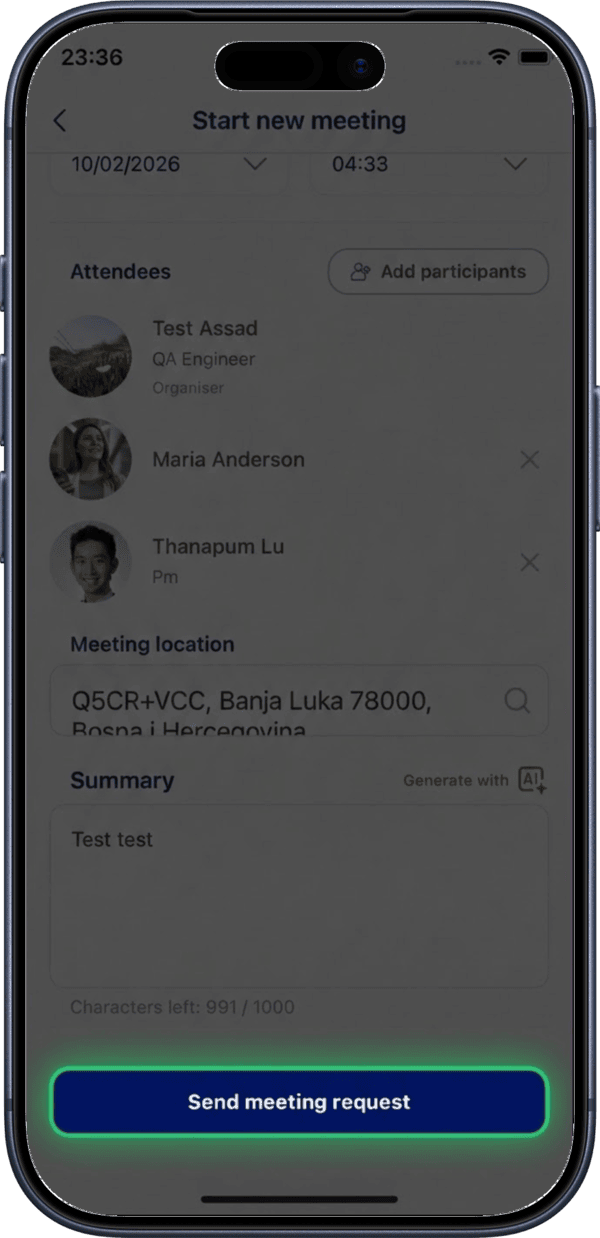
15. Send meeting request
Tap Send Meeting Request to confirm and send invitations to all participants.
After Creating
- Invited users will receive a notification about the meeting
- The meeting appears on your calendar and each participant's calendar
- Participants can accept, decline, or propose a different time — see Meeting Details
- You can sync meetings to external calendars via Calendar Integration
Meeting Location
Setting a location helps your participants find the meeting point. You can type any address or select a spot directly on the map.